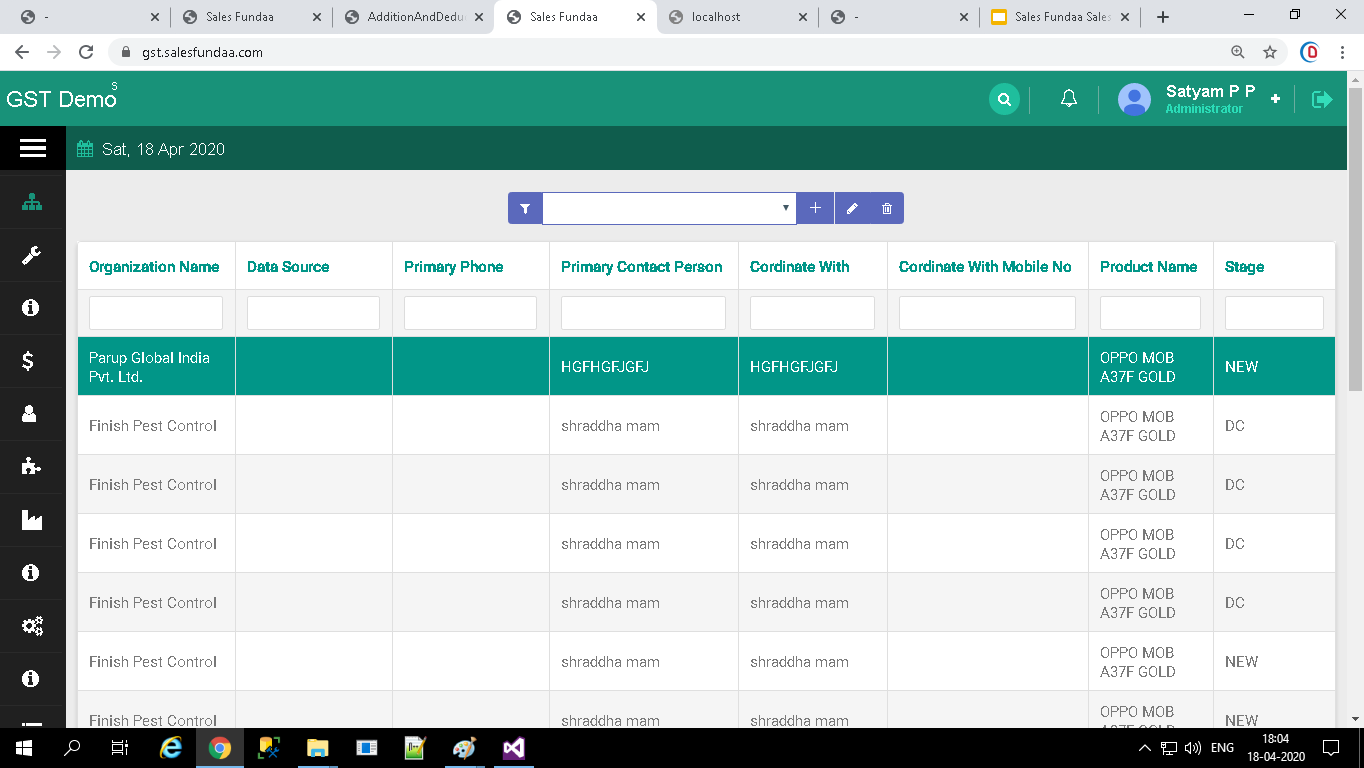
Sales
Where Sales models are used while adding new organization and View it,add Contacts,view Enquiry,view Quotation,view sales order
(Click on Sales )Organization
Expand Sales Tab For Organization
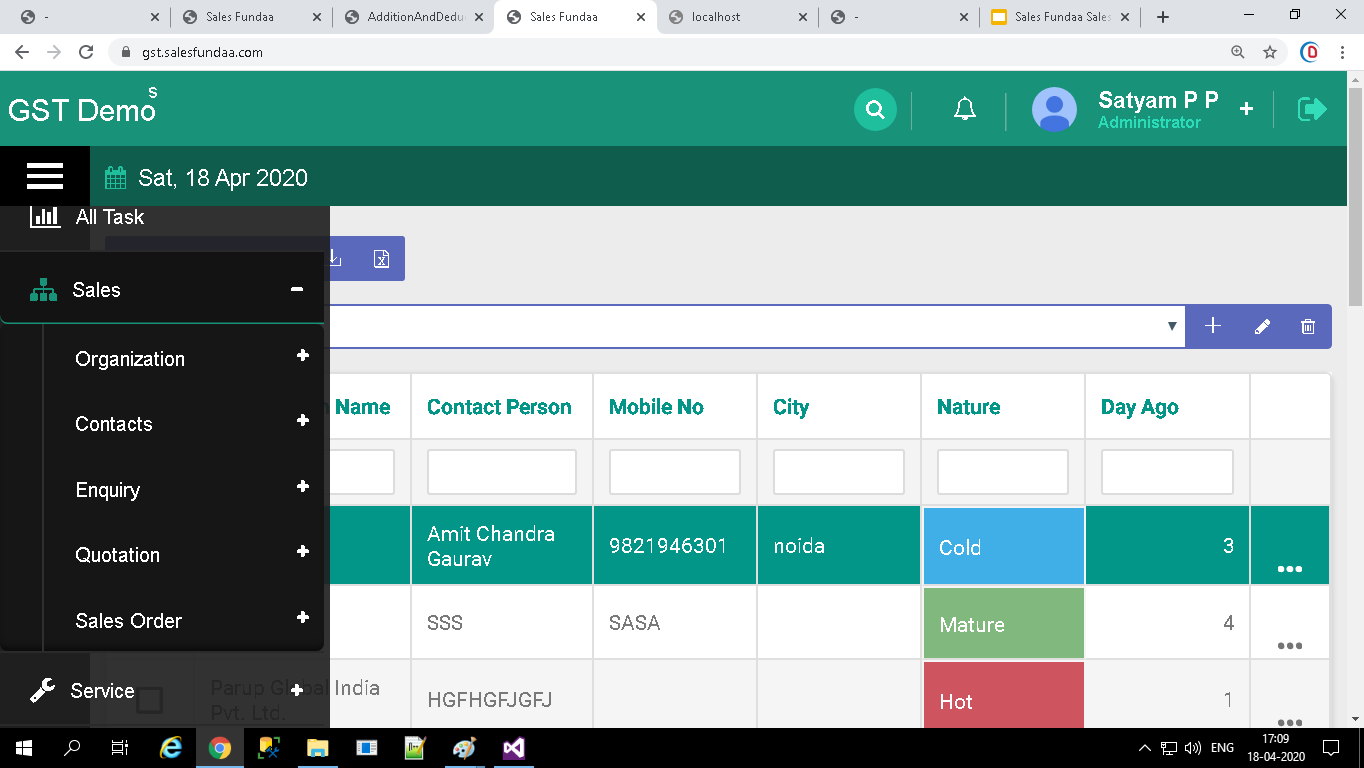
In Sales Tab
- Organization Tab
- Contacts Tab
- Enquiry Tab
- Quotation Tab
- Sales Order Tab
Expand Organization Tab
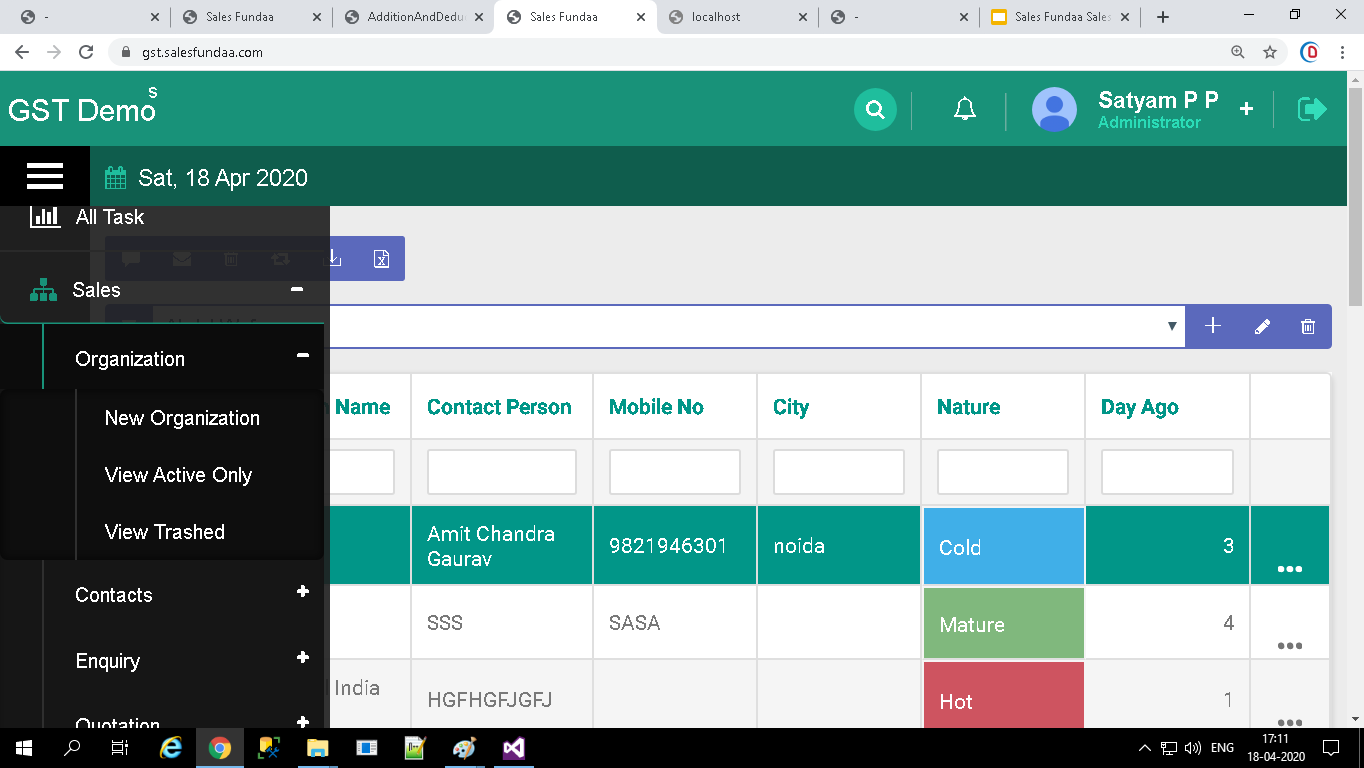
- New Organization Tab
- View Active only Tab
- View Trashed Tab
New Organization
Click on New Organization Tab
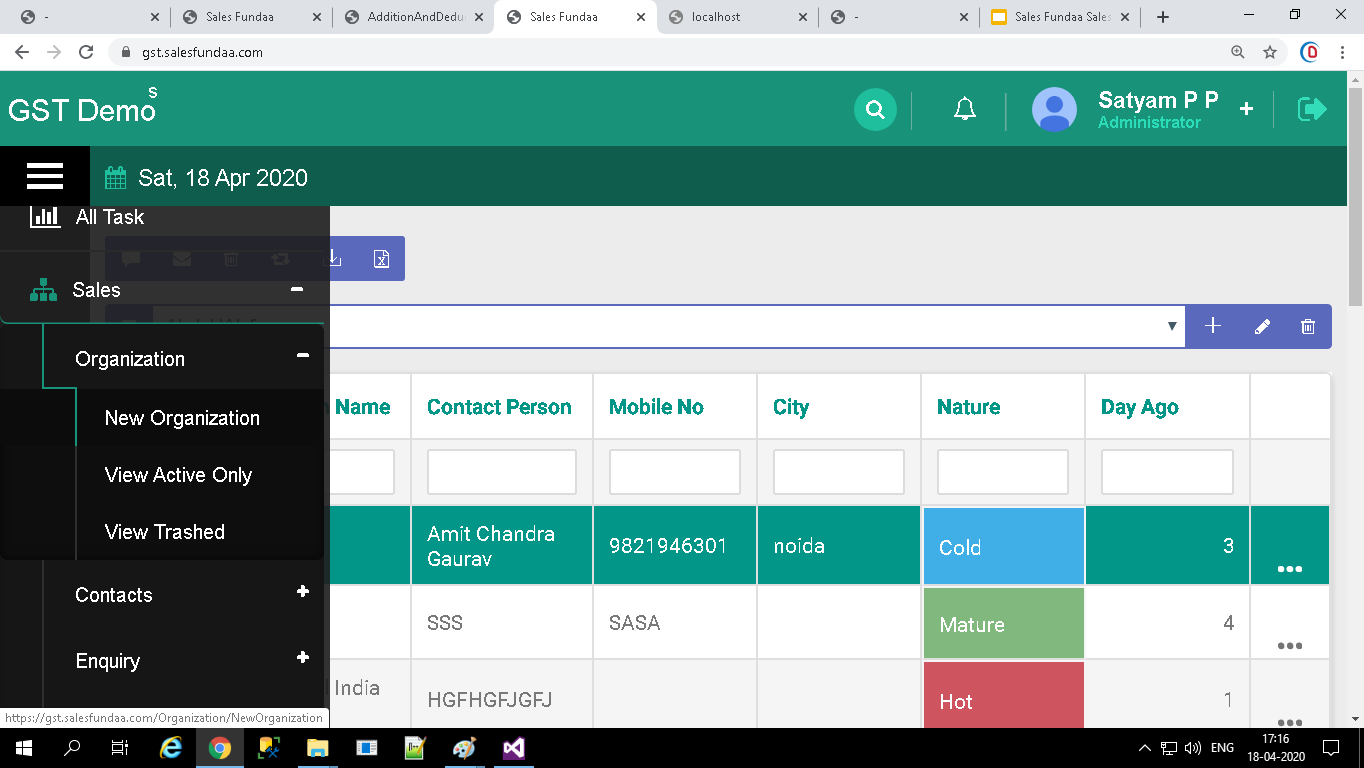
Creating New Organization
You can enter Organization details from Organization Module. This might come handy if you will have to enter Organization details
Creating New Organization
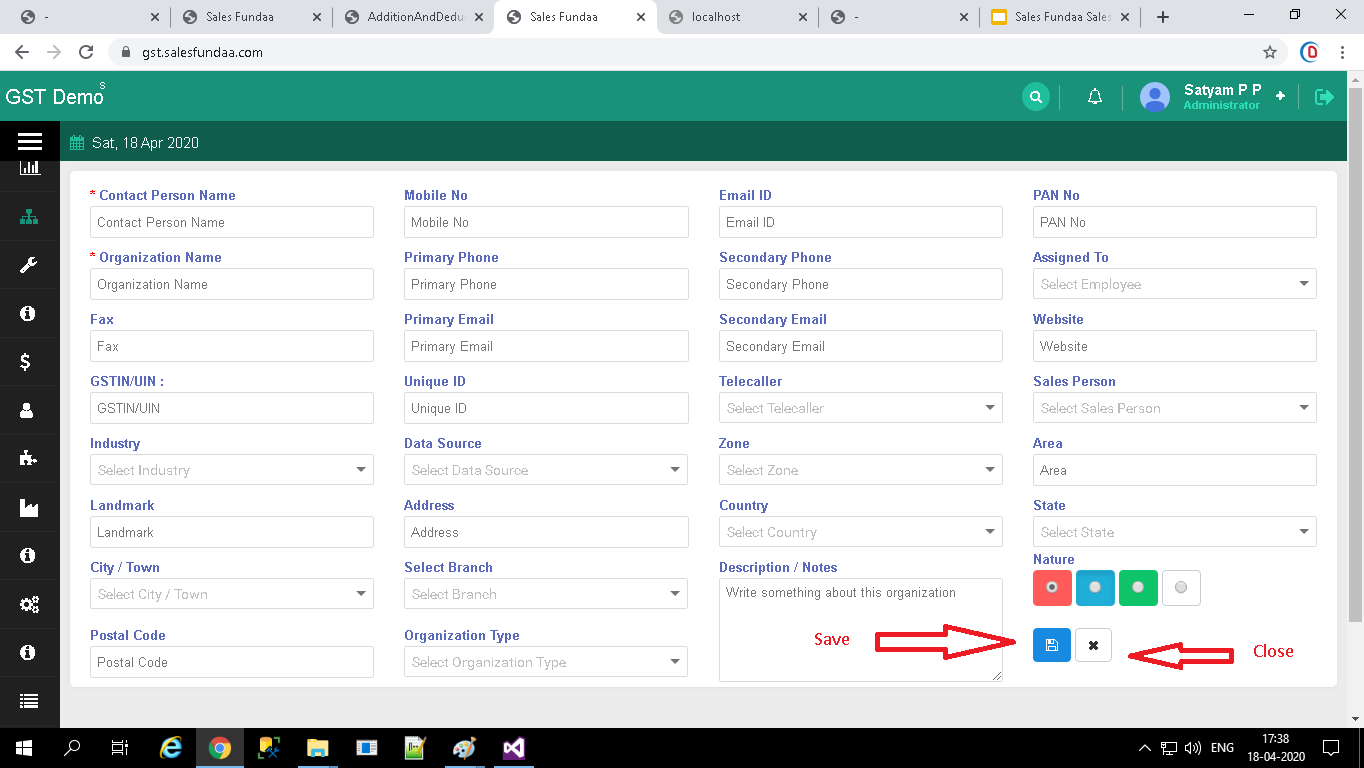
Steps to create New Organization records manually
- In Organization module, click on New Organization Tab
- In the Create Organization view, fill in the Organization details
- Click Save
Fill the detail of Organization and save it
View Active only
Click on View Active only to View Organization List
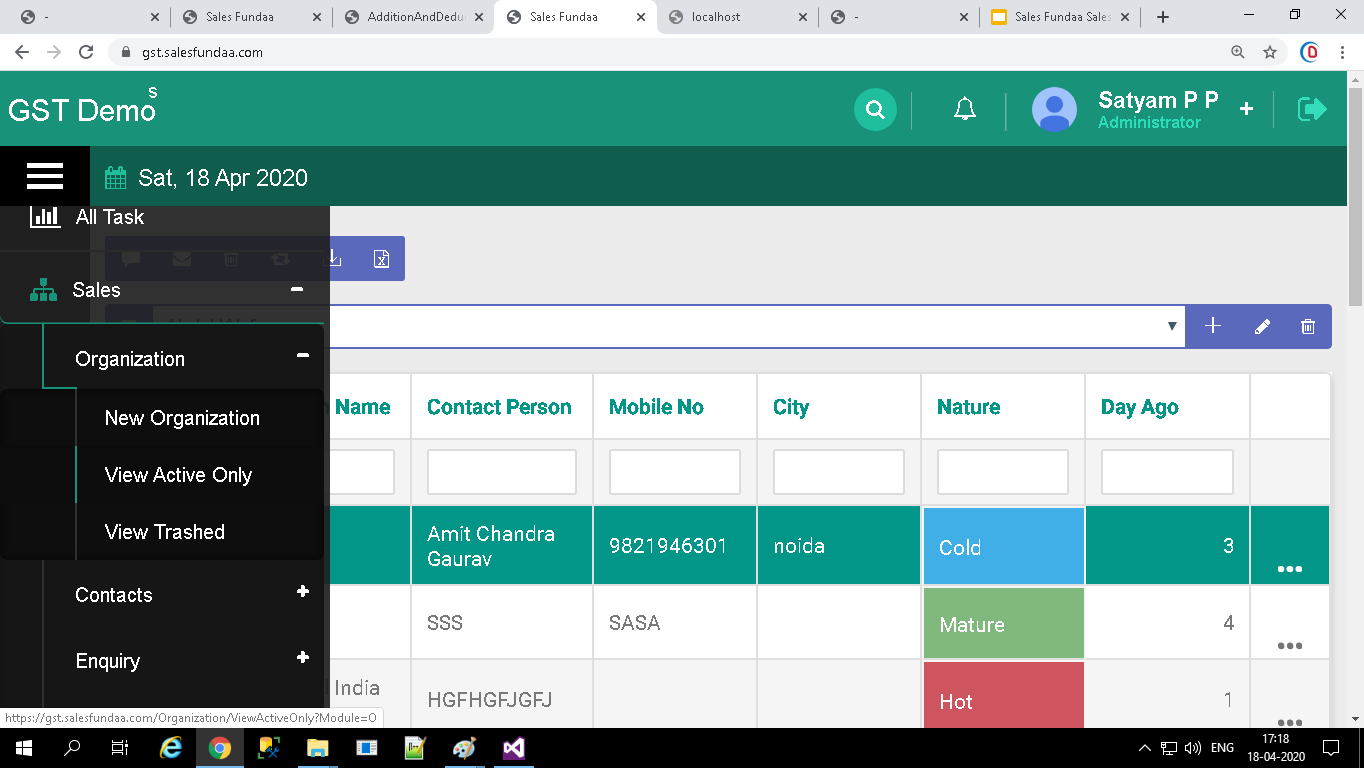
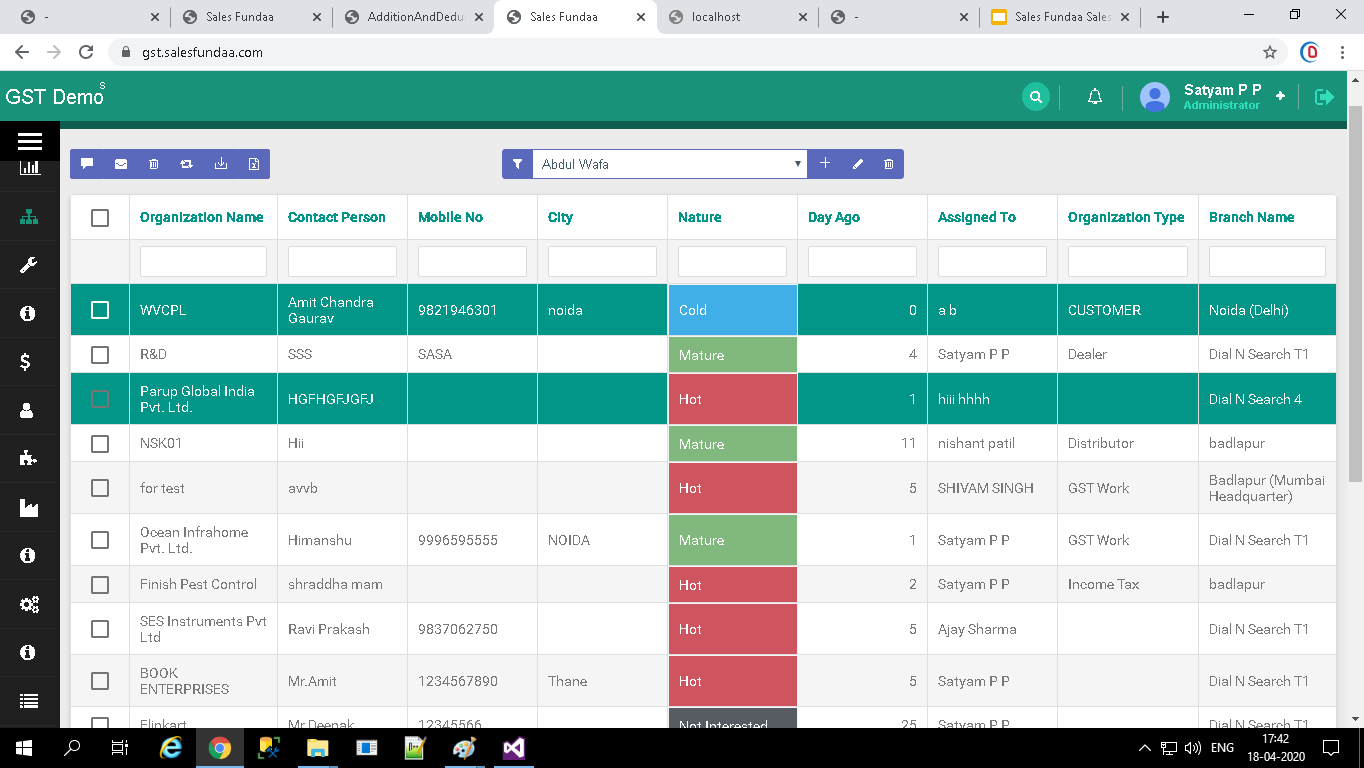
View Organization List
You can View Organization List from Organization Module. This might come handy if you will View Active only Organization List .
It is show only Active Organization List
Steps to Organization detail records through Quick
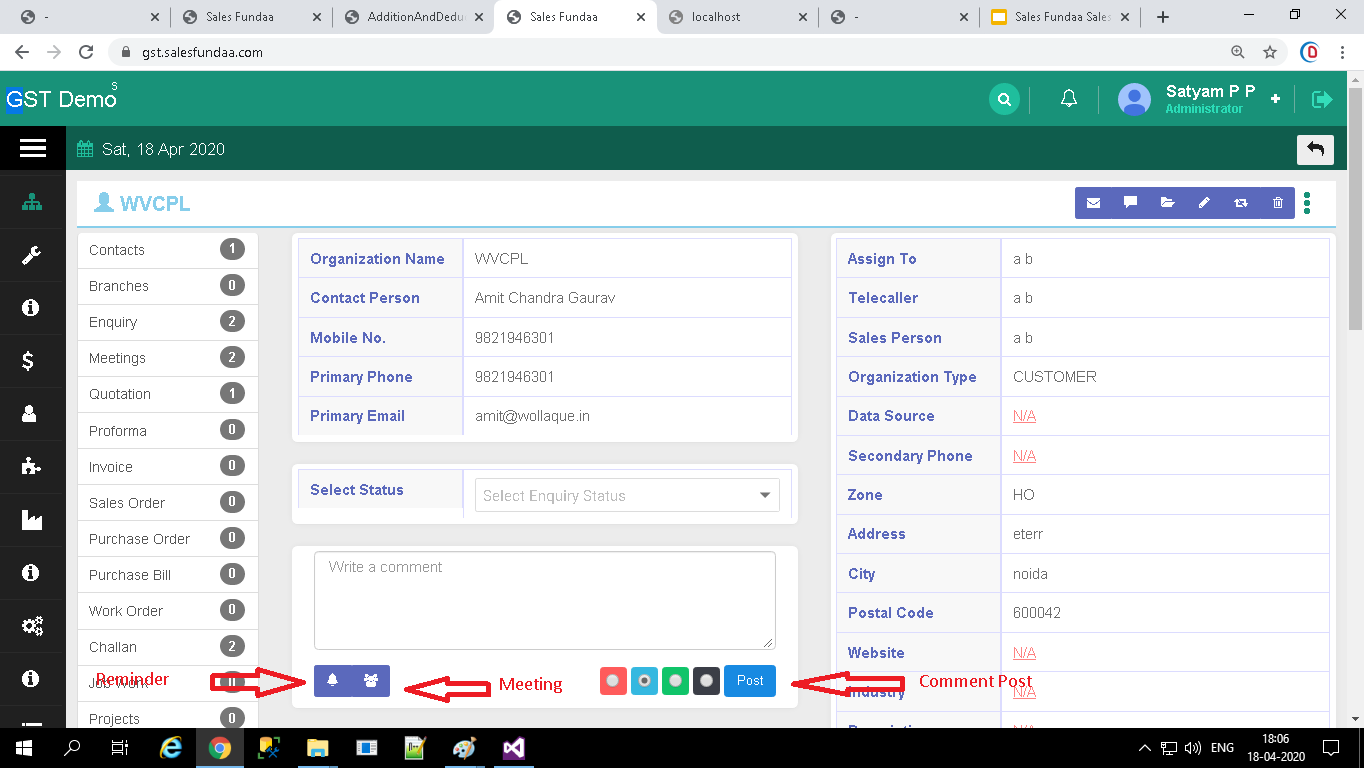
Double Click on Organization List
- It show Organization Detail Page
- In the Organization Detail Page view, Select Status,Set Reminder and Schedule Meeting
- Write Comment on Organization Detail page
Double click on Organization List you get Organization in detail
Click on View Trashed
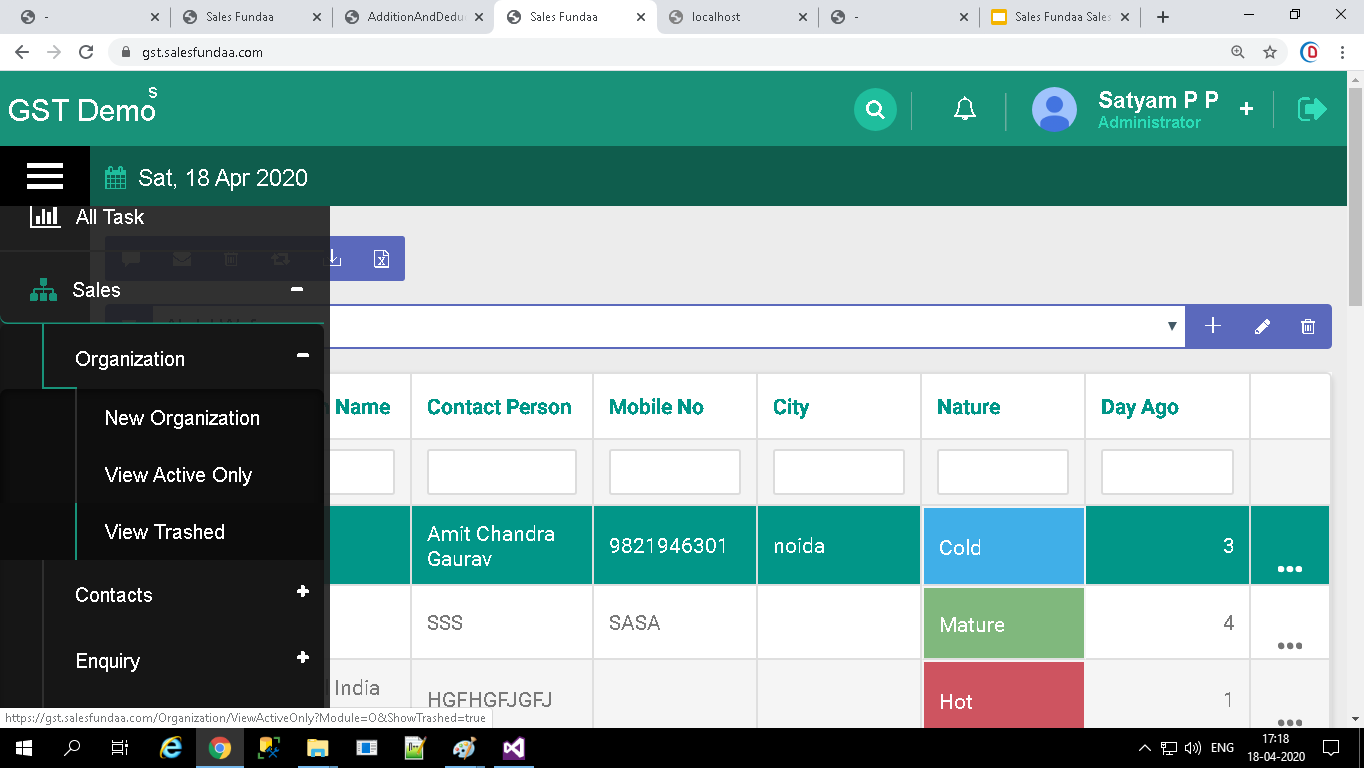
View Trashed Organization List
You can View Trashed Organization List from Organization Module. This might come handy if you will View deleted only Organization List.
It is Display only Deleted Organization List
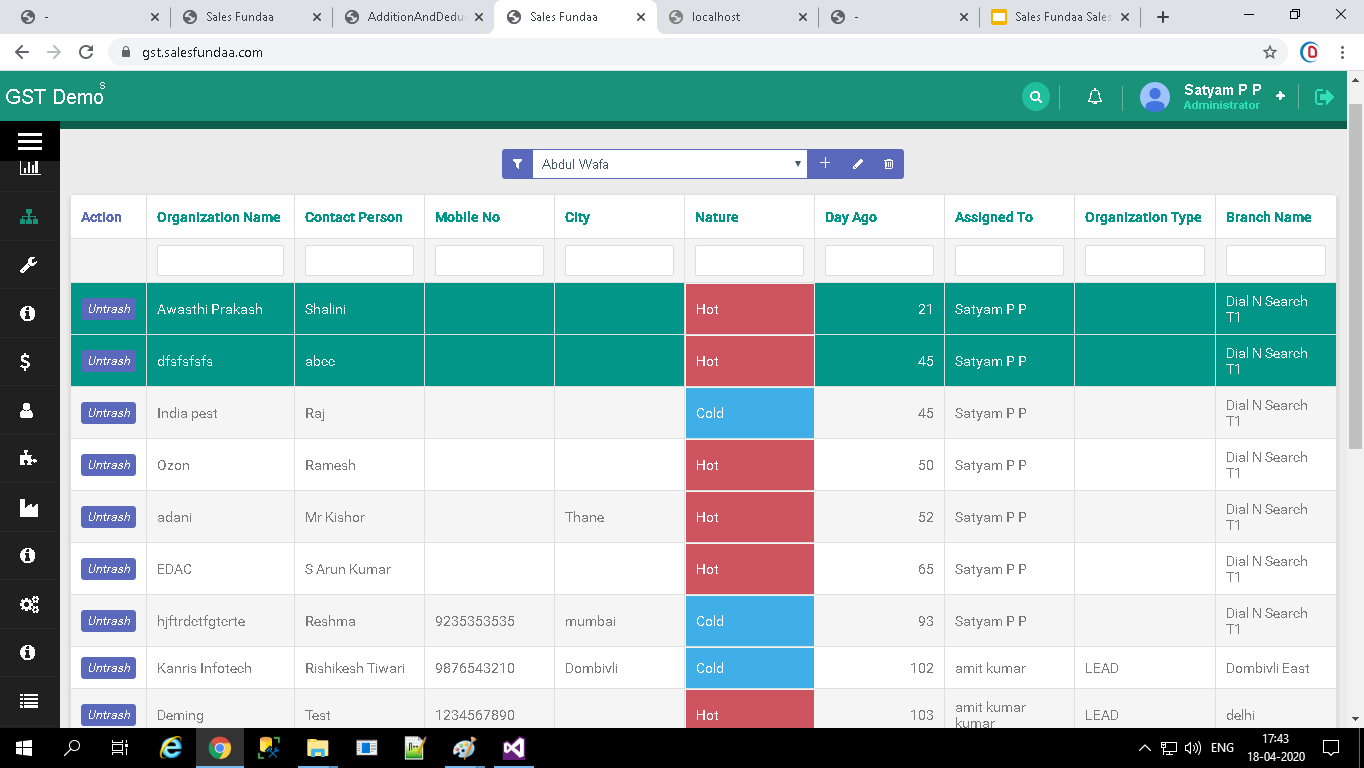
Expand Sales Tab For Contacts
Expand Contacts Tab
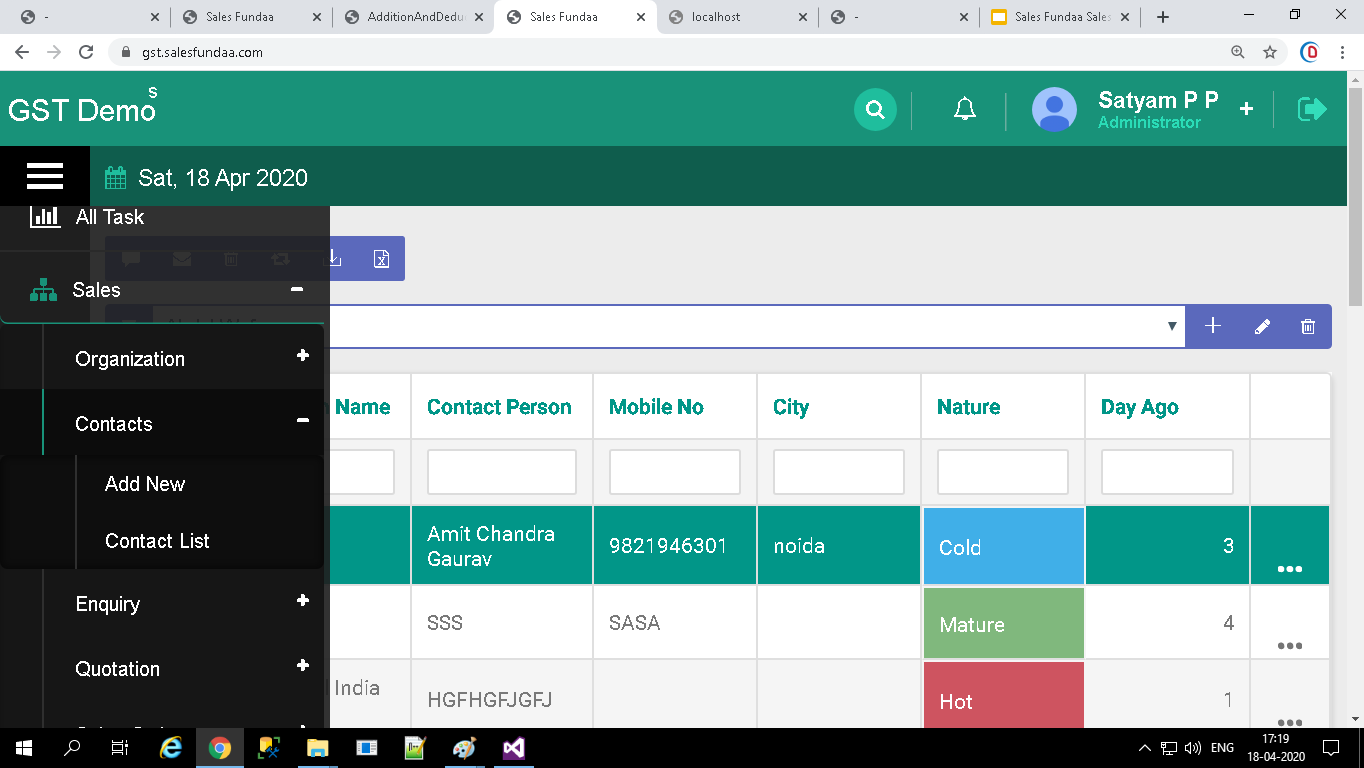
In Contacts Tab
- Add NewTab
- Contacts List Tab
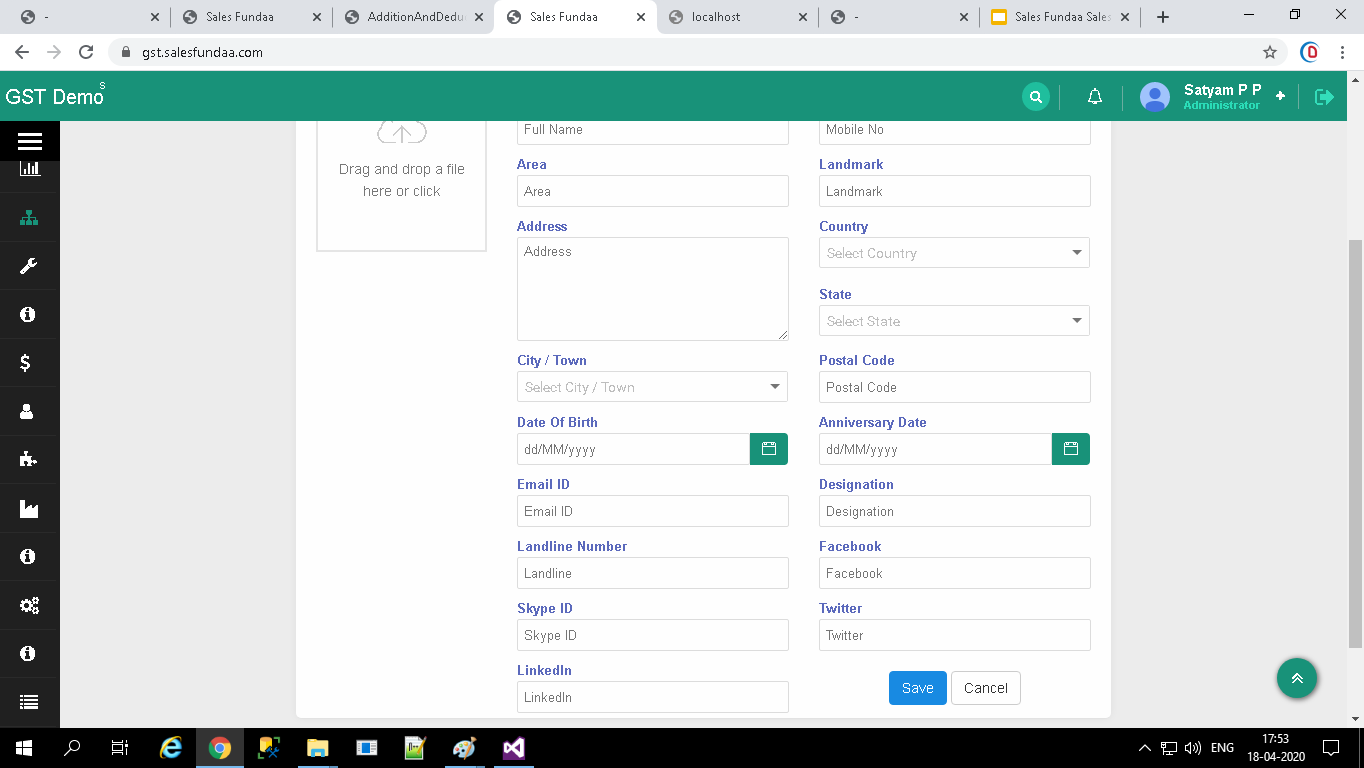
Click on Add New Tab To Add New Contacts detail
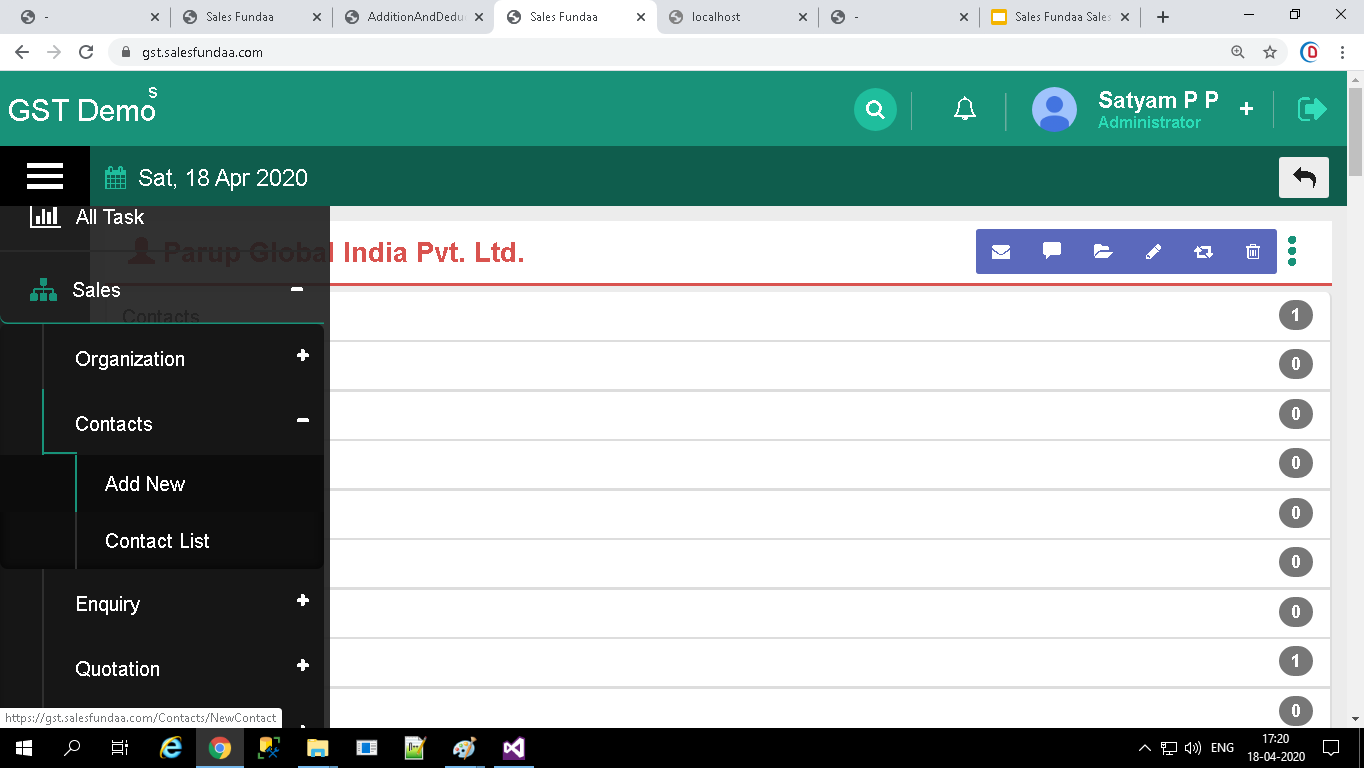
Creating Contacts
You can enter Contact details from Contacts Module. This might come handy if you will have to enter Contact details individually.
Steps to create Contact records manually
- In Contacts module, click on Add Contact button
- In the Create Contact view, fill in the Contact details
- Click Save
Fill the Details of Contact
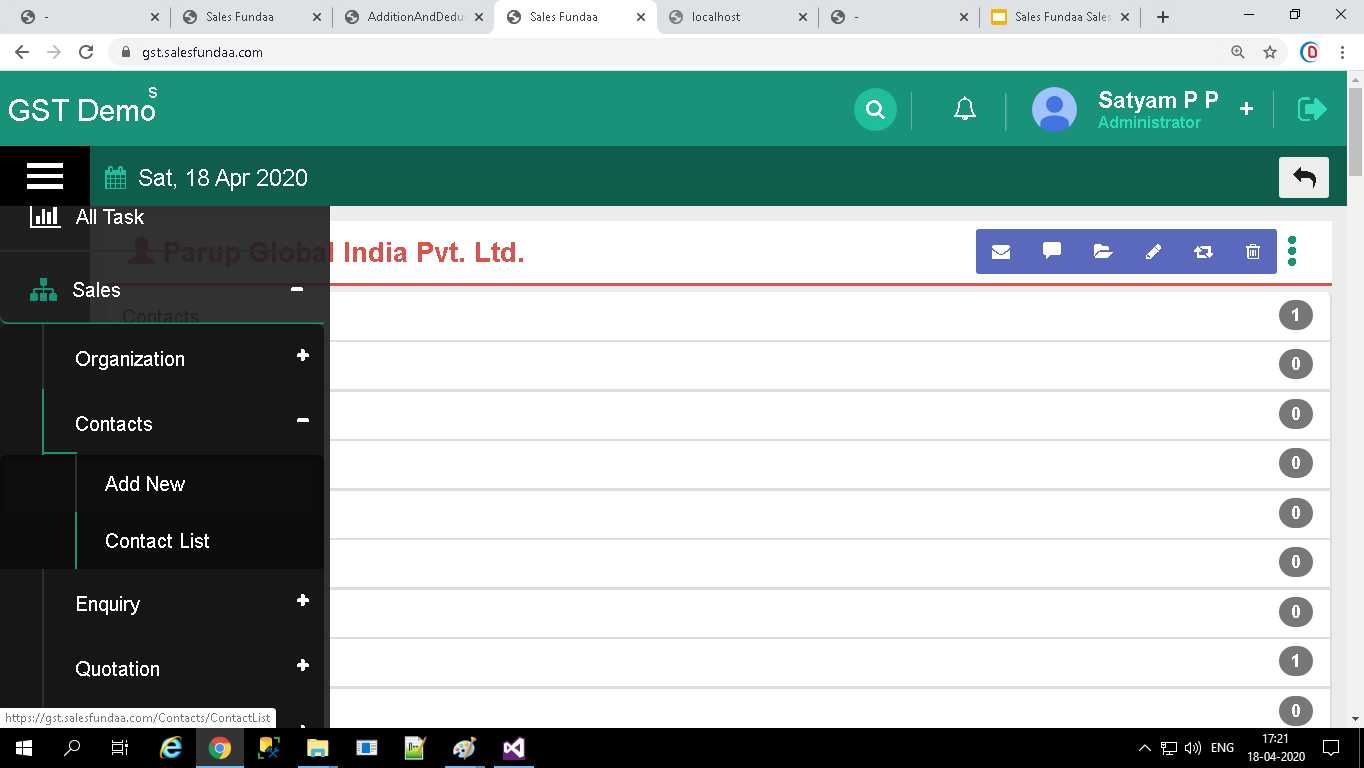
Click on Contact List To Display Contact List
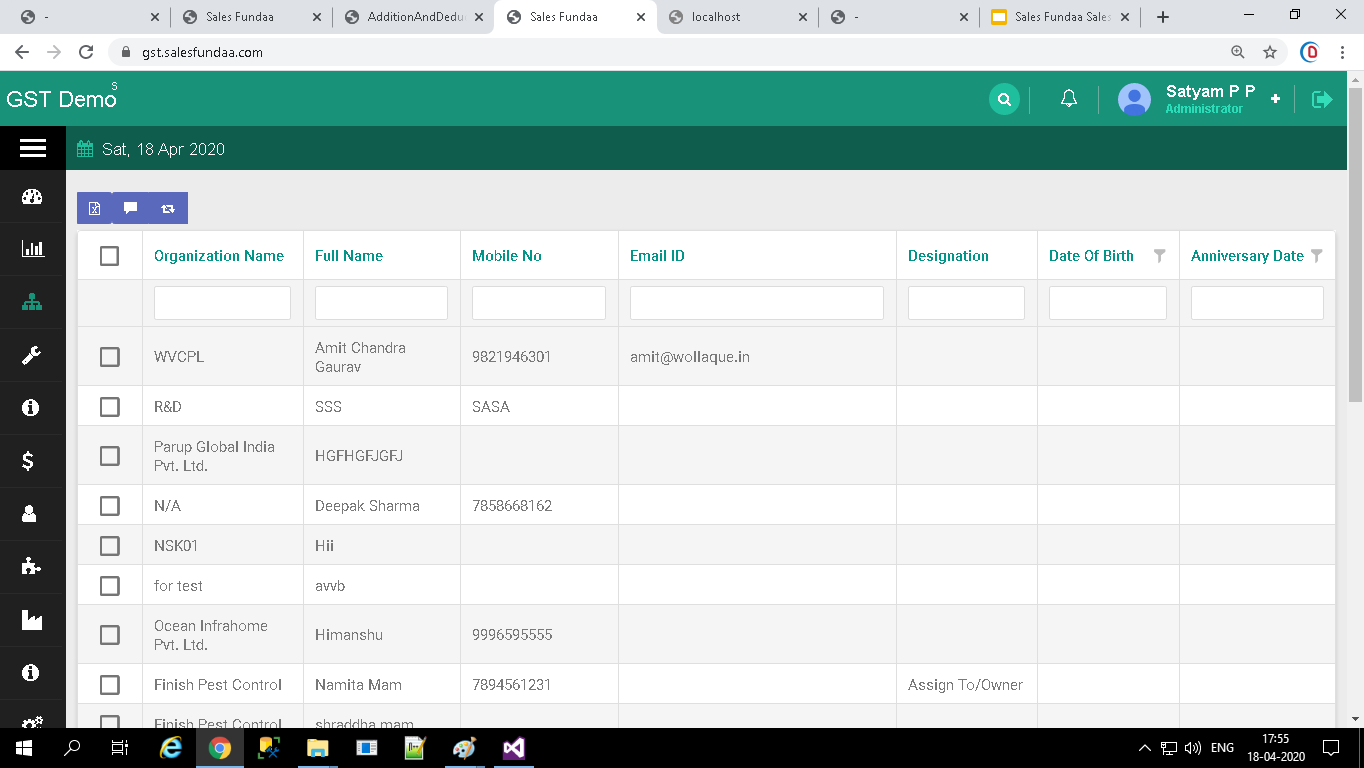
View Contact List
You can View Contact List from Contact Module. This might come handy if you will View Contact List .
Double Click on Contact List get To Contact Detail Page
Steps to Contact detail records through Quick
Double Click on Contact List
- It show Contact Detail Page
- In the Contact Detail Page view,Edit Contact Detail, Add Bank Details,Add Consent Form ,Add Destination ,Set Reminder and Schedule Meeting
- Write Comment on Contact Detail page
Expand Sales Tab For Enquiry
Expand Enquiry Tab
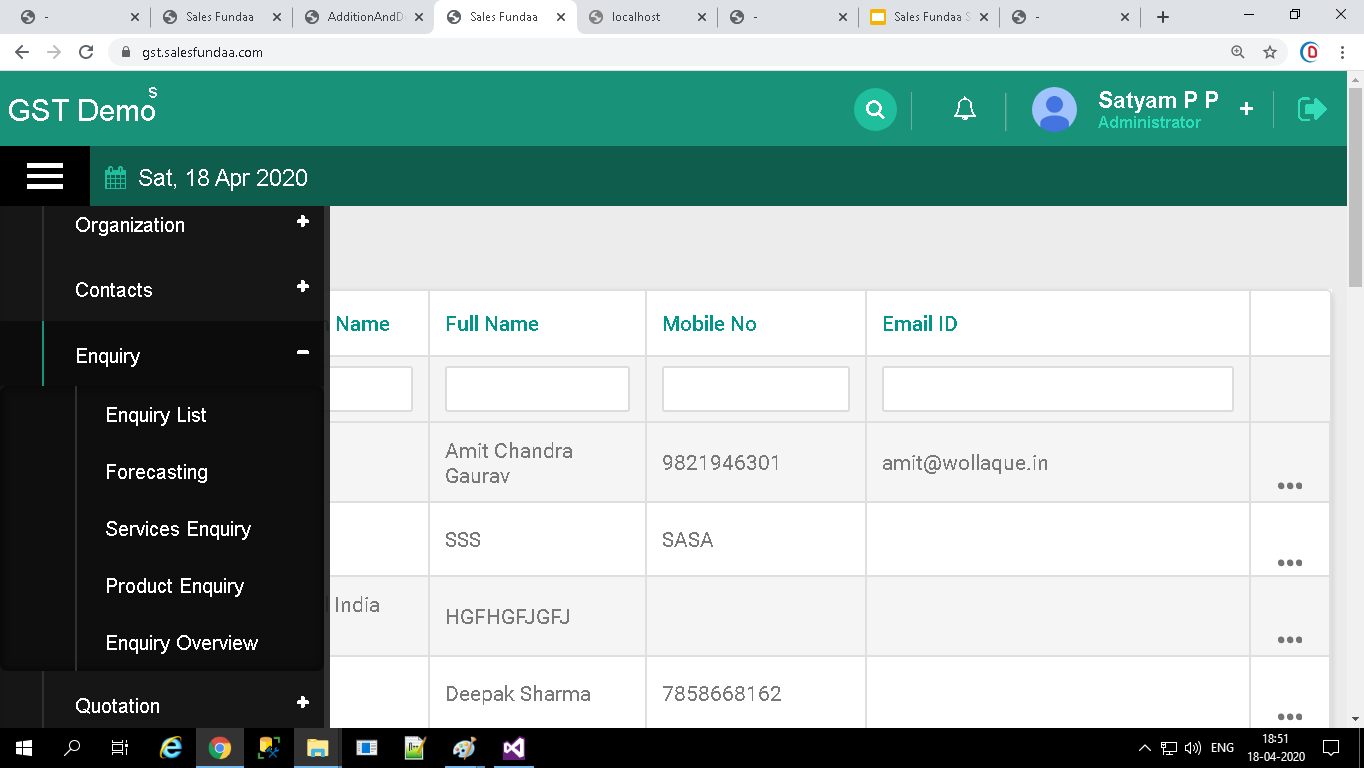
In Enquiry Tab
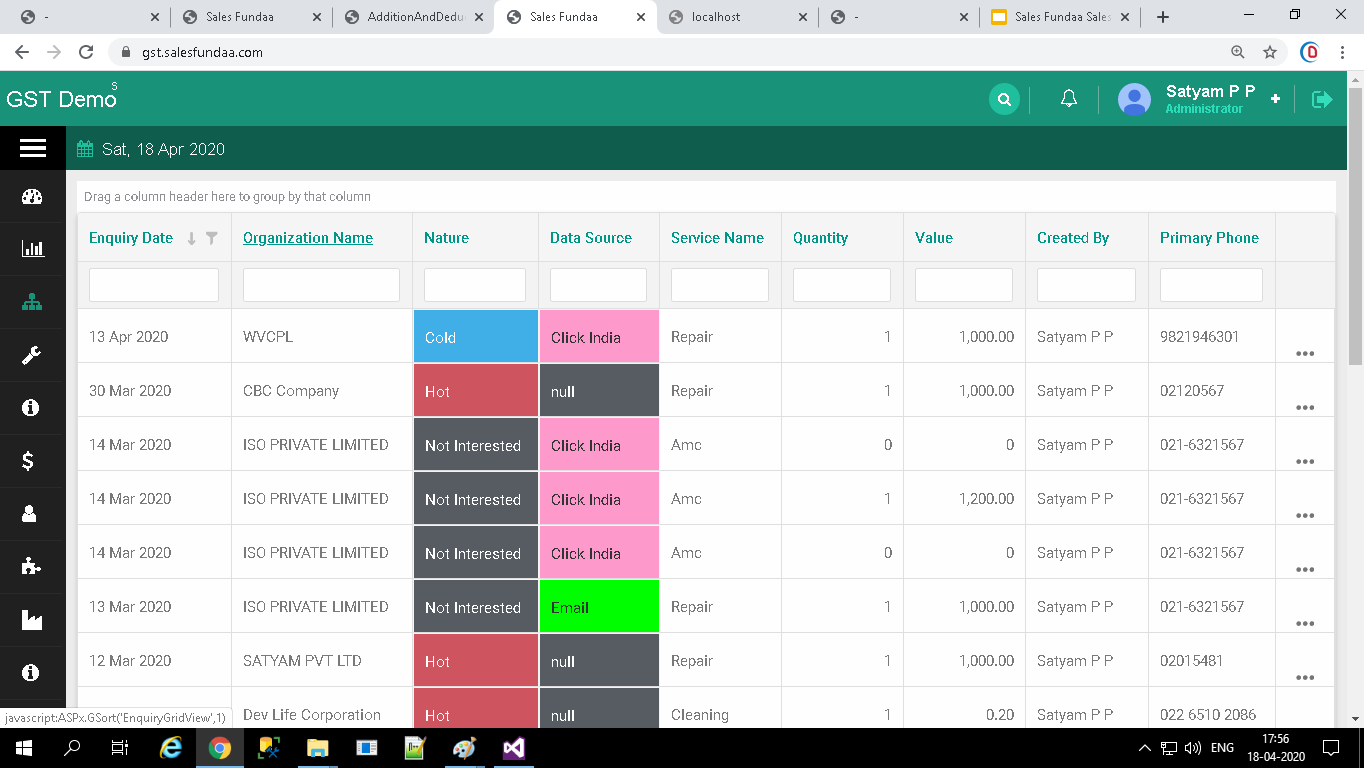
- Enquiry List Tab
- Forecasting Tab
- Services Enquiry Tab
- Product Enquiry Tab
- Enquiry Overview Tab
Click on Enquiry List Tab To View Enquiry List
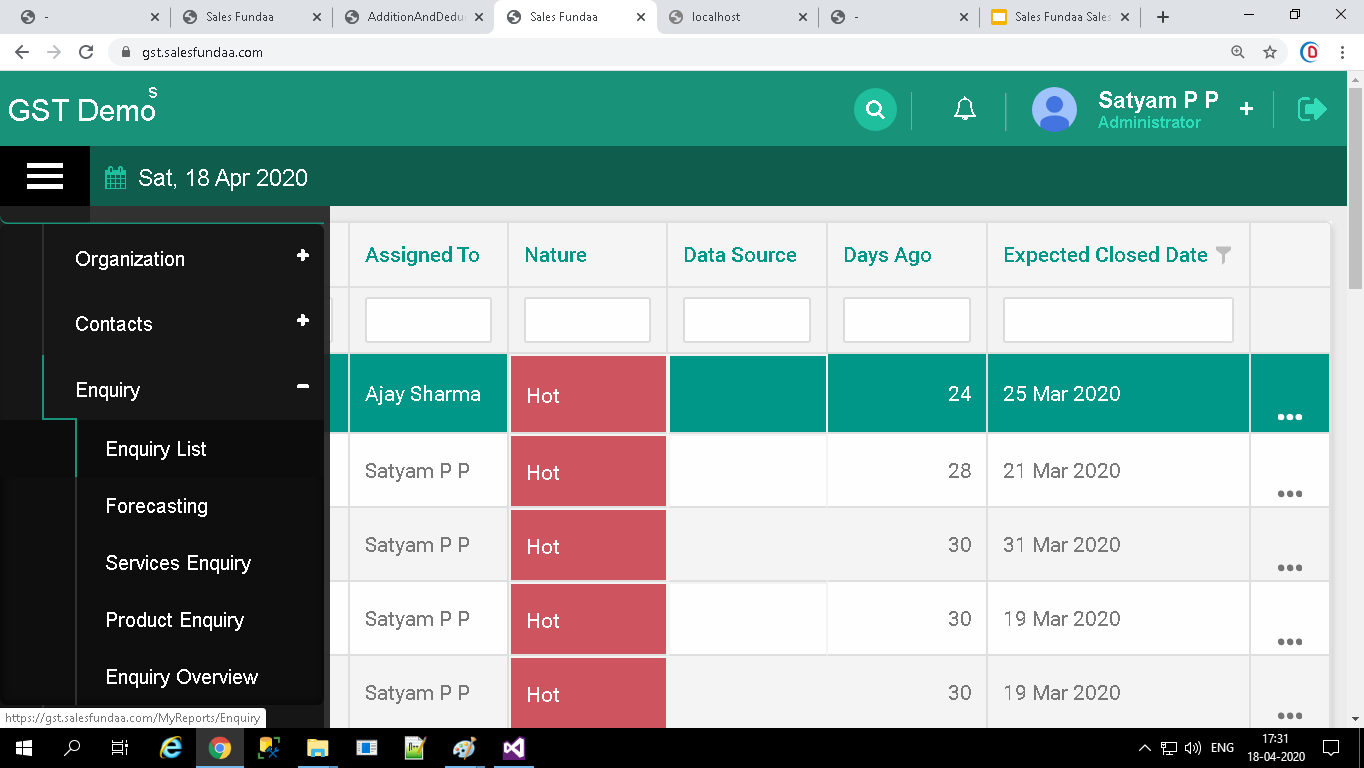
View Enquiry List
You can View Enquiry List from Enquiry Module. This might come handy if you will View Enquiry List .
Enquiry List
Steps to Enquiry detail records through Quick
Double Click on Enquiry List
- It show Enquiry Detail Page
- In the Enquiry Detail Page view ,Add Product ,Add Service Select Status,Set Reminder and Schedule Meeting
- Write Comment on Enquiry Detail page
Double Click on Enquiry List To View Enquiry in Detail Page
Click on Forecasting Tab To View Forecasting
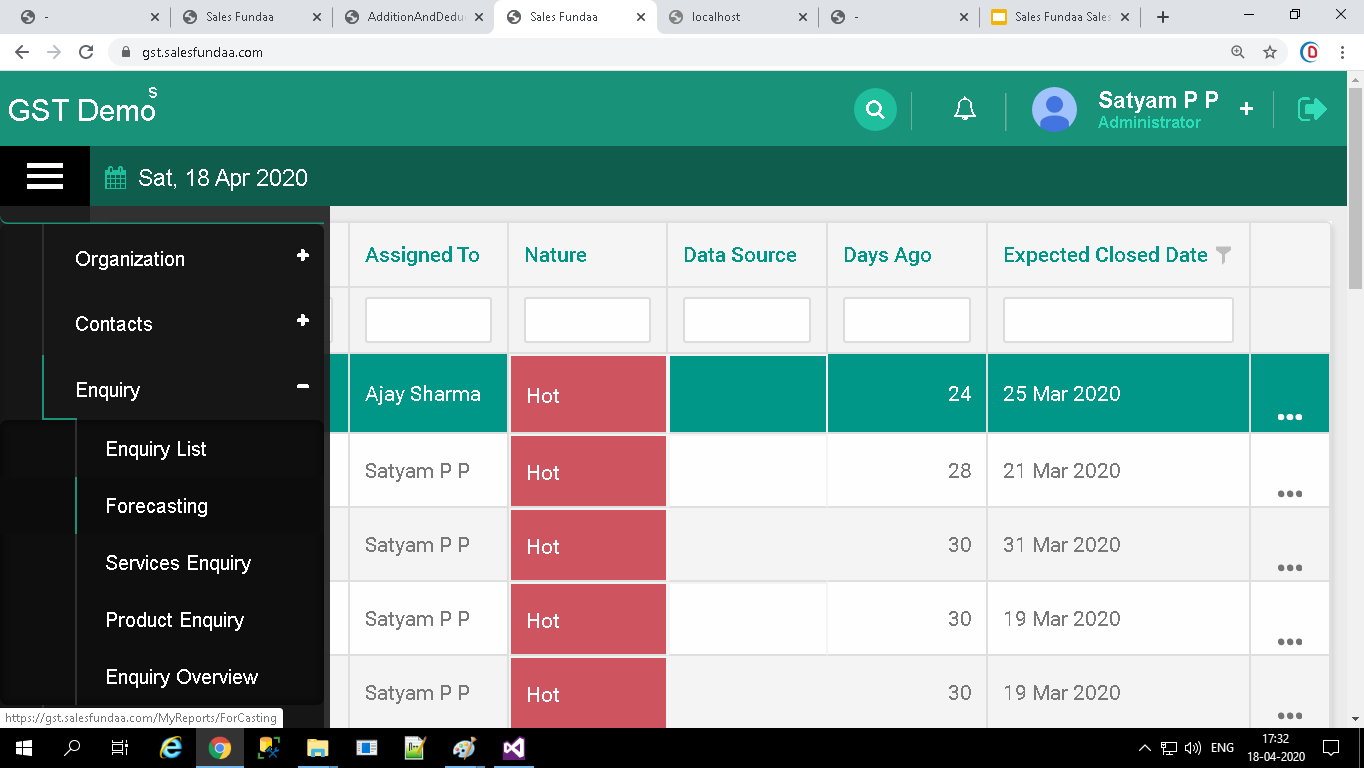
View Forecasting List
You can View Forecasting List from Enquiry Module. This might come handy if you will View Forecasting List .
Forecasting List
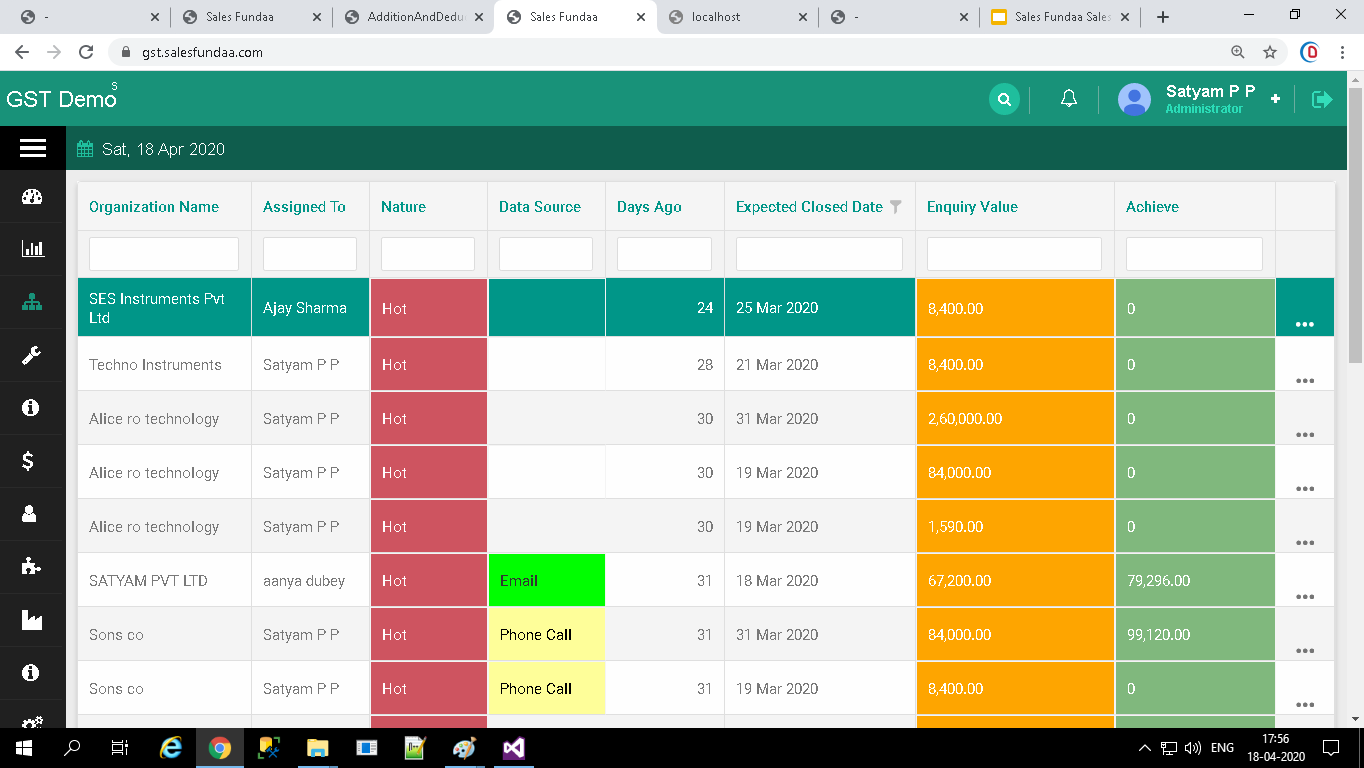
Click on Services Enquiry Tab To View Services Enquiry
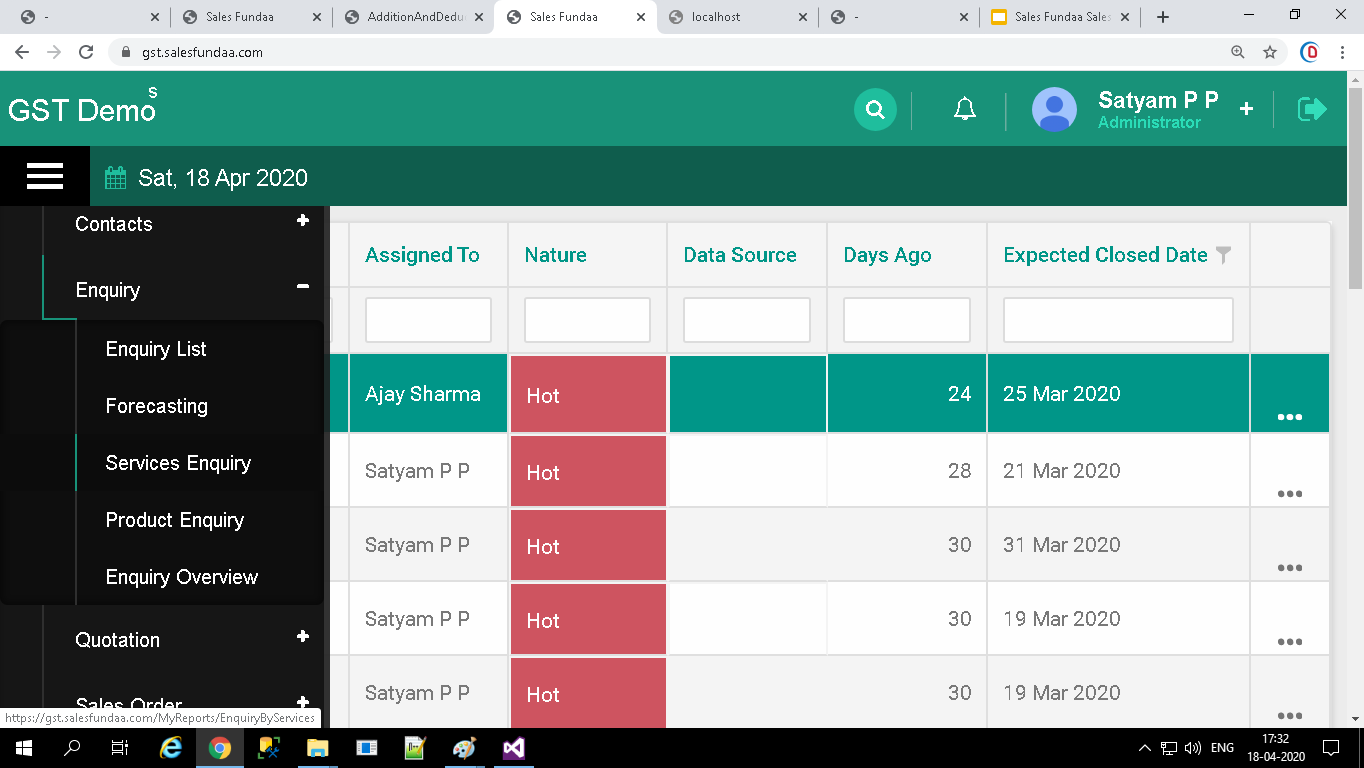
View Services Enquiry List
You can View Services Enquiry List from Enquiry Module. This might come handy if you will View Services Enquiry List .
Services Enquiry
Click on Product Enquiry Tab To View Product Enquiry
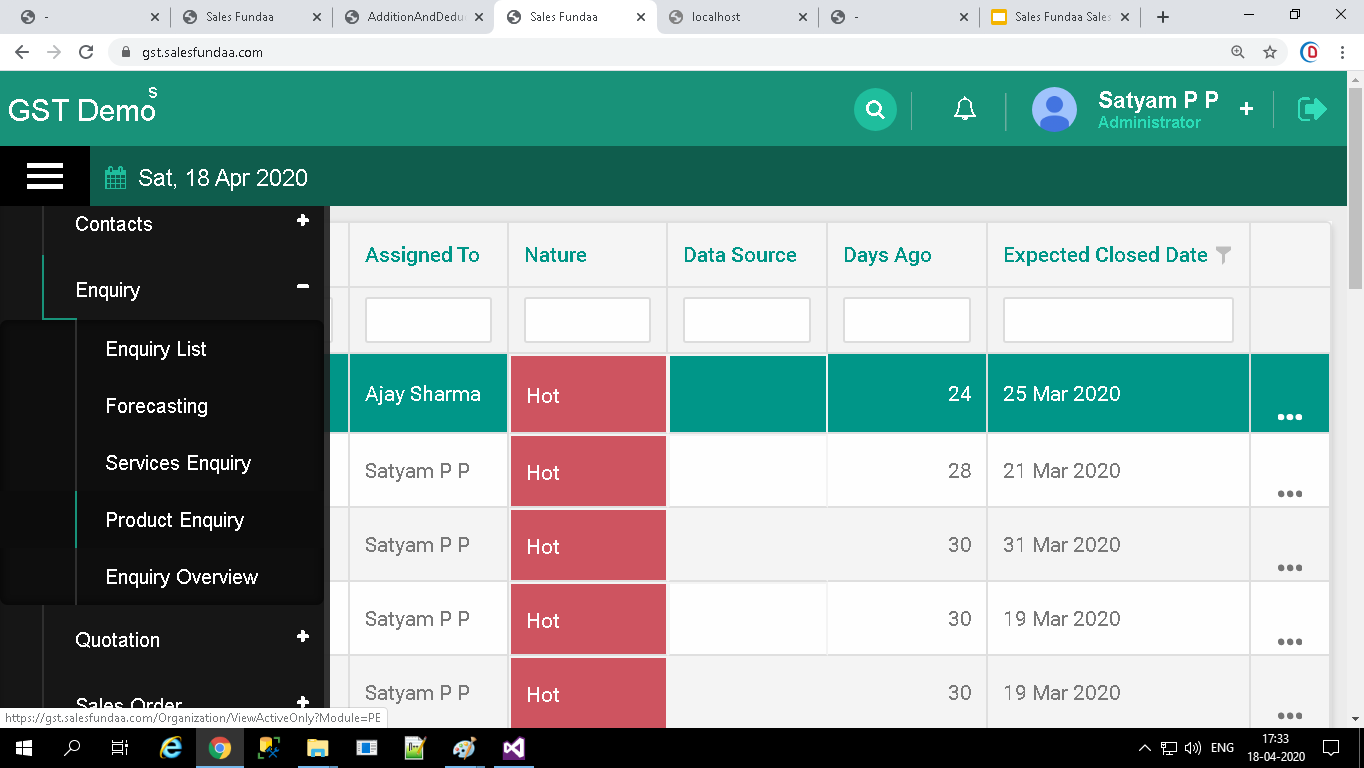
Product Enquiry
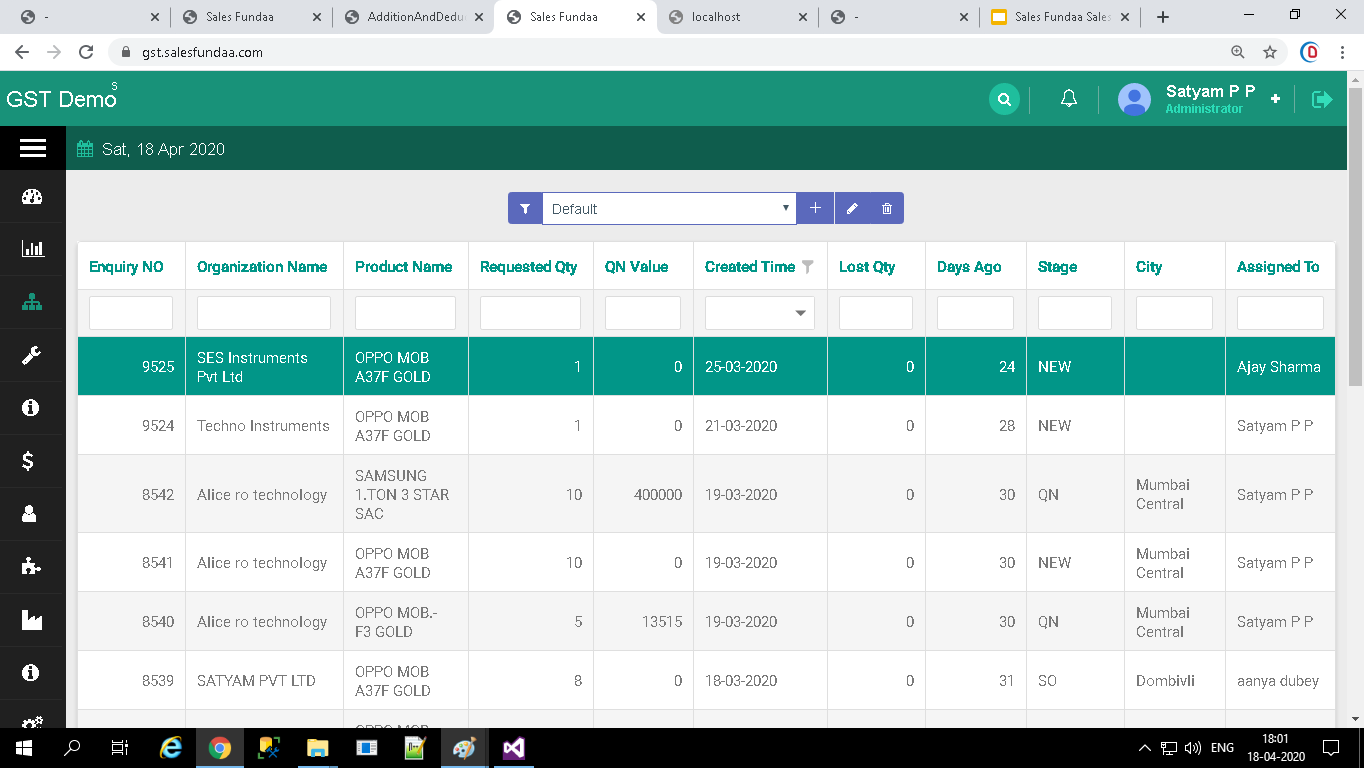
View Product Enquiry List
You can View Product Enquiry List from Enquiry Module. This might come handy if you will View Product Enquiry List .
Click on Enquiry Overview Tab To View Enquiry Overview
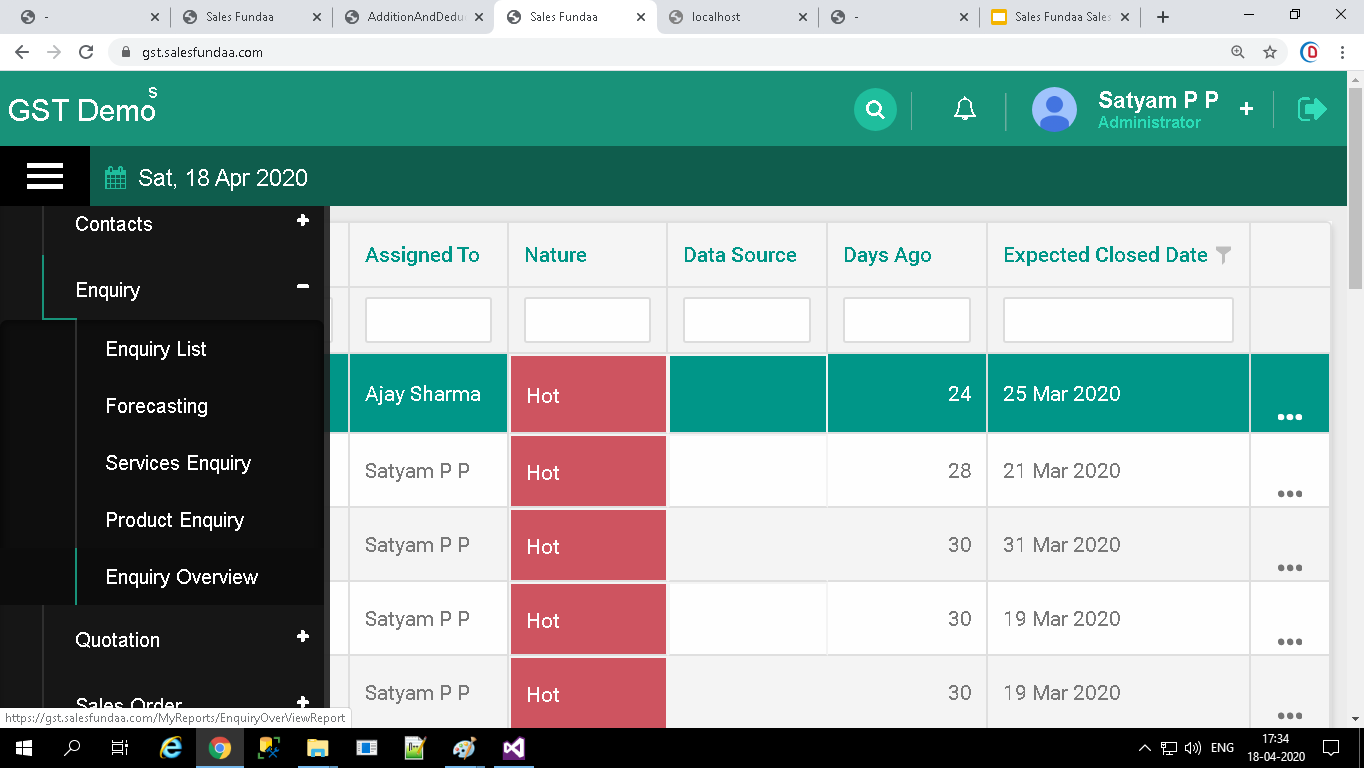
View Enquiry Overview List
You can View Enquiry Overview List from Enquiry Module. This might come handy if you will View Enquiry Overview List ..
Enquiry Overview
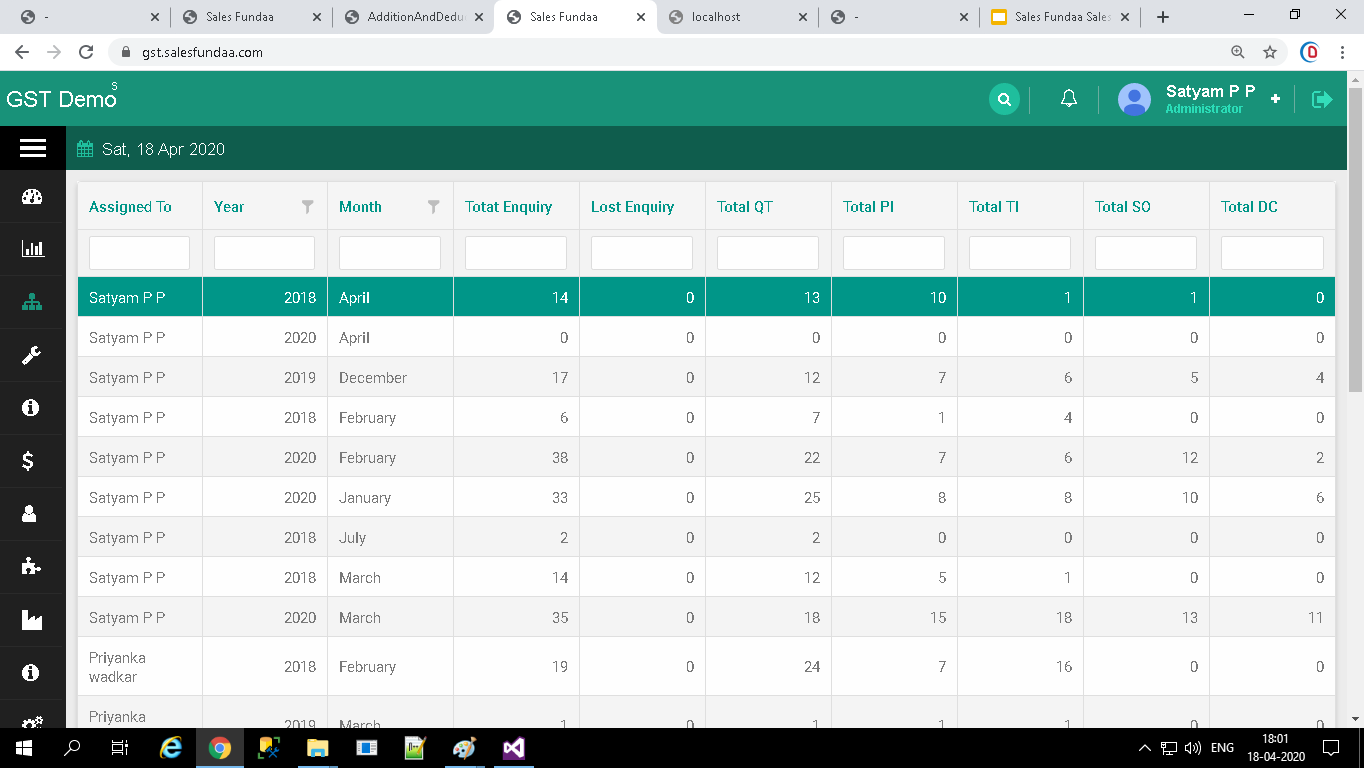
Expand Sales Tab For Quotation
Expand Quotation Tab
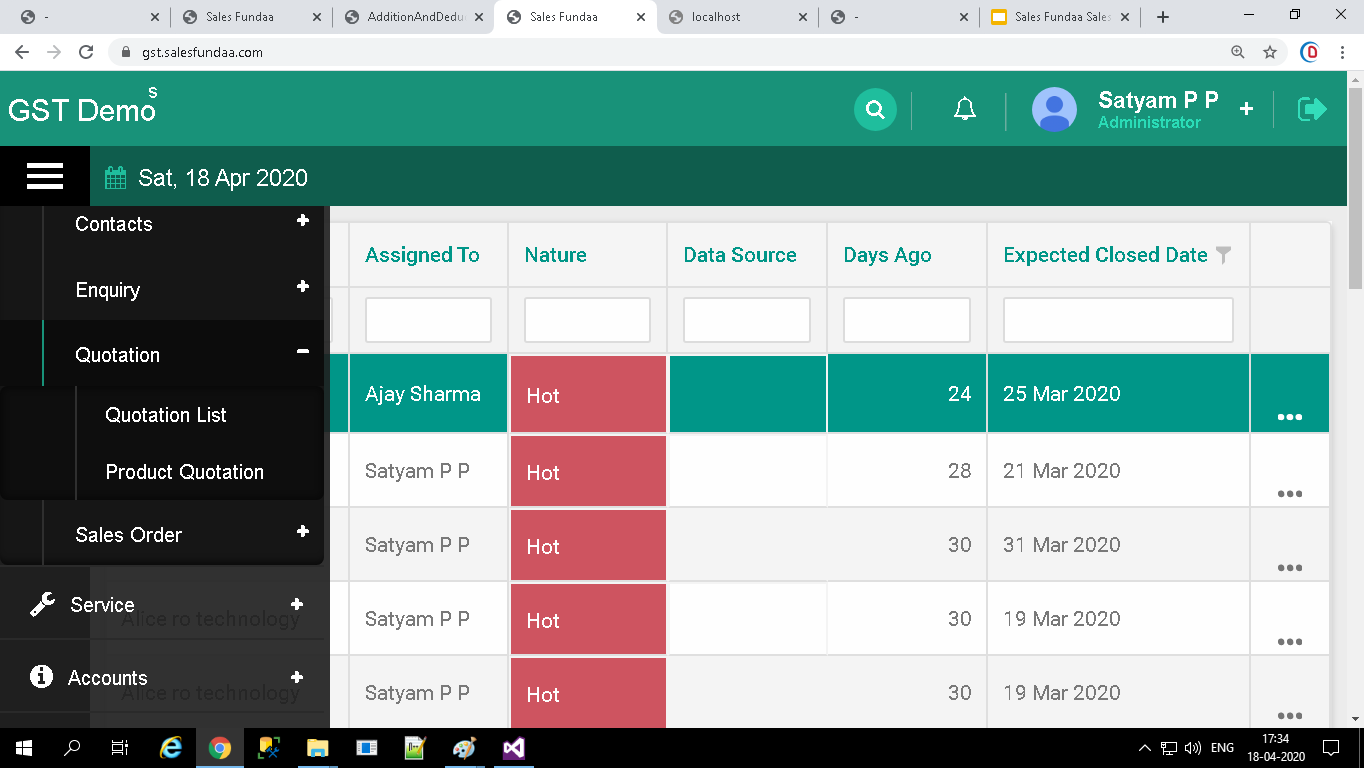
In Quotation Tab
- Quotation ListTab
- Product Quotation Tab
Click on Quotation List Tab To View Quotation List
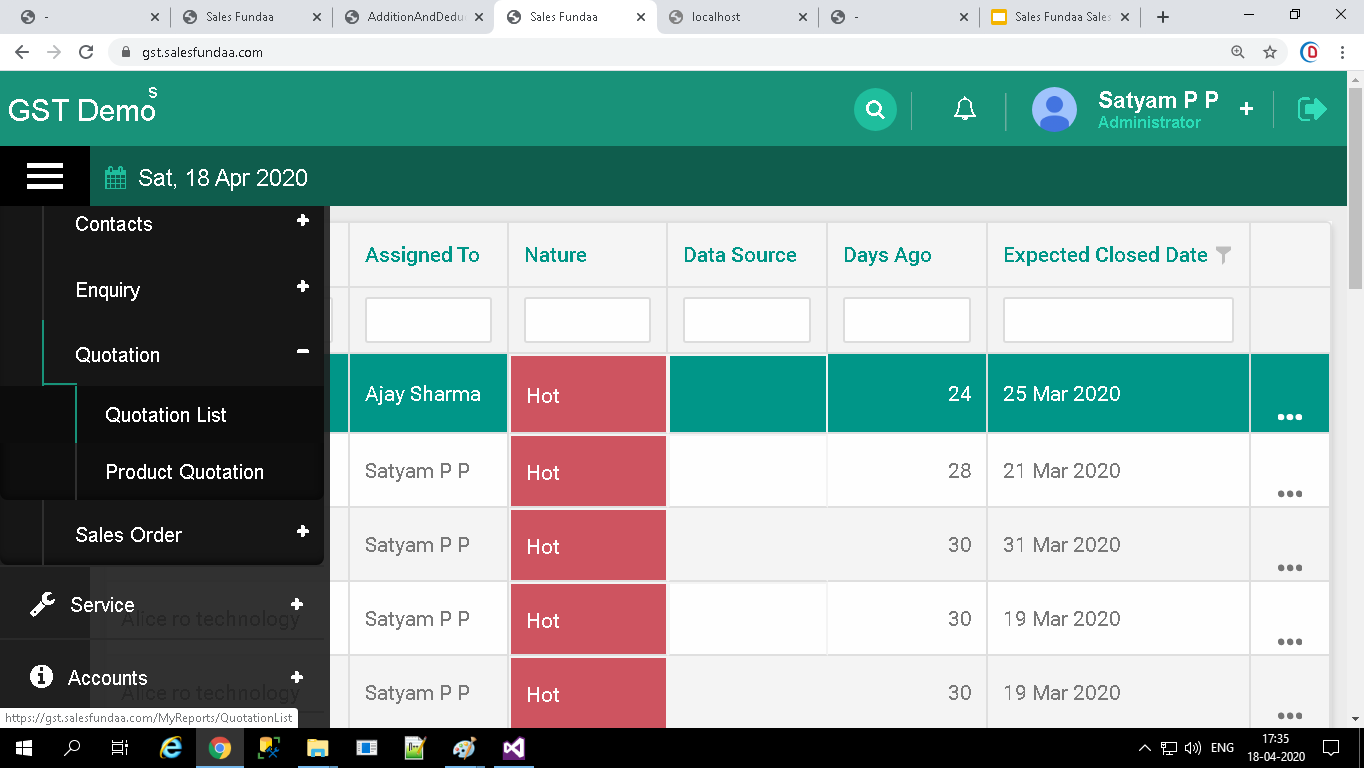
View Quotation List
You can View Quotation List from Quotation Module. This might come handy if you will View Quotation List .
Quotation List
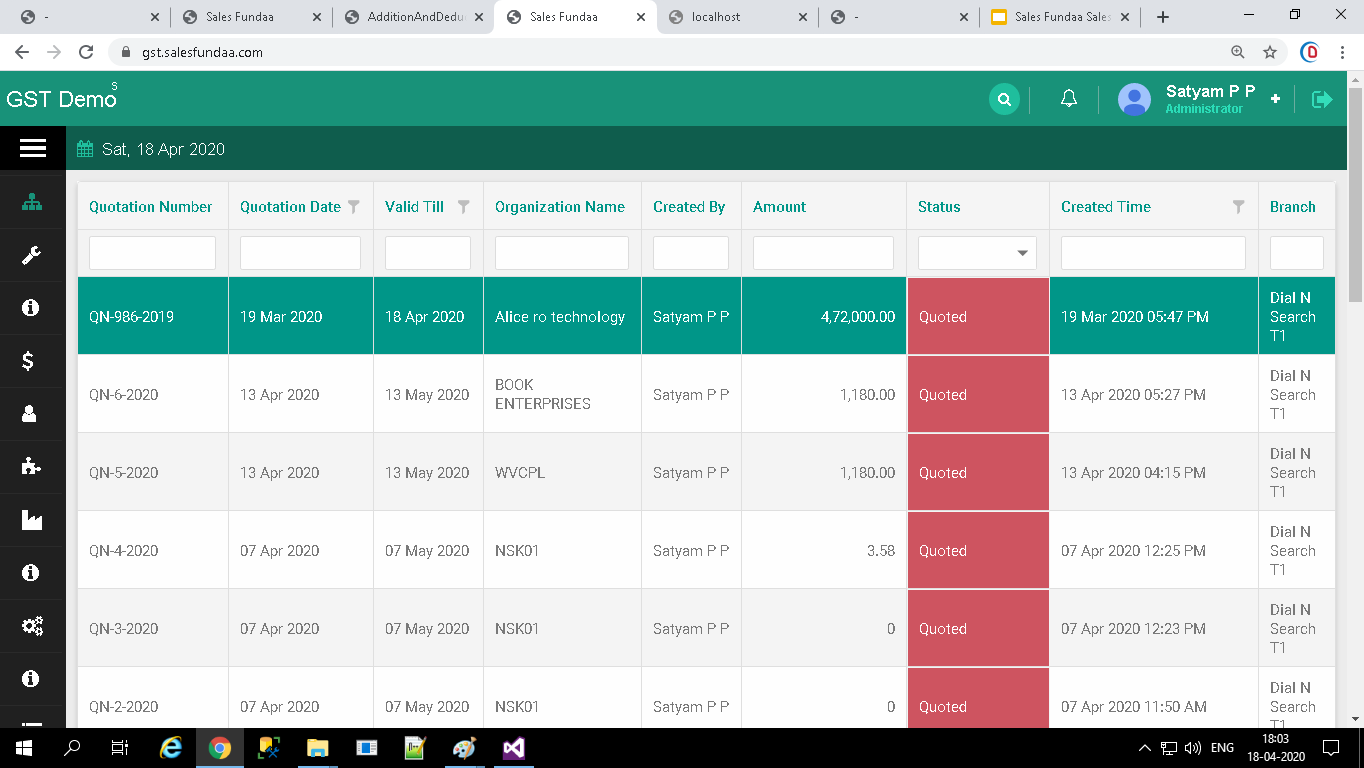
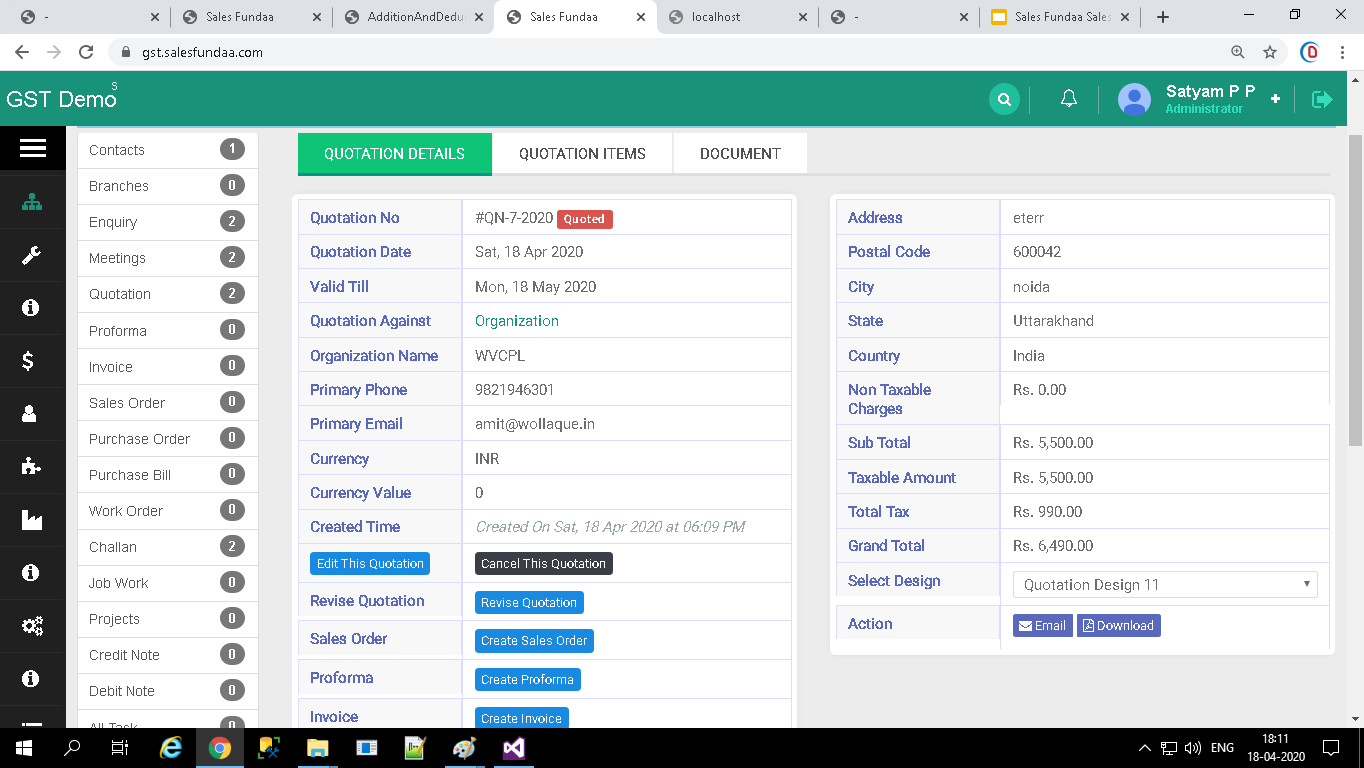
Steps to Quotation detail records through Quick
Double Click on Quotation List
- It show Quotation Detail Page
- In the Enquiry Detail Page view ,Show Quotation Items
- You can Download Quotation and Email Quotation
Double Click on Quotation To View Quotation Detail Page
Click on Product Quotation Tab To View Product Quotation
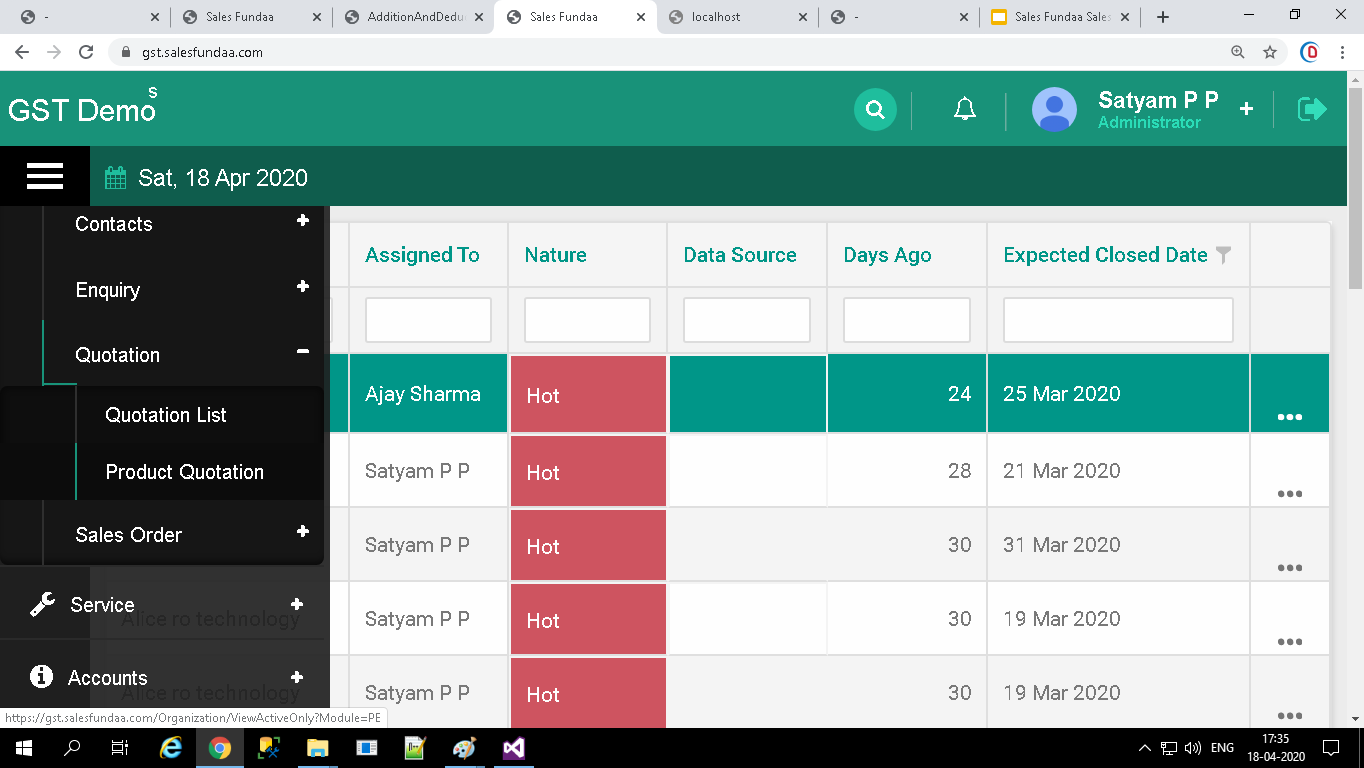
ViewProduct Quotation List
You can View Product Quotation List from Quotation Module. This might come handy if you will View Product Quotation List .
Product Quotation
Expand Sales Tab For Sales Order
Expand Sales Order Tab
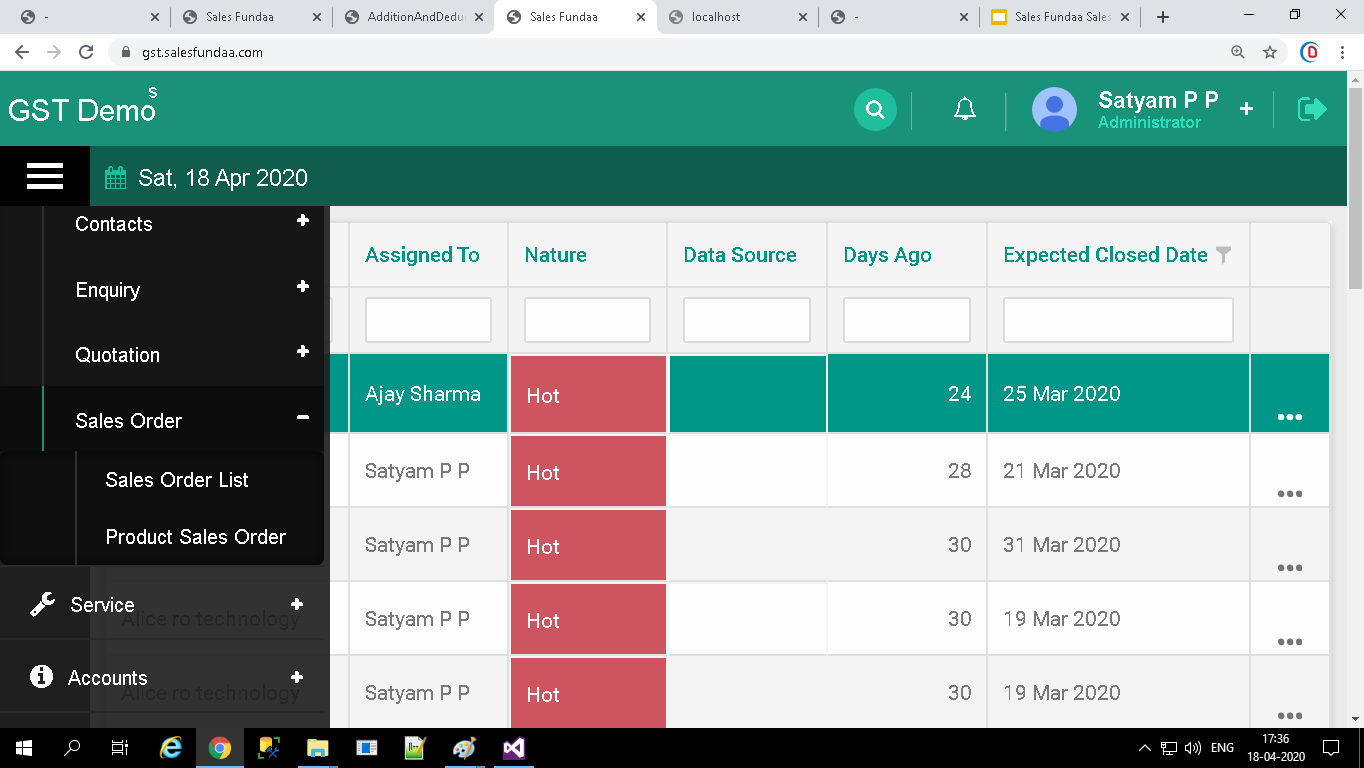
In Sales Order Tab
- Sales Order List Tab
- Product Sales Order Tab
Click on Sales Order List Tab To View Sales Order List
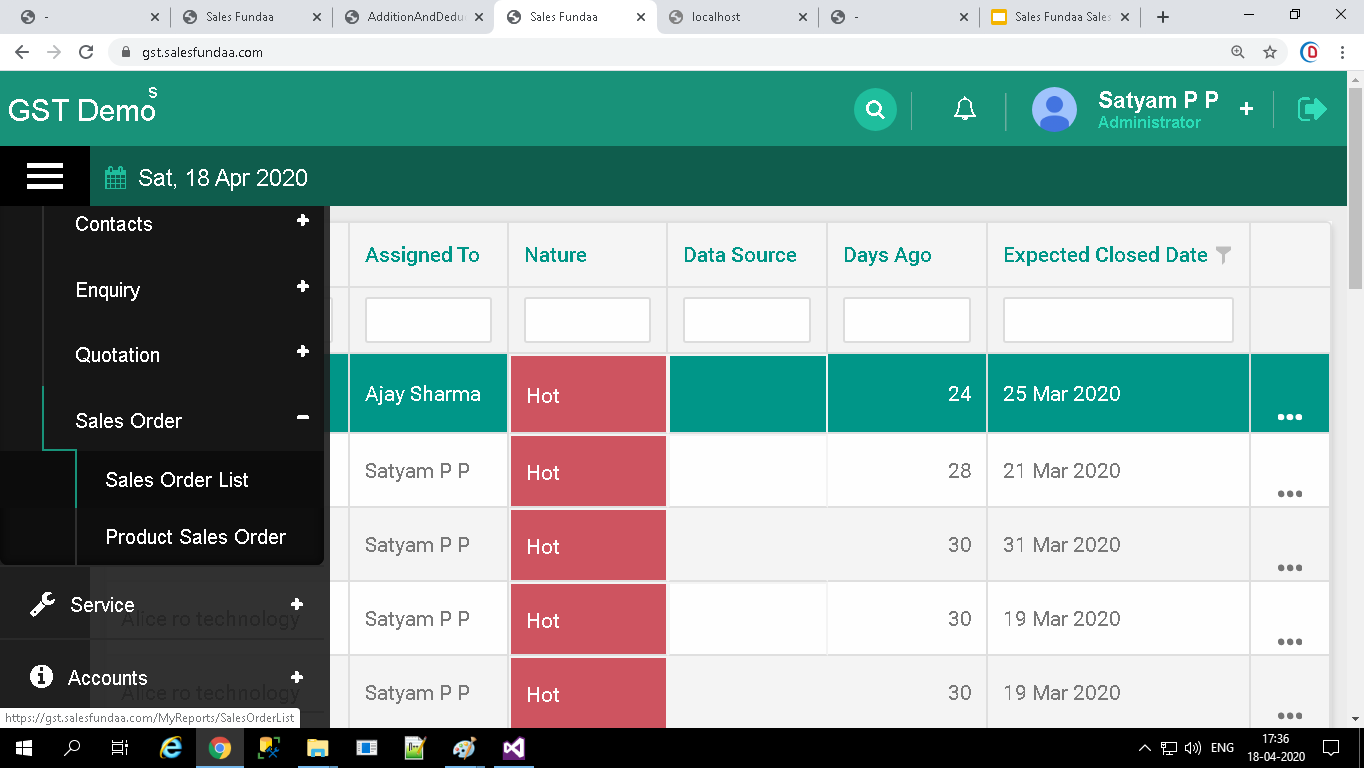
View Sales Order List
You can View Sales Order List from Sales Order Module. This might come handy if you will View Sales Order List .
Sales Order List
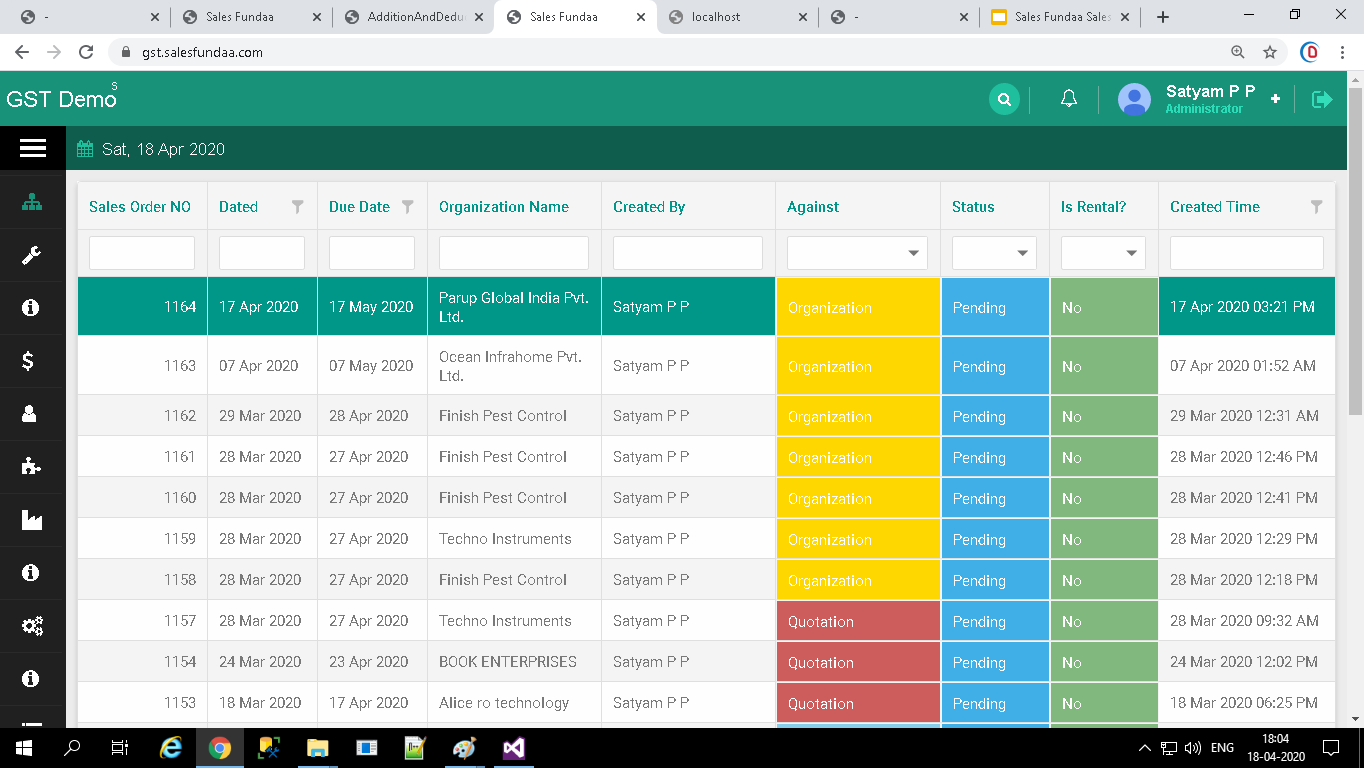
Steps to Sales Order detail records through Quick
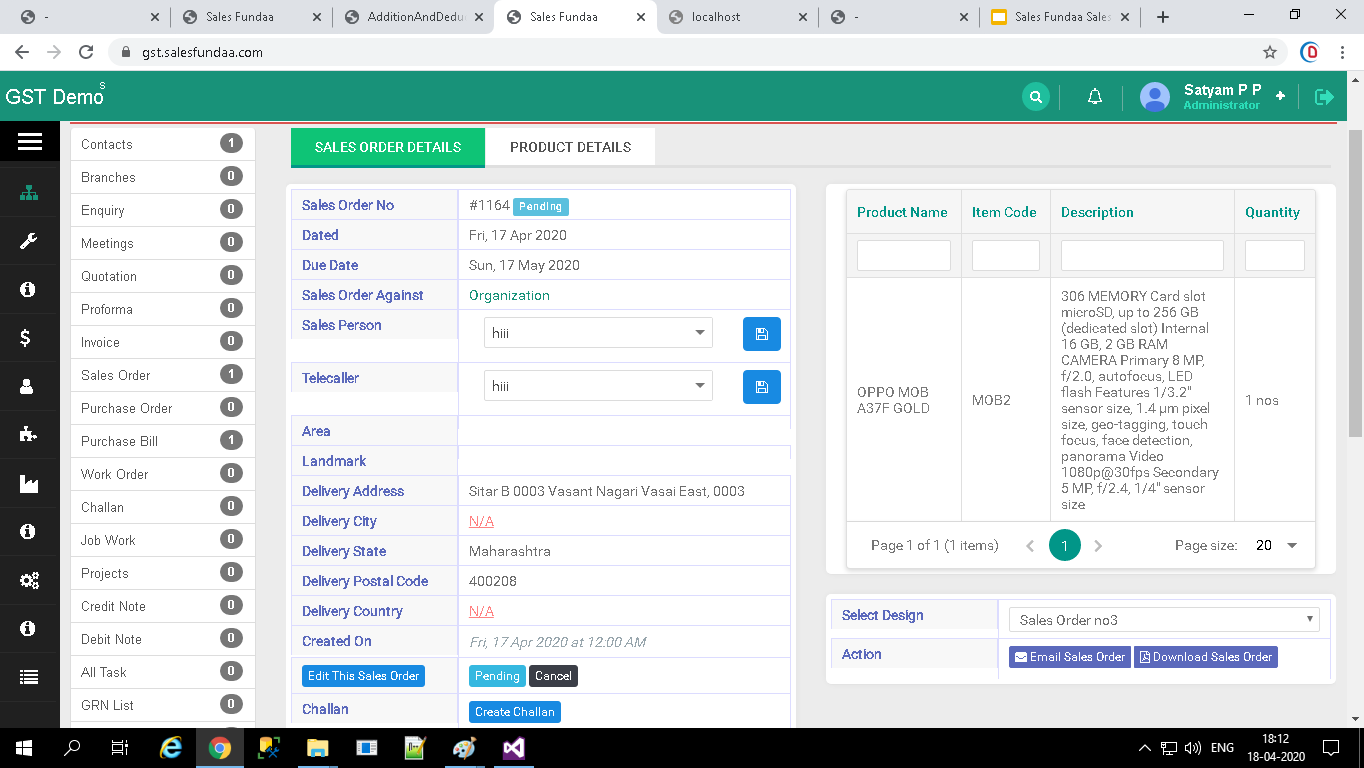
Double Click on Sales Order List
- It show Sales Order Detail Page
- In the Sales Order Detail Page view ,Show Product Detail,show Challan List
- You can Download Sales Order and Email Sales Order
Double Click on Sales Order To View Sales Order Detail Page
Click on Product Sales Order Tab To View Product Sales Order
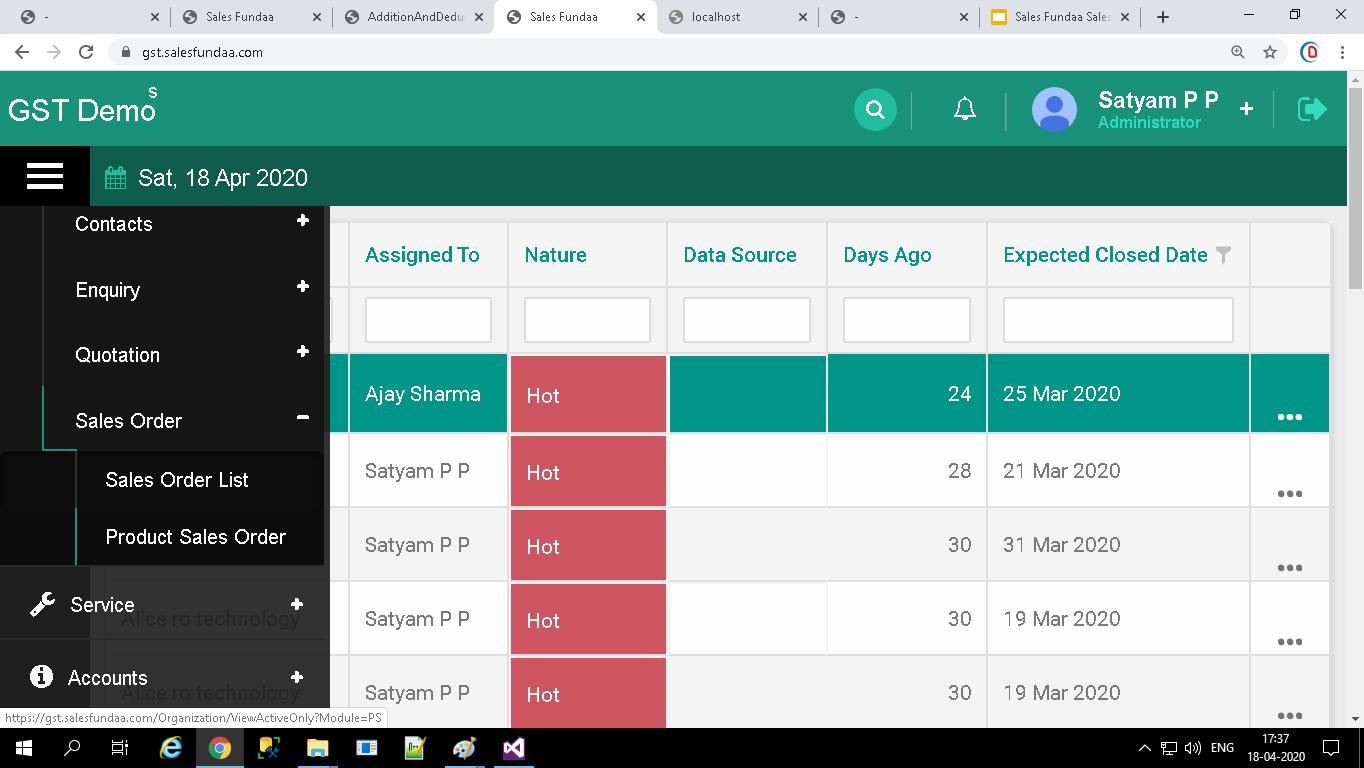
View Product Sales Order List
You can View Product Sales Order List from Sales Order Module. This might come handy if you will View Product Sales Order List .
Product Sales Order