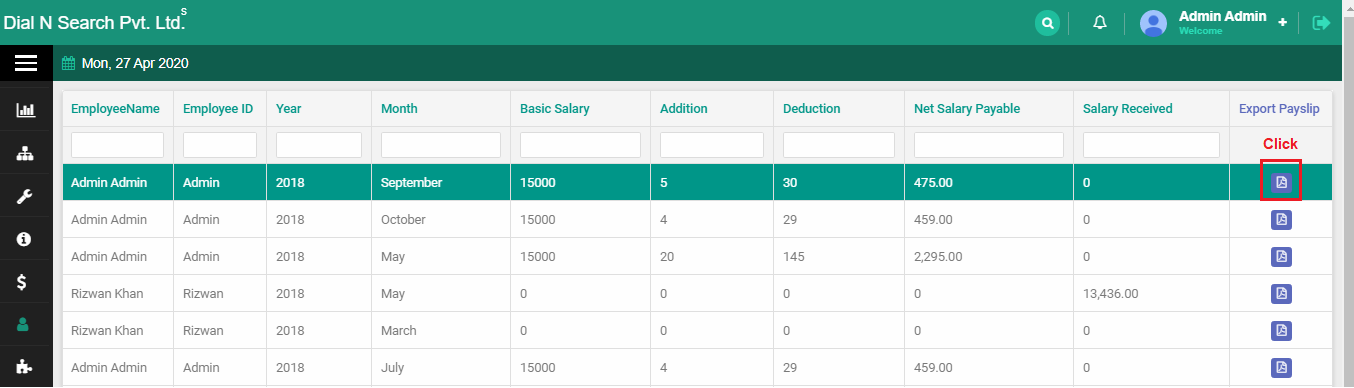
Human Resource
Where Master's models are used while adding new organization and some model contains messages from the company
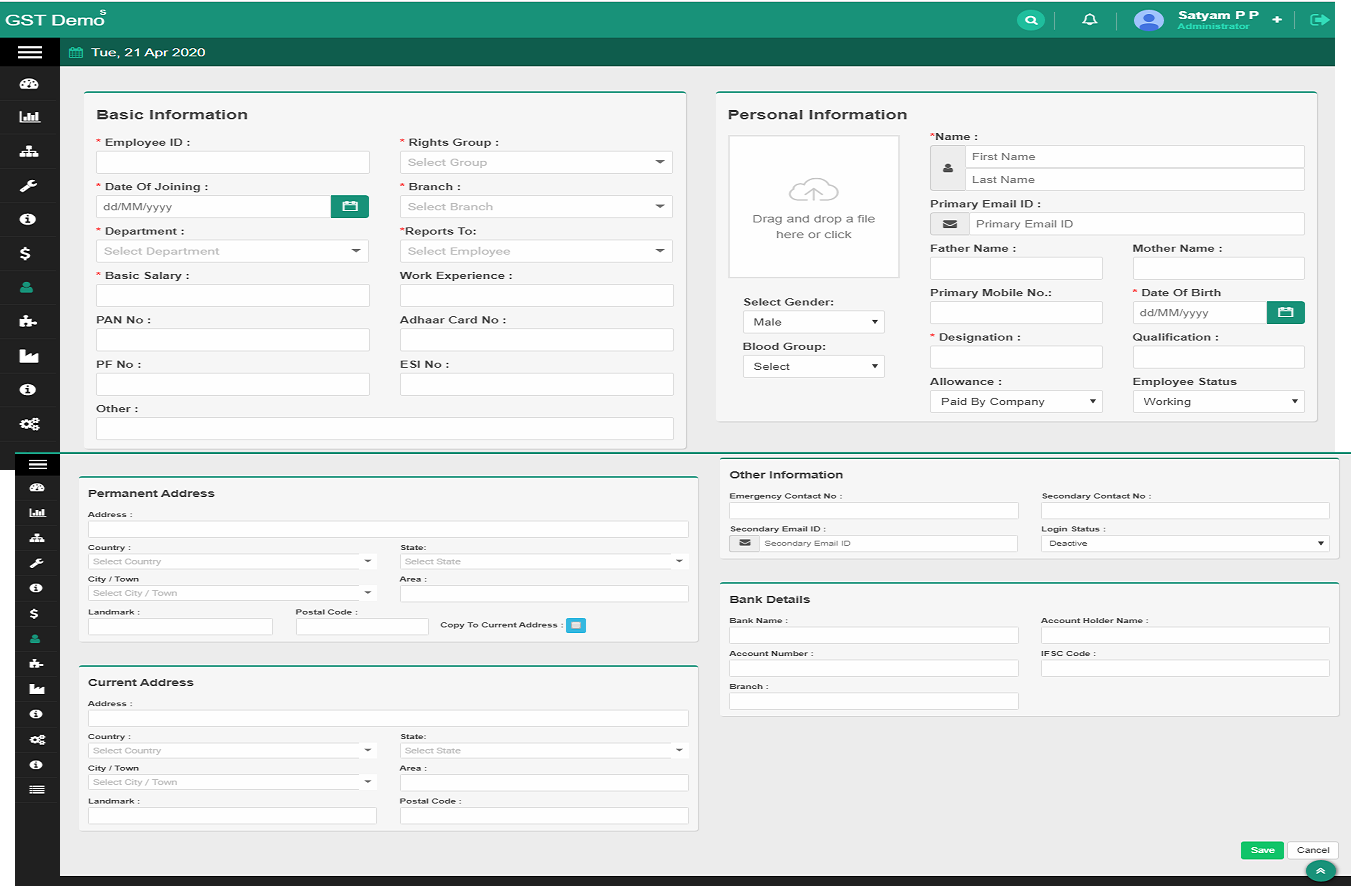
(Click on Human Resource )New Employee
Fill up the following details as shown in the below screenshot
First add employee group Human Resource → Employee Group
Steps to New Employee
- Rights Group what rights you have to give to the employee
- Branch Which employer to add to the branch?
- Department Ex :-Sales,Telecaller
- Reports To Which person to report
- Employee Status working / Left :-Not working
- Login Status Active(working) / Deactive (Left)
- Click the save button
Attendance
Employee working or not
Steps to Attendance
- Sign In Login in working time
- Sign Out

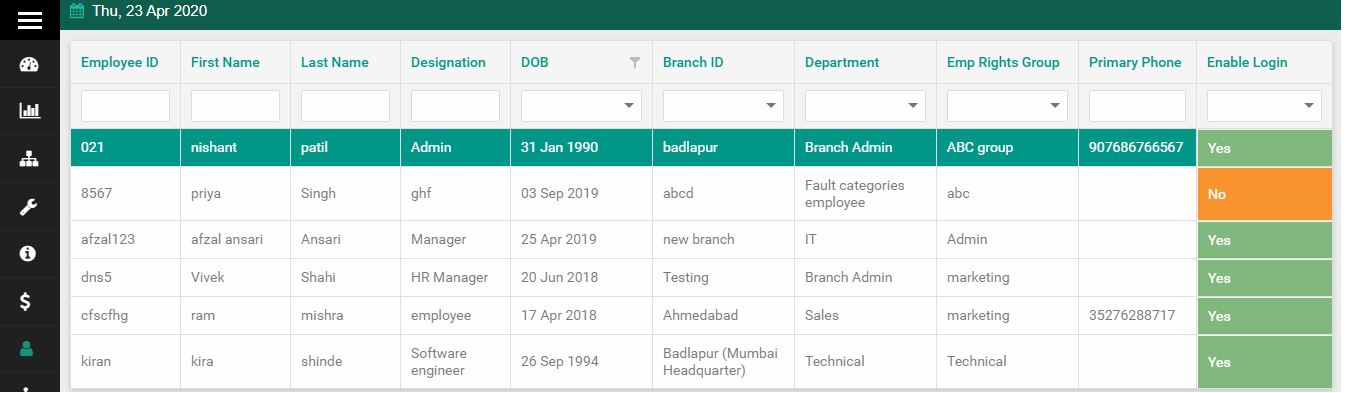
Employee List
List of employees will be displayed as shown in the below screenshot.
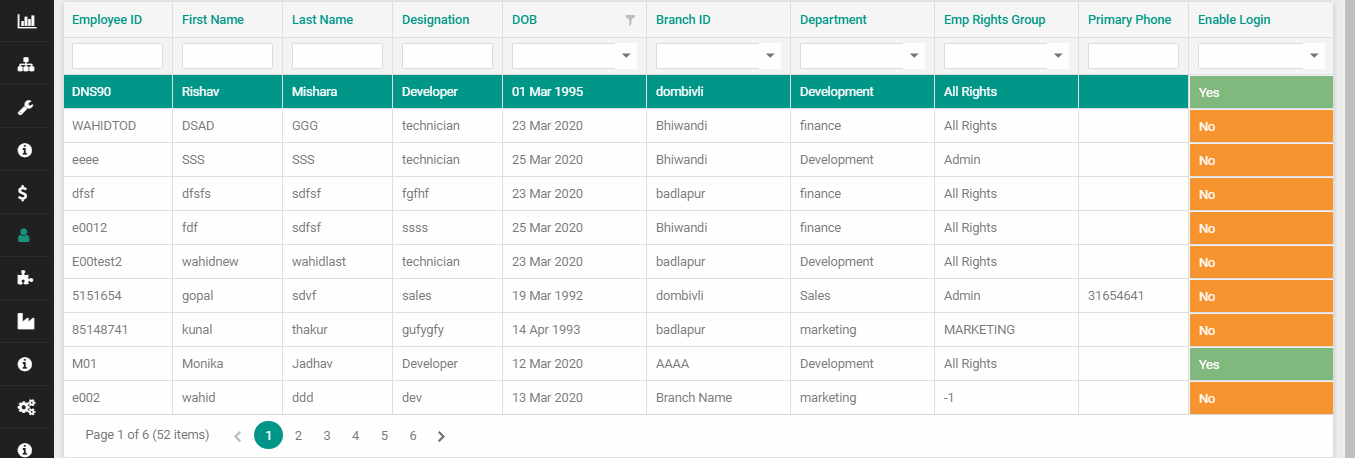
Click on the employee name to get detailed information (see below screenshot)
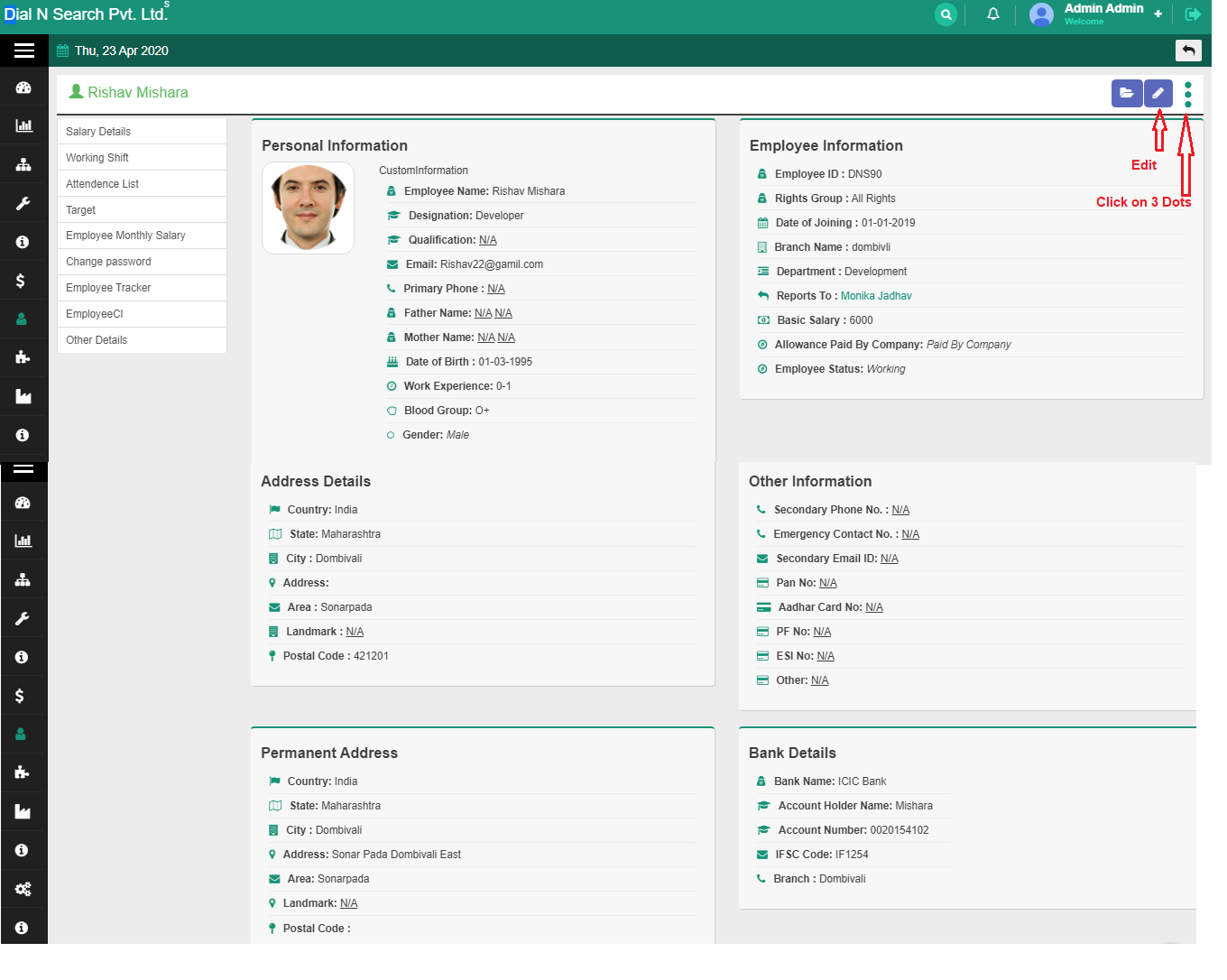
Click on Edit button
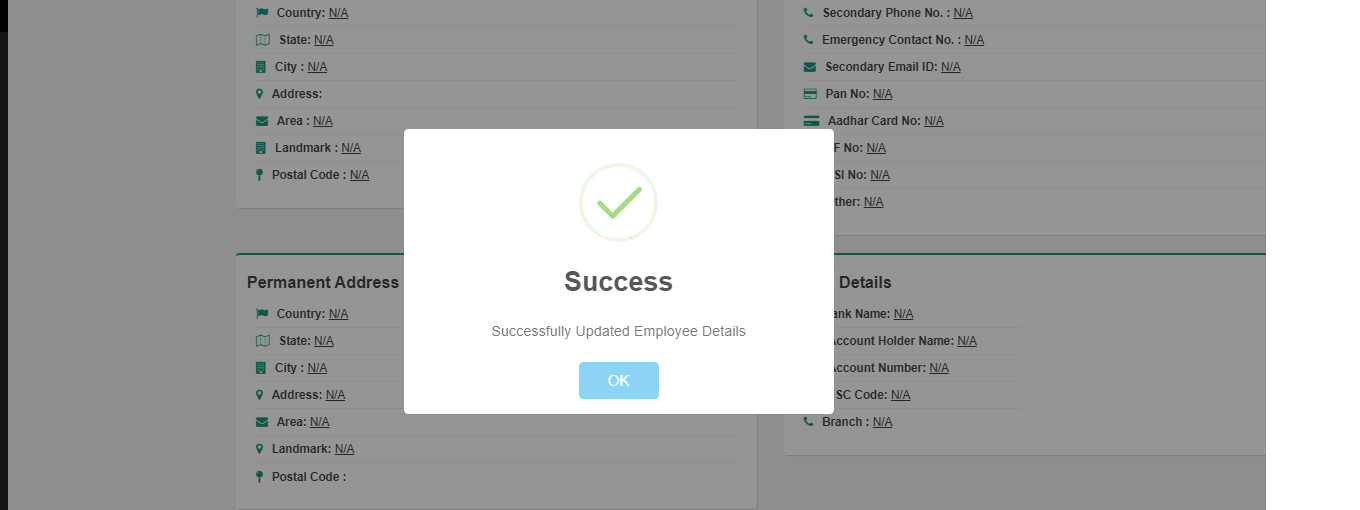
Edit the Employee details
Click on SAVE button
Click on 3 Dots
1) $ New Offer Letter
2) + New Product Request
1) Click on $ New Offer Letter Option(see below screenshot)
Fill all details
Click on SAVE button
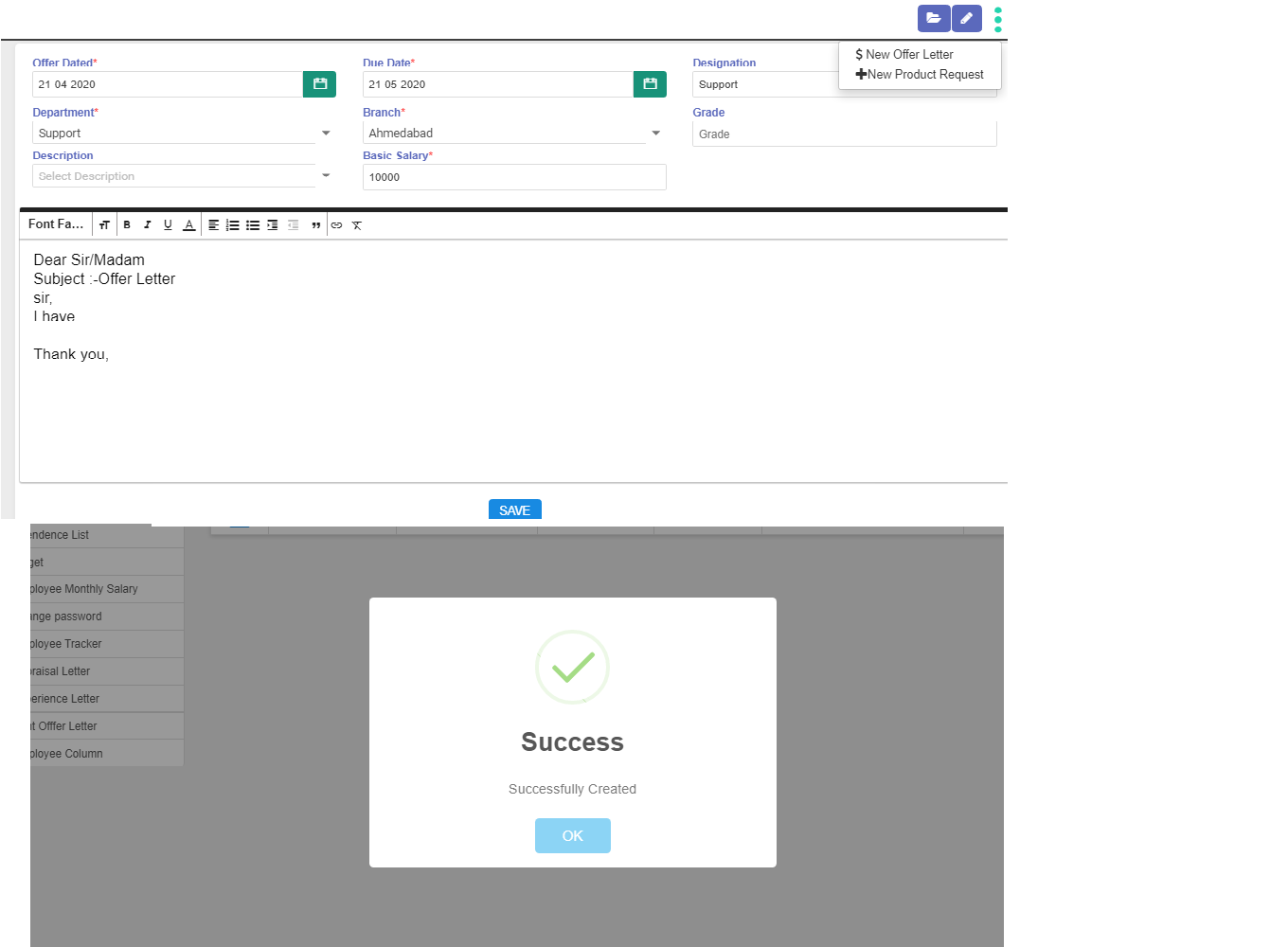
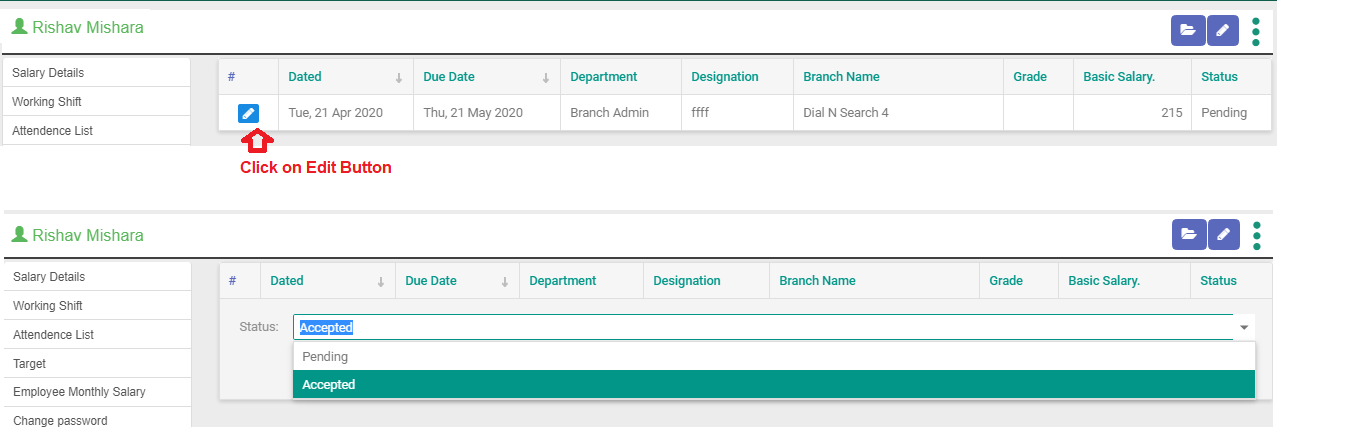
(see below screenshot)
Click on Edit Button
Select Status :- Accepted / Pending
Click on SAVE Button
The offer letter option appears.This means that you have made the employee's offer Letter.
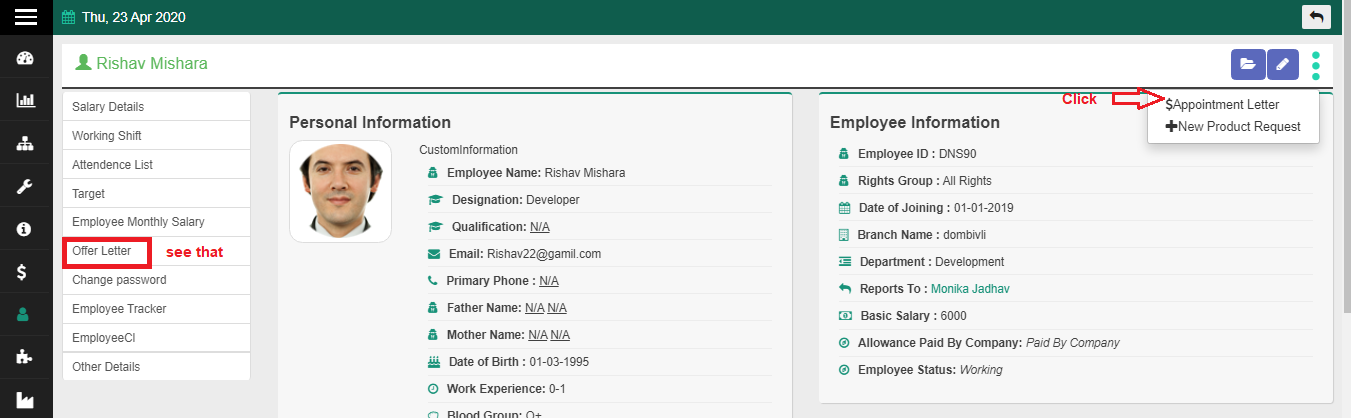
Double Click Offer Letter Tab(see below screenshot)
Edit Offer Letter :- You want change the details in offer letter then click this button
Export the Offer Letter
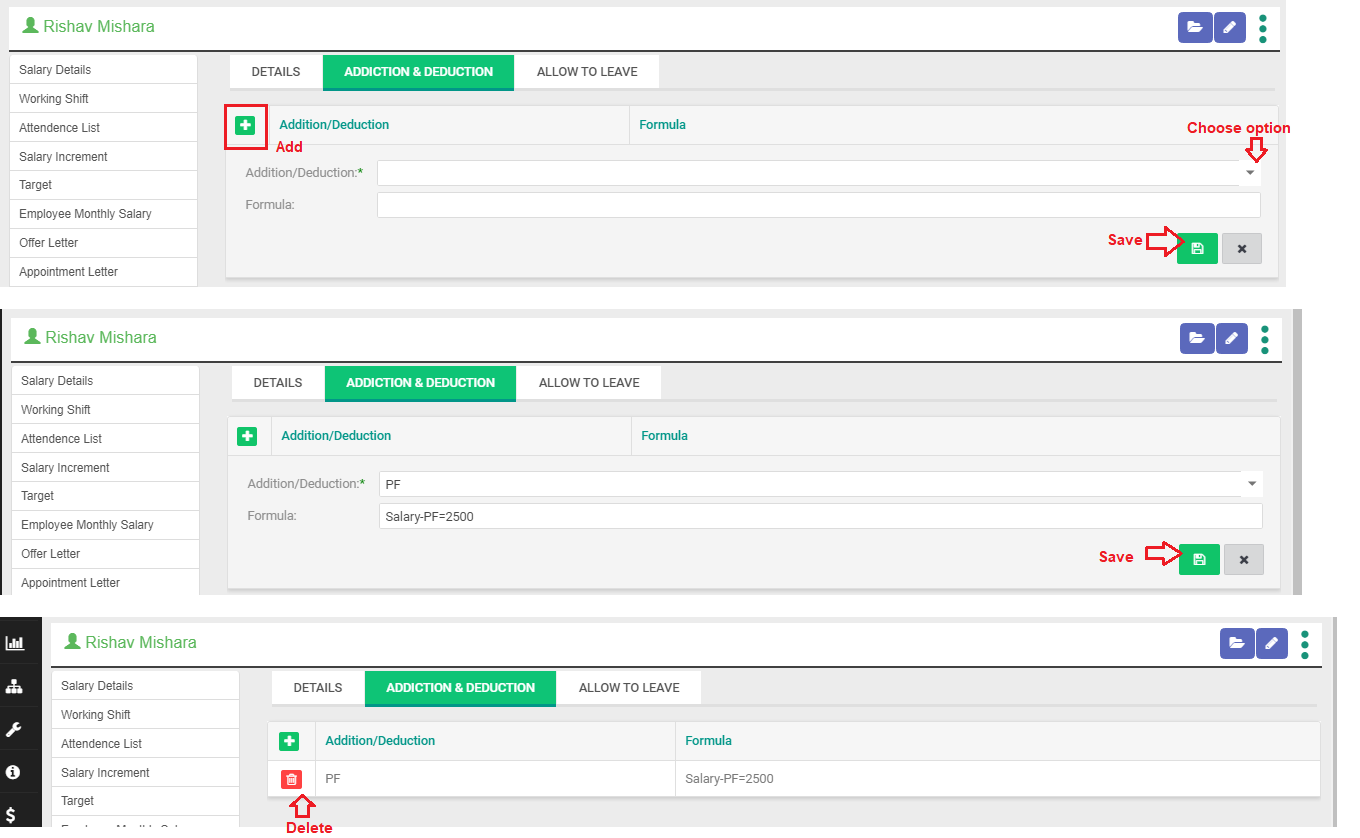
Click Addition and Deduction Tab
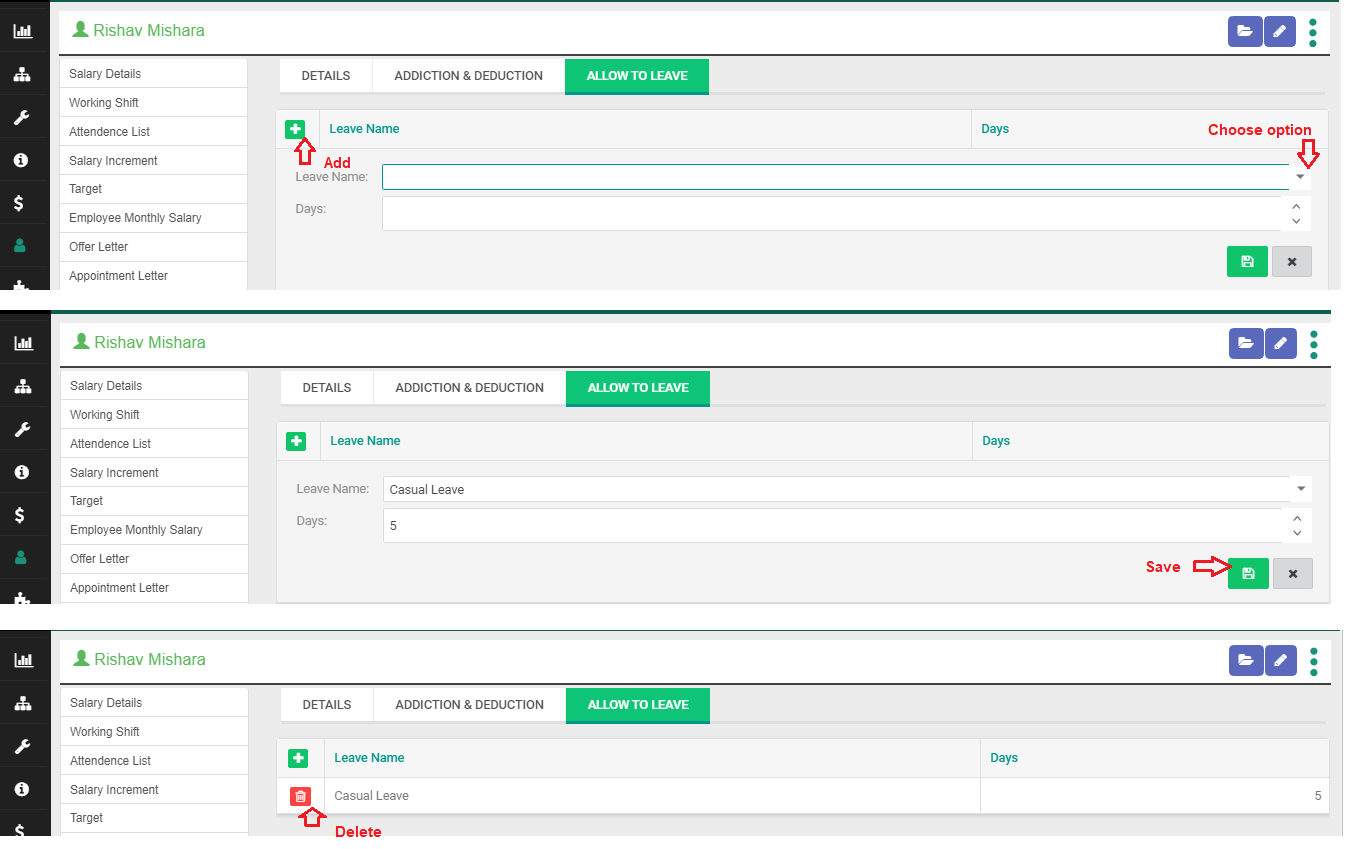
Click Allow to Leave Tab
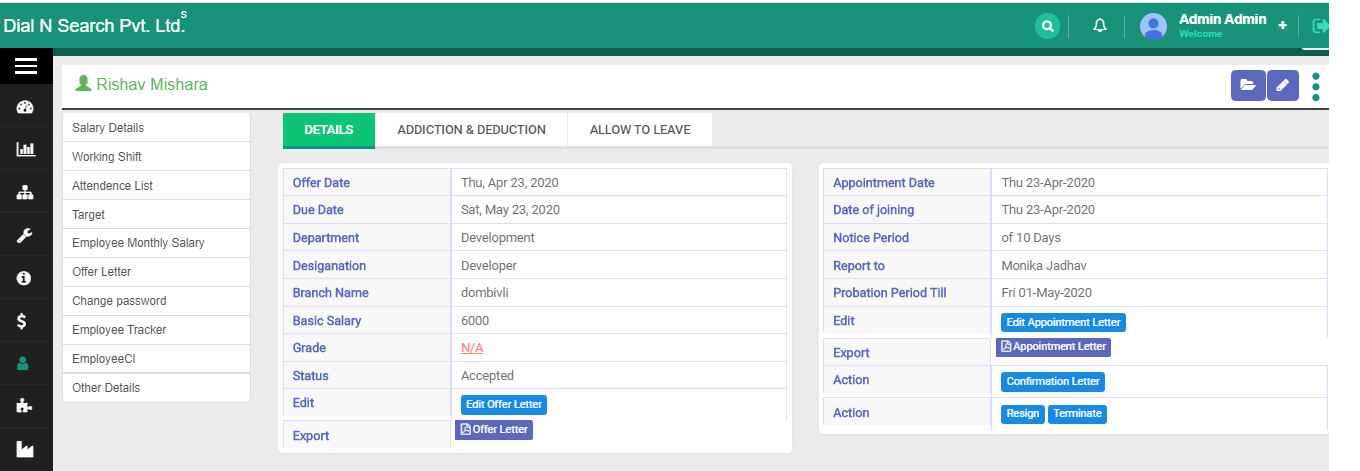
Click on 3 Dots
1) $Appointment Letter
2) + New Product Request
1) Click on Appointment Letter
Fill all details
Click on SAVE button
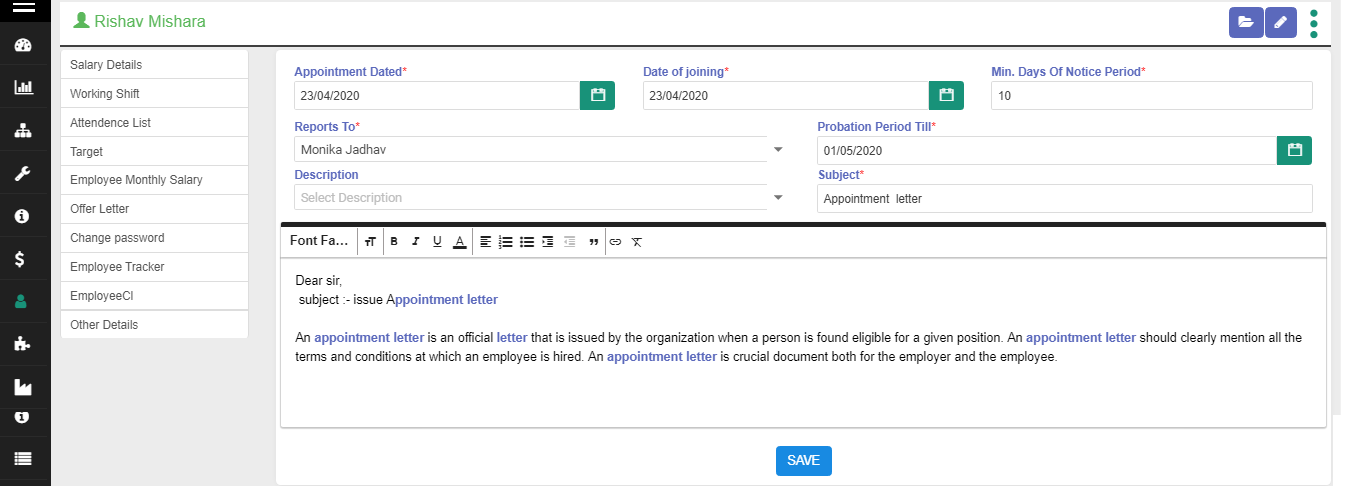
The Appointment letter option appears.This means that you have made the employee's Appointment Letter.
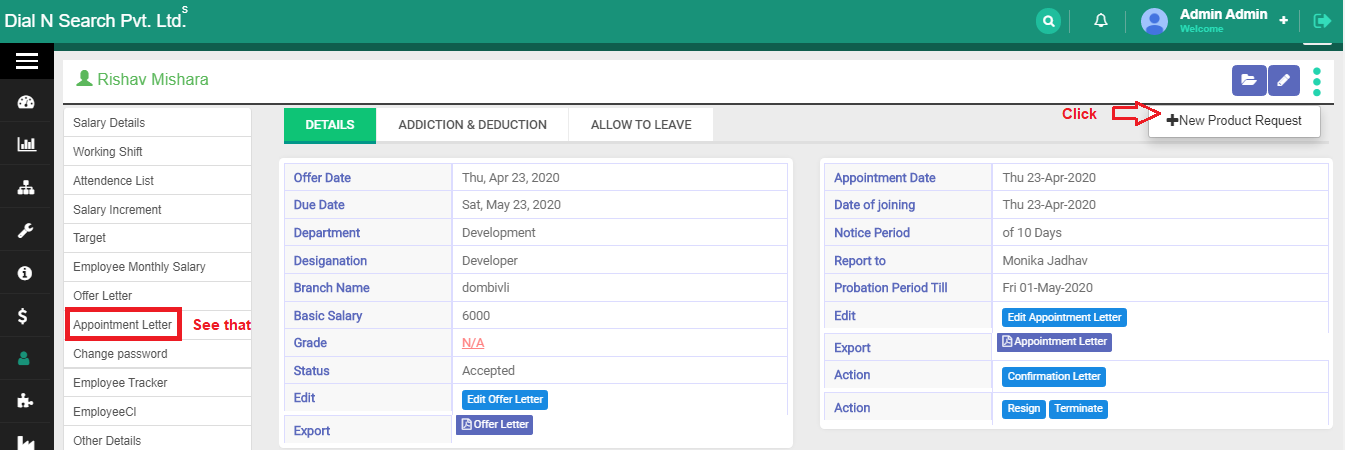
If these Addition and Deduction and Allow to Leave are filled in the offer letter, then the information in that tab comes in the Appointment letter.
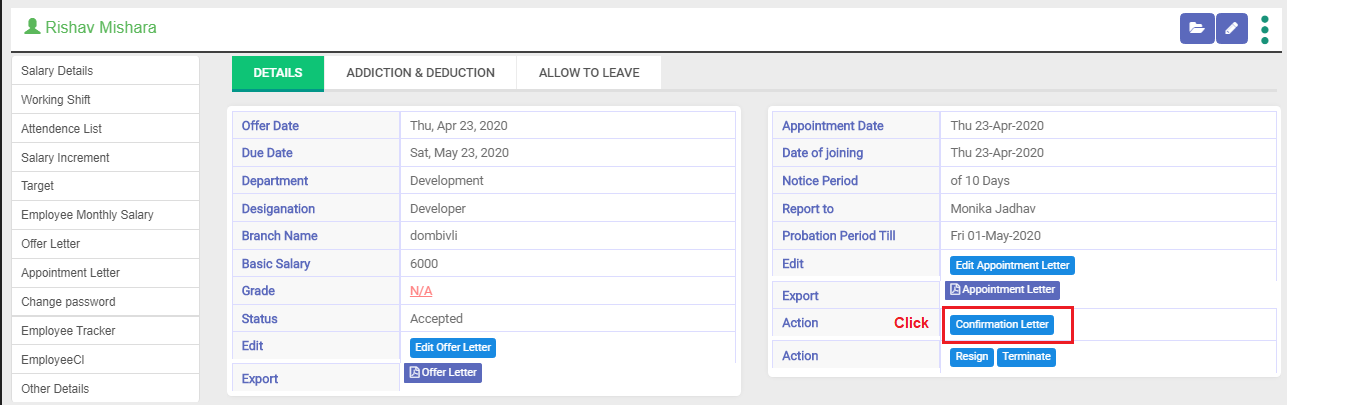
Click on Confirmation Letter
Fill all details(see below Screenshot)
Click on Save button
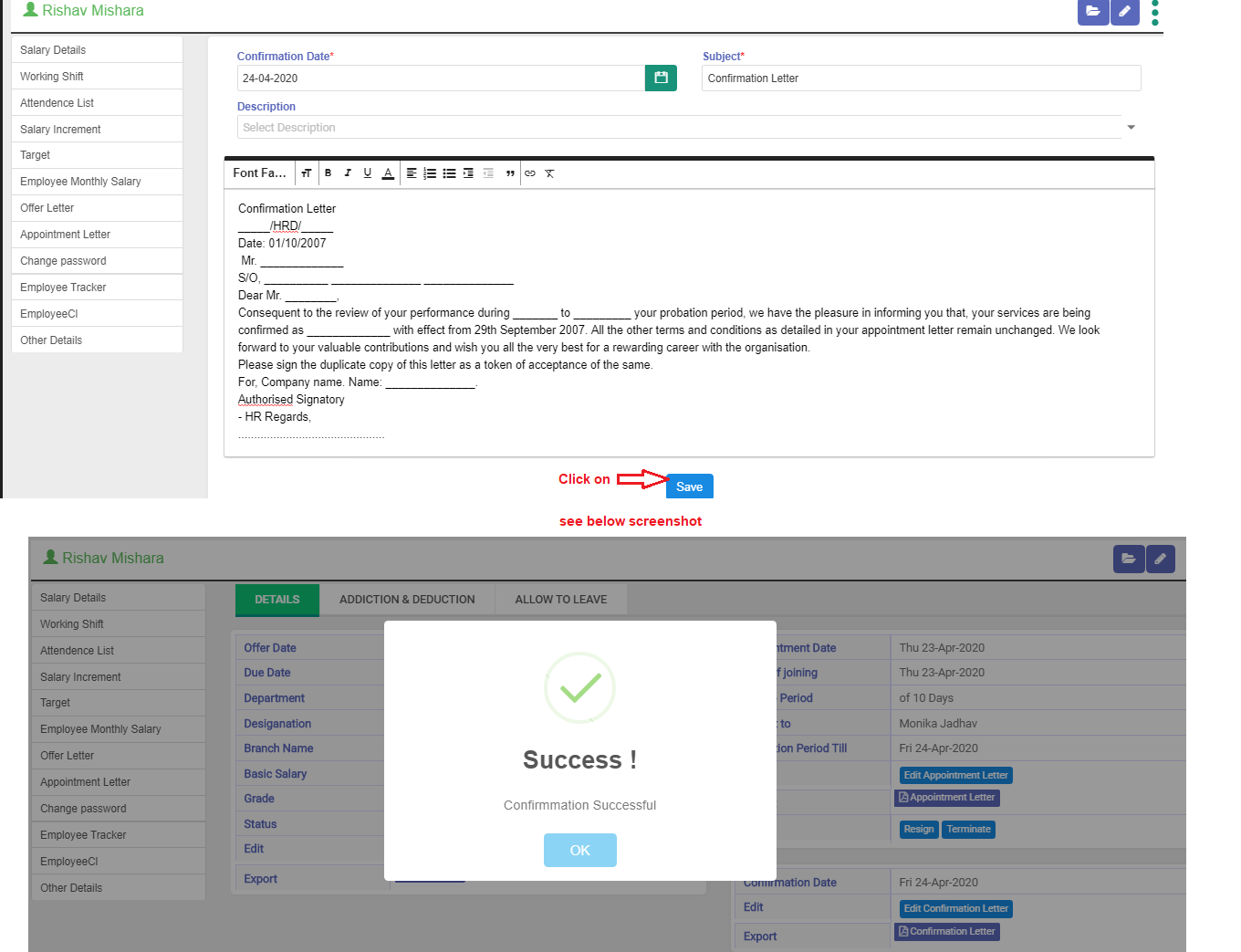
Edit Confirmation Letter :- You want change the details in Confirmation letter then click this button
Export the Confirmation Letter
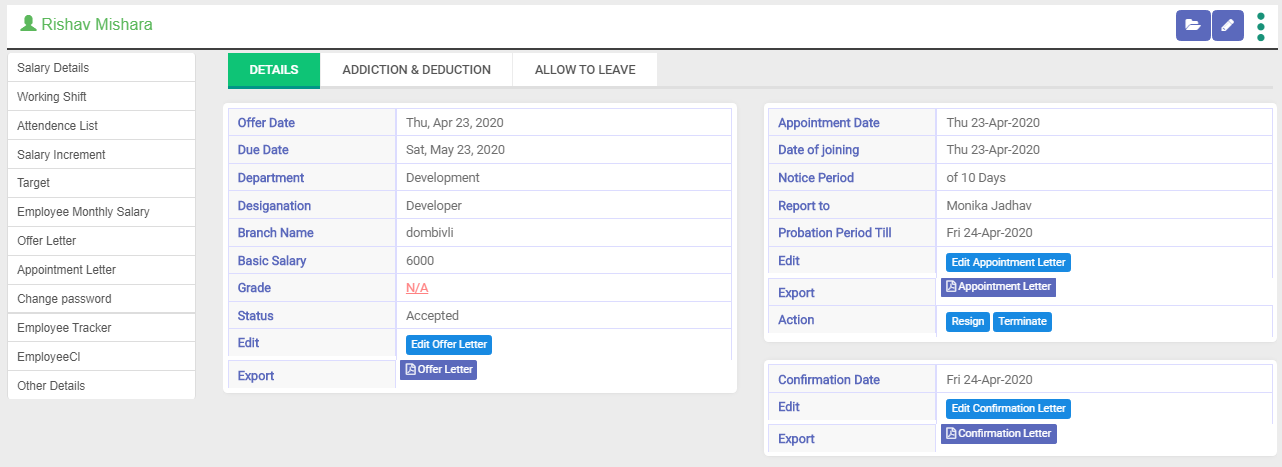
Click on Human Resource → Employee list → Double Click employee → Click on 3 Dots (see below screenshot)
1) Issue Salary2) Request For Leave
3) Performance Appraisal
4) Resigned
5) Terminate
6) New Product Request
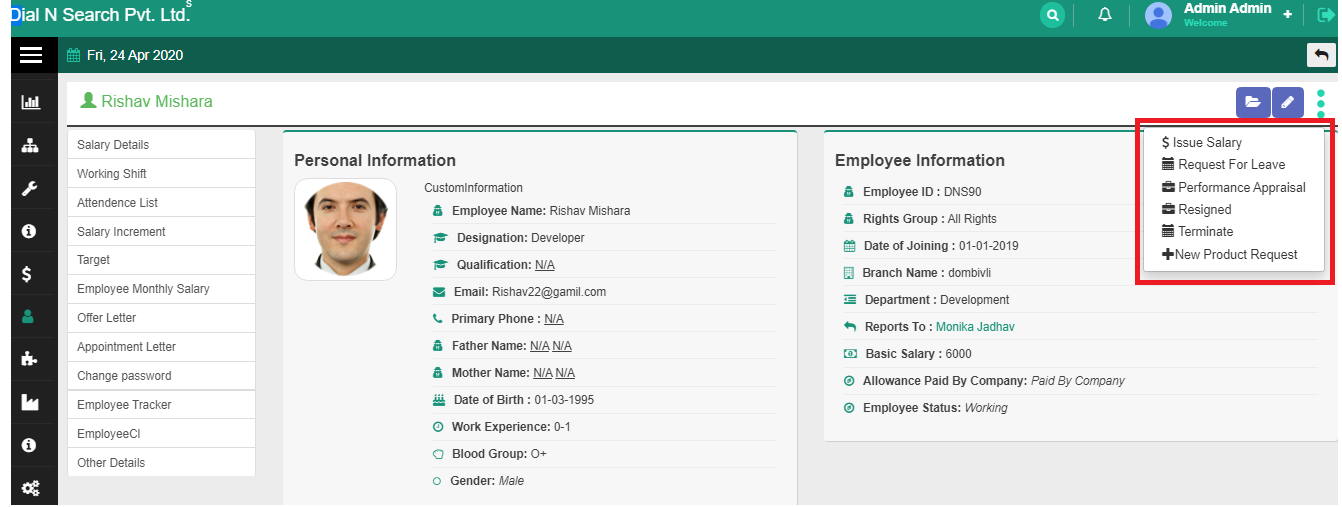
Click on 1) Issue Salary
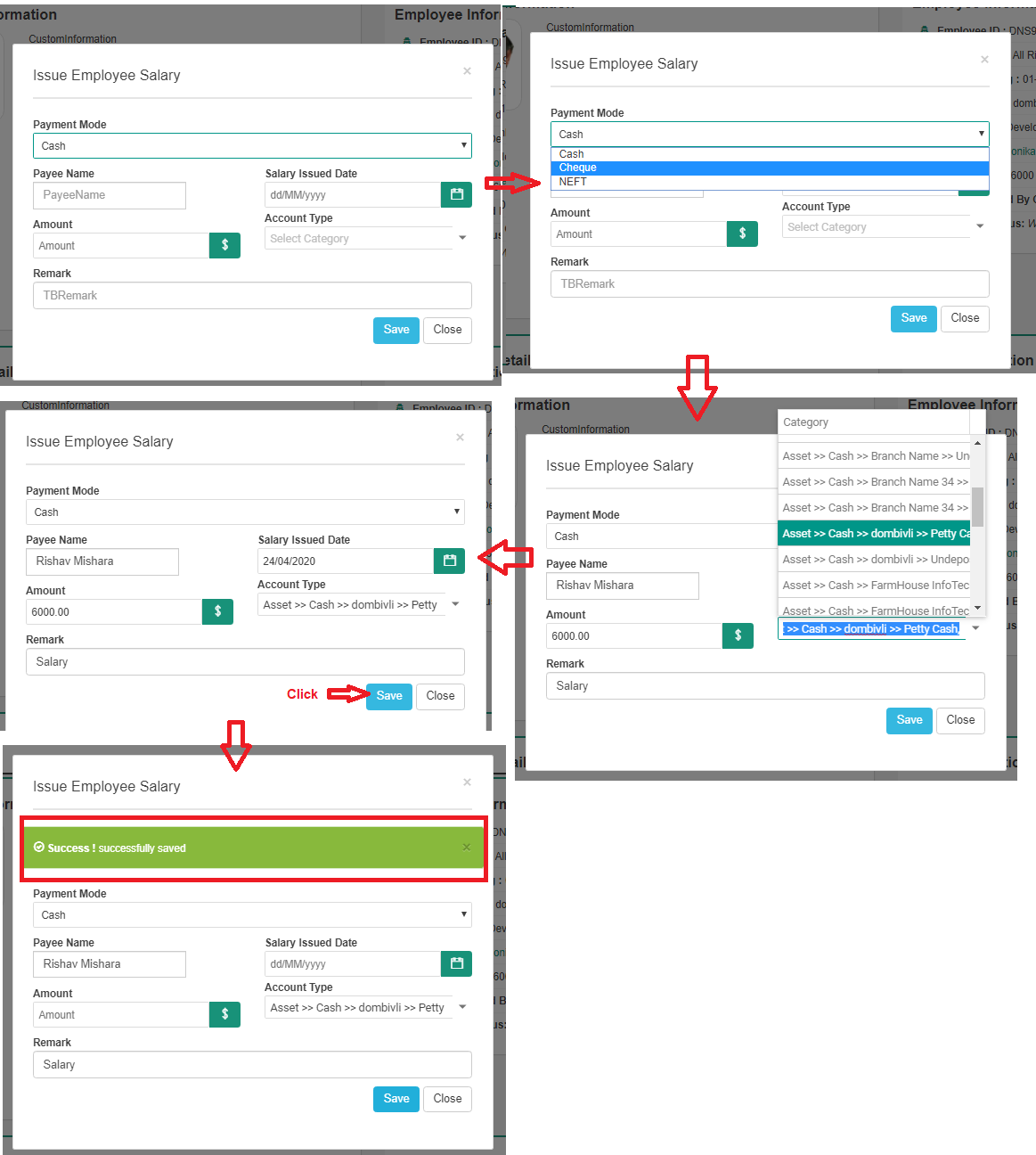
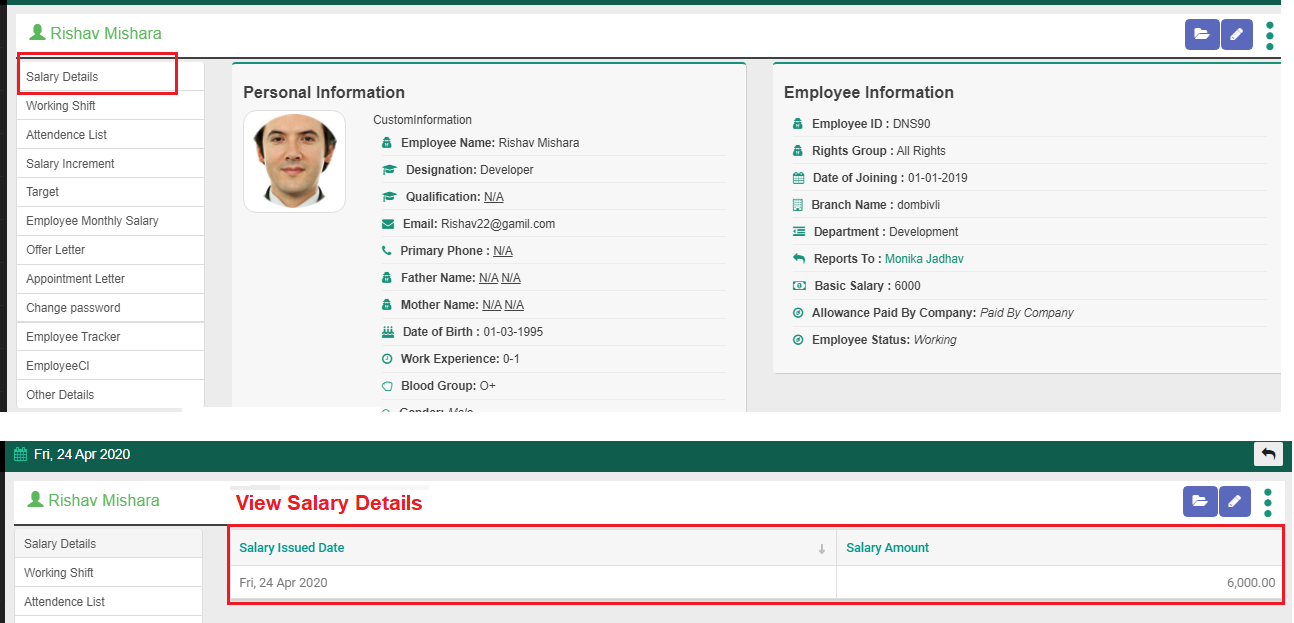
Click on Human Resource → Employee list → Double Click employee → Click on Salary Details(see below screenshot)
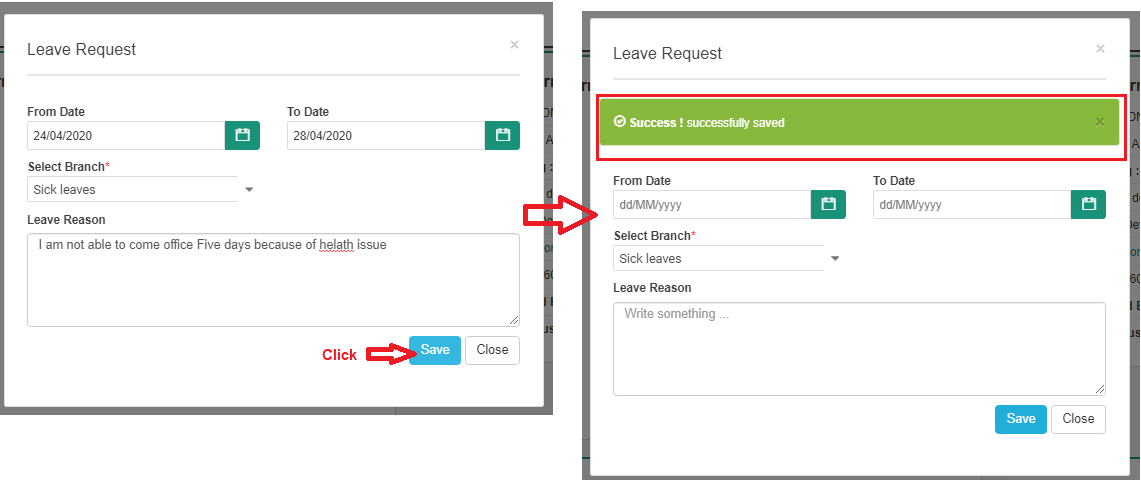
Click on 2) Request For Leave
Click on 3) Performance Appraisal
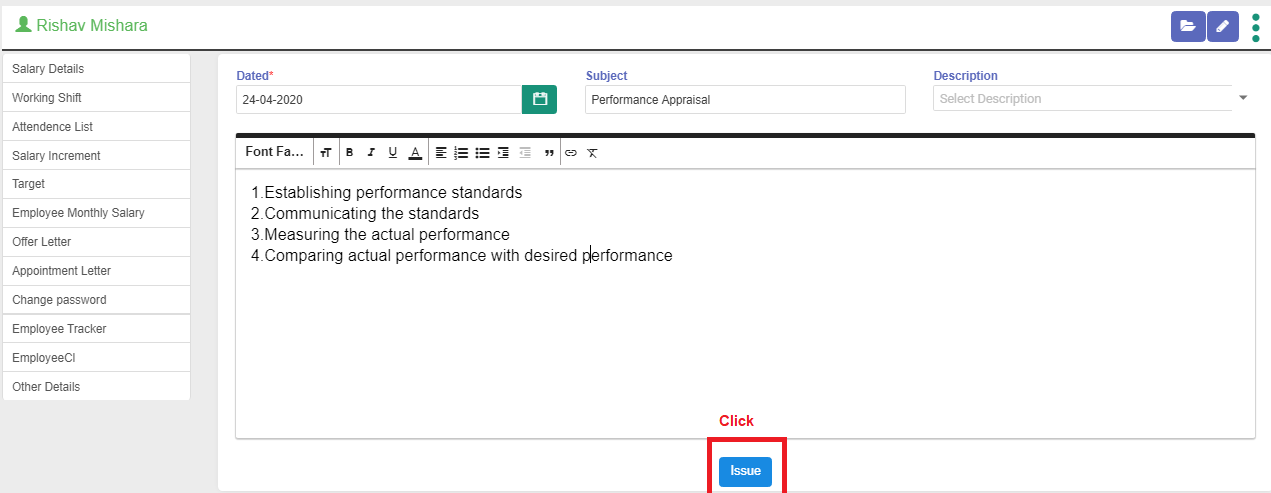
Edit Performance Appraisal :- You want change the details in Performance Appraisal then click this button
Export the Confirmation Letter
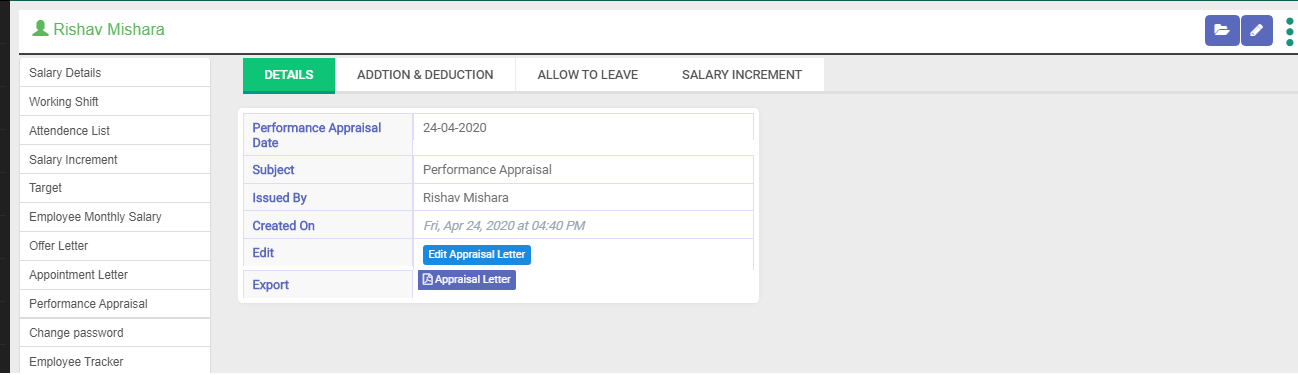
Click Addition and Deduction Tab
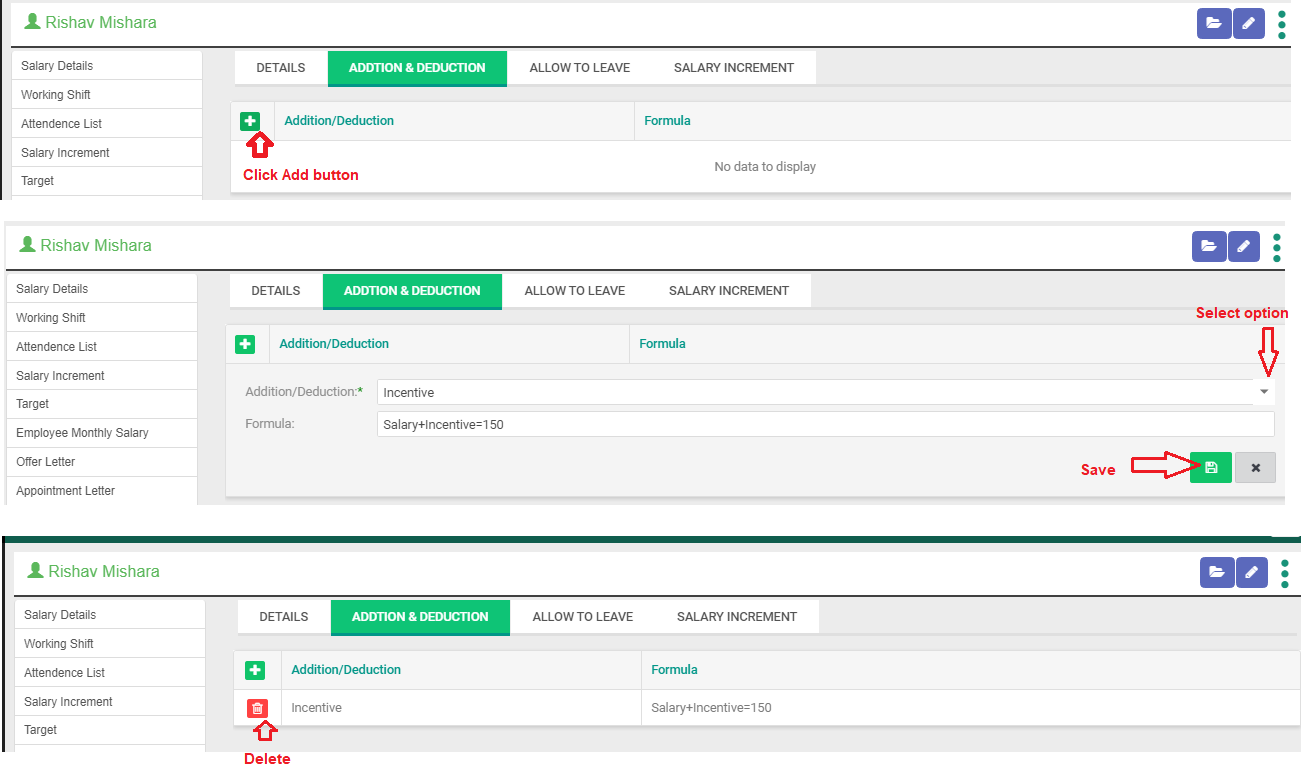
Click Allow To Leave Tab
Click Salary Increment Tab
If these issue salary create then the information in that tab comes previous salary in the Performance Appraisal Salary Increment Tab.
Edit previous salary
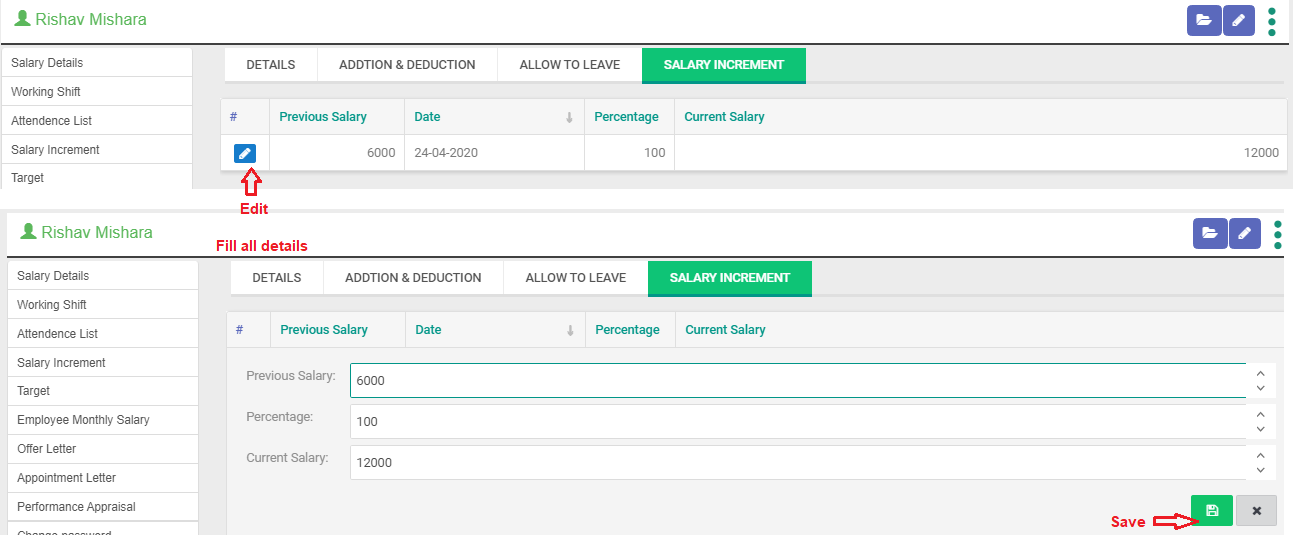
The Performance Appraisal option appears.This means that you have made the employee's Performance Appraisal.
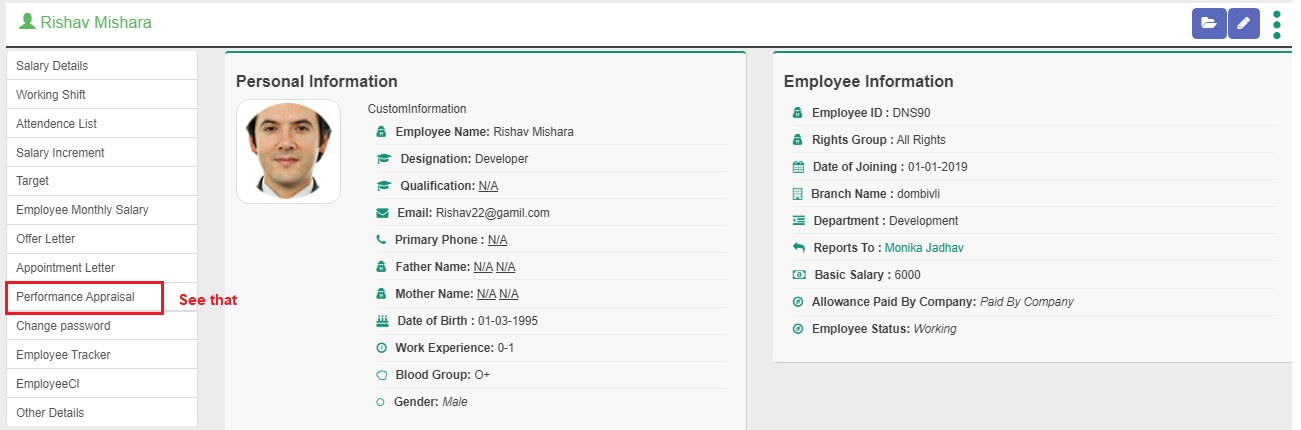
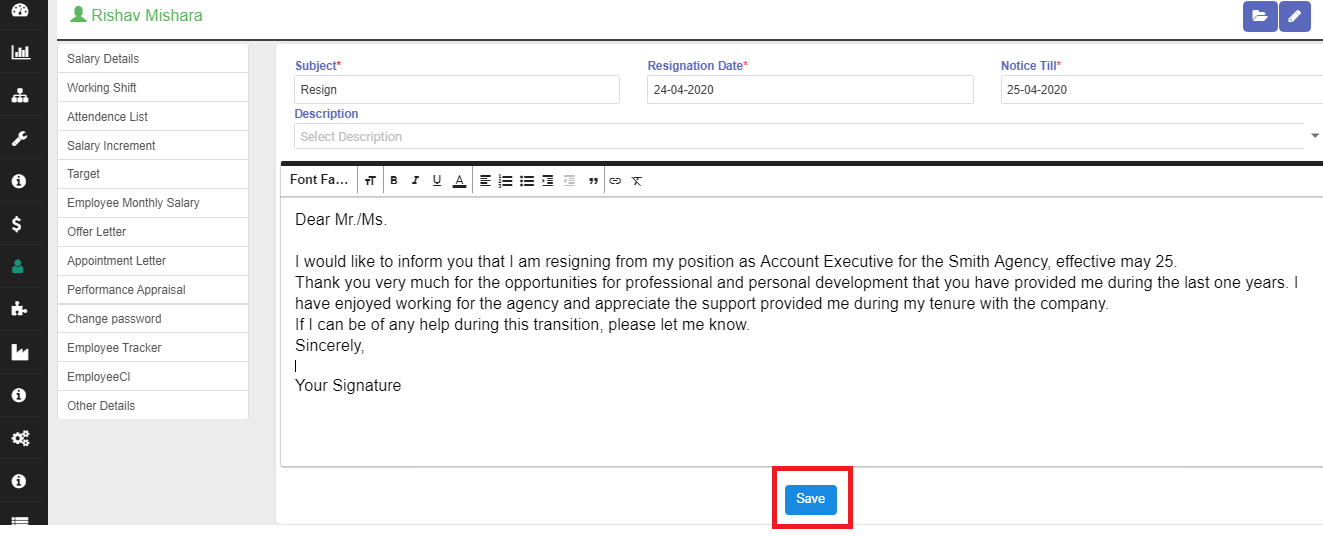
Click on 4) Resigned
See Resign Details
Status :-Pending / Accept / Reject
Status :-Pending
Edit Resignation :- You want change the details in Resignation then click this button
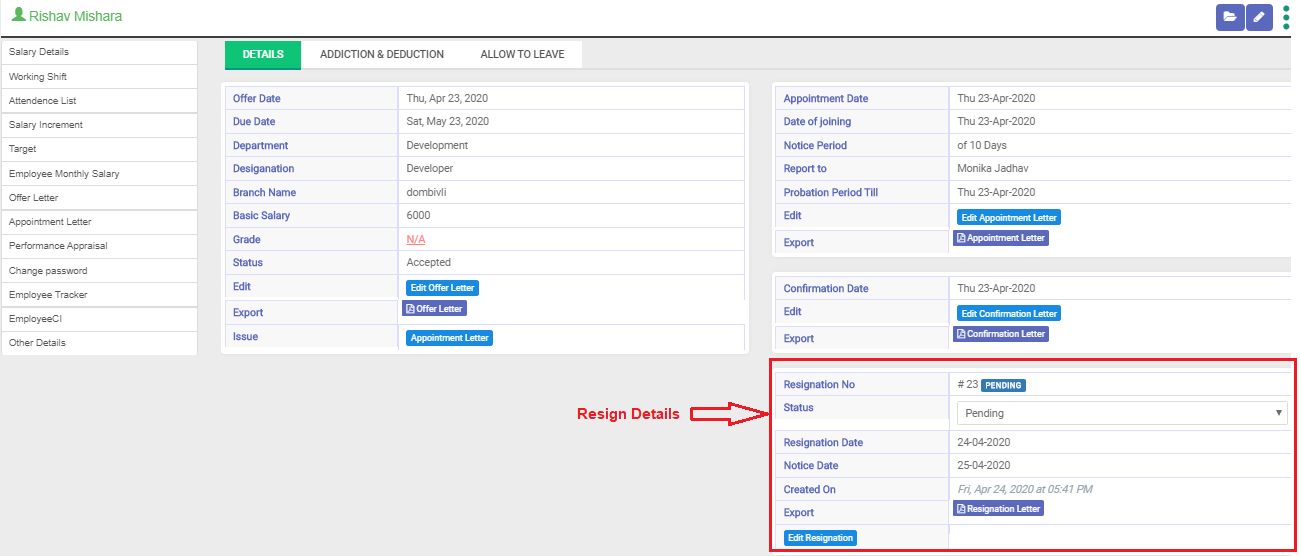
Status :-Accepted
Export Resignation Letter
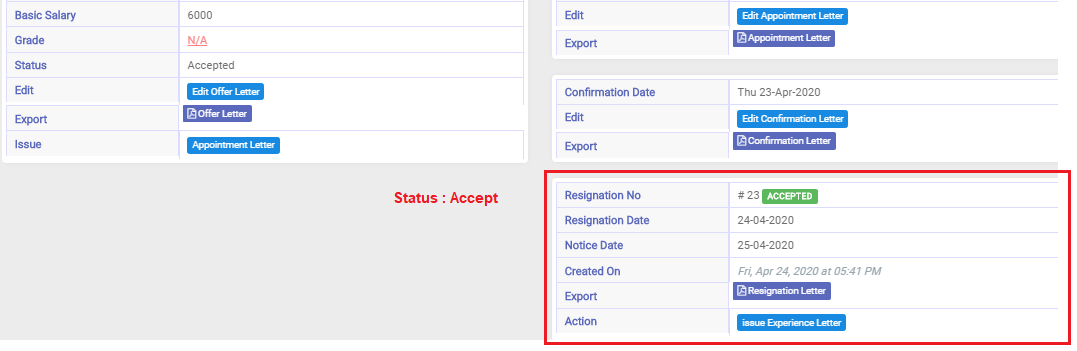
Click on Human Resource → Employee list → Double Click employee → Click on Resignation (see below screenshot)
The Resignation option appears.This means that you have made the employee's Resignation.
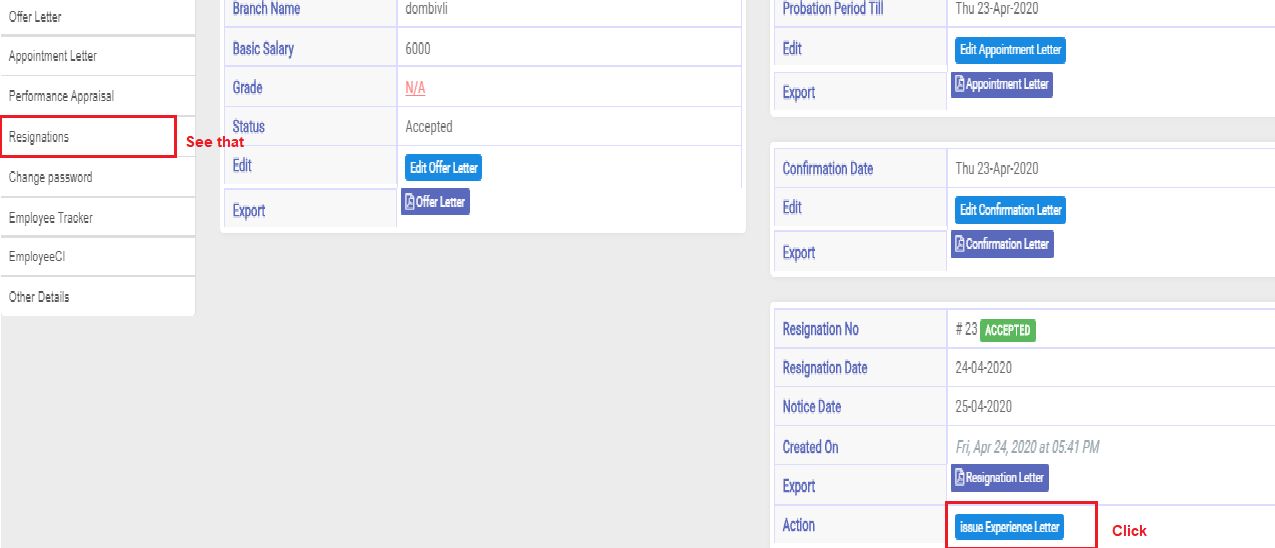
Click on 5) Terminate
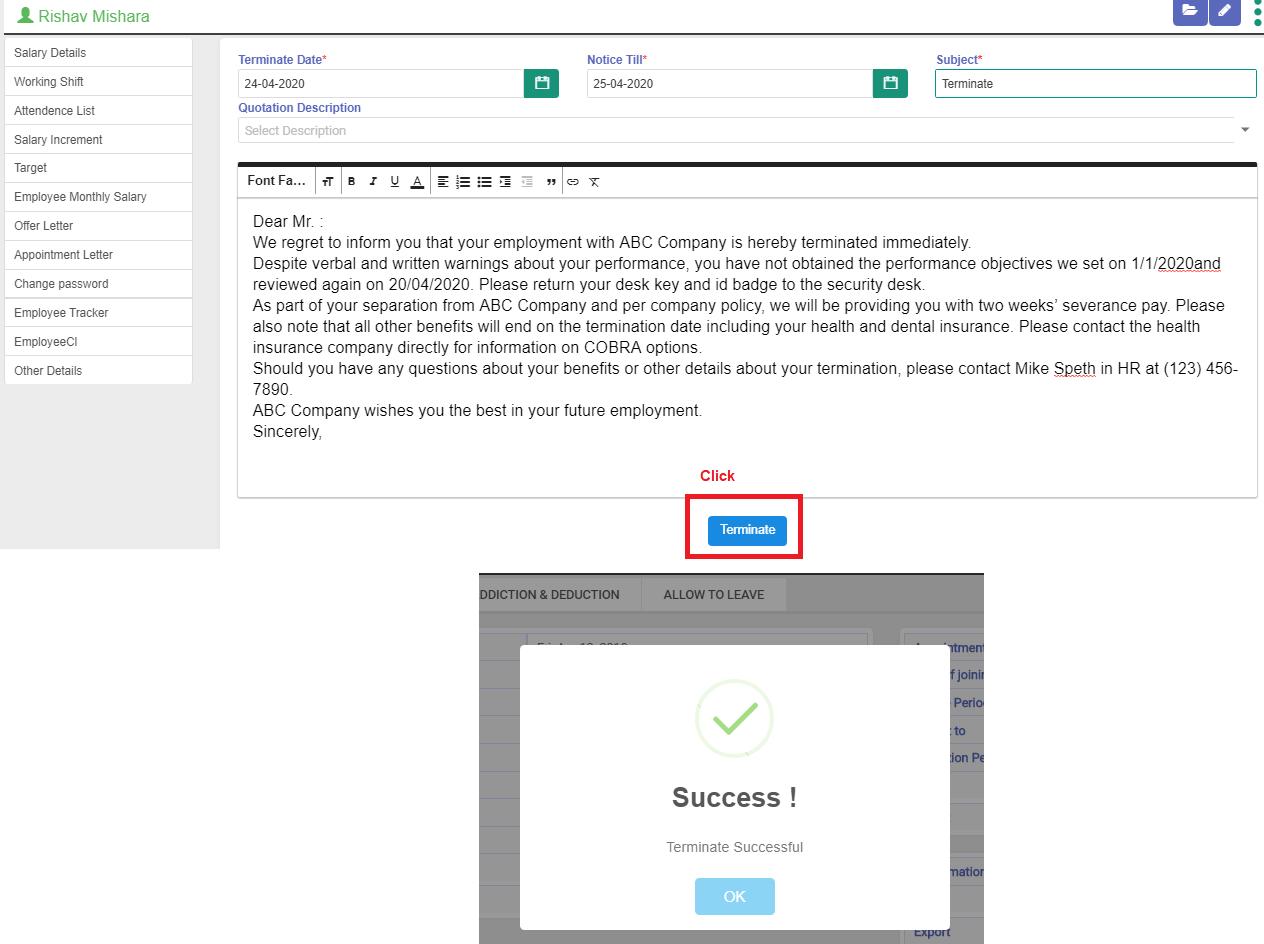
See Terminate Details
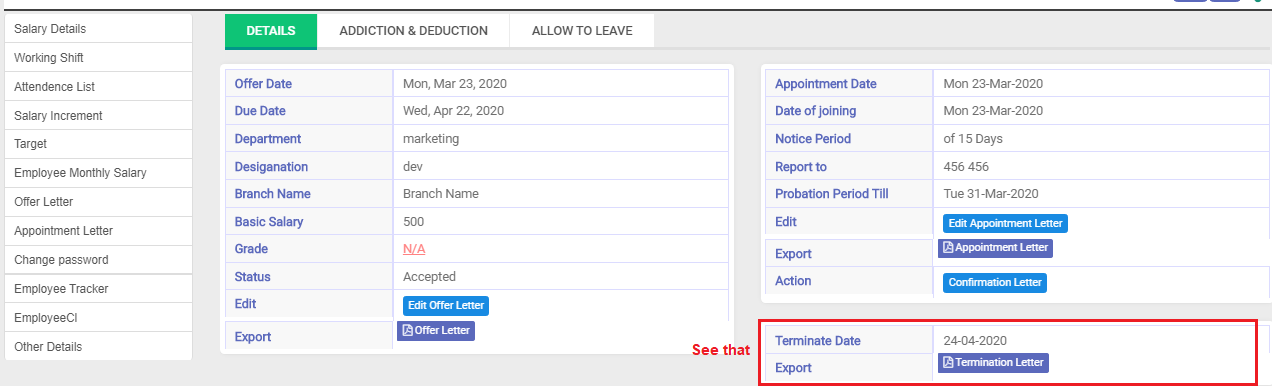
Click on issue Experience Letter
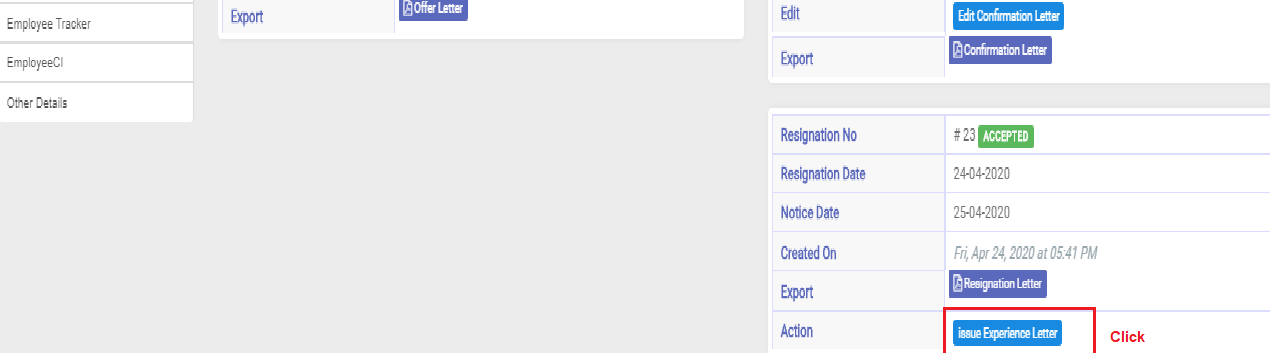
Click on Issue(see below screenshot)
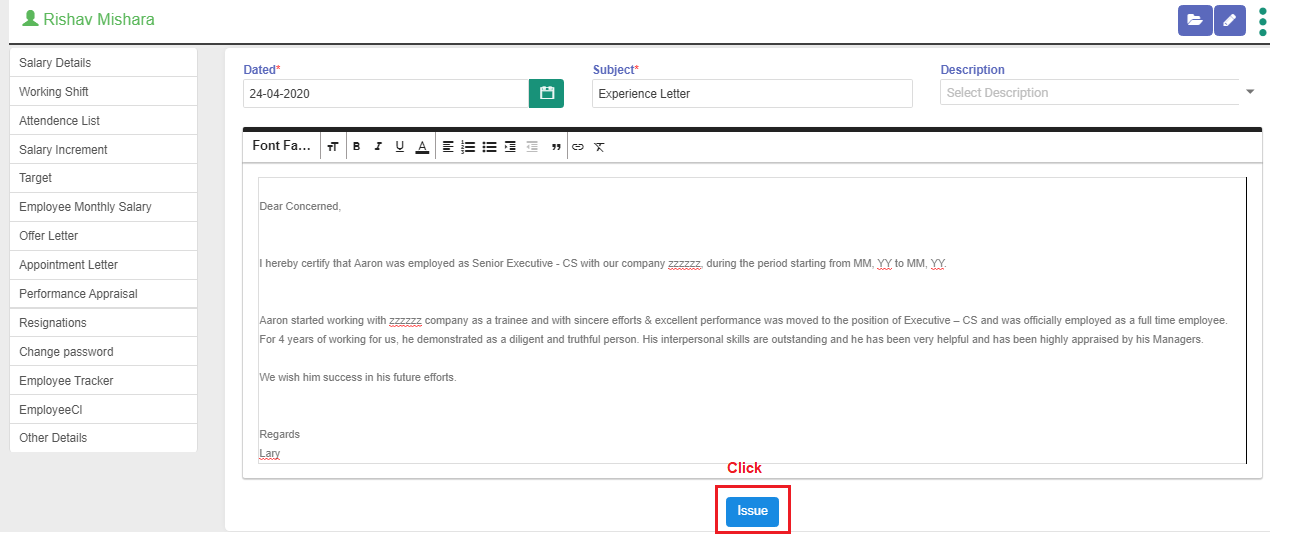
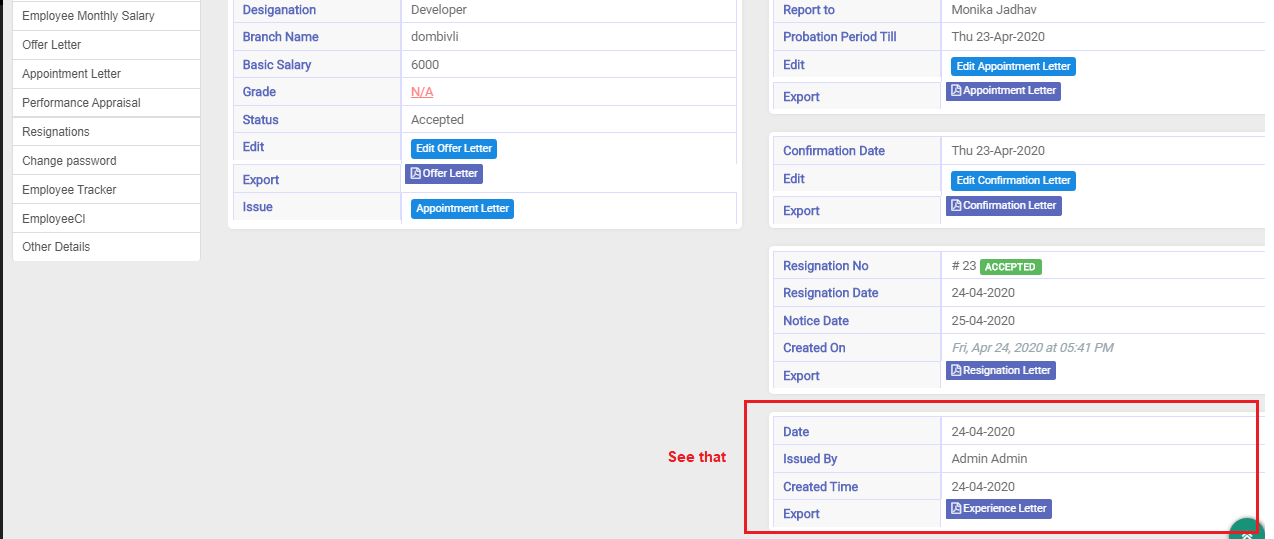
See Experience Details
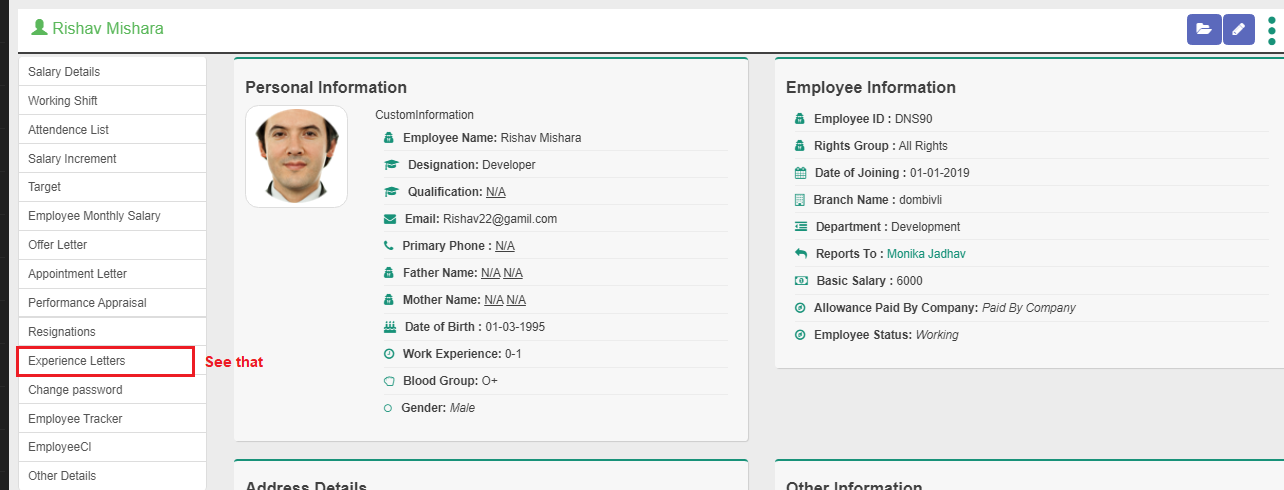
Click on Human Resource → Employee list → Double Click employee → Click on Experience letter(see below screenshot)
The Experience letter appears.This means that you have made the employee's Experience letter.
6) Click on + New Product Request
Fill all Details
Click on NEXT
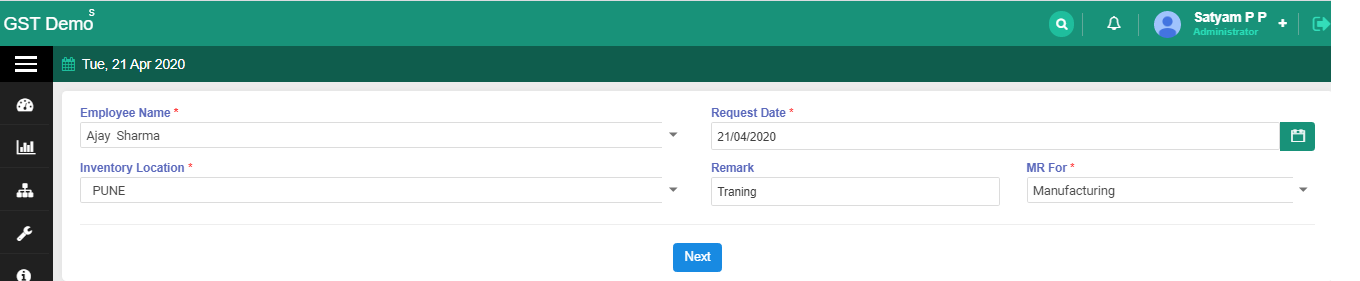
Fill up the Product details shown below ScreenShot
Click on Save button
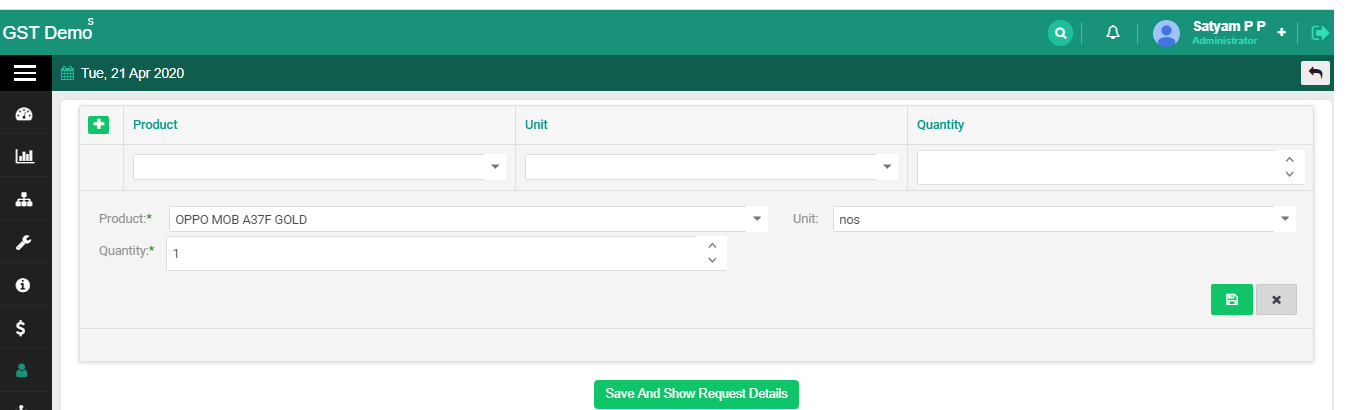
If you want Edit and Delete then Click on Edit and Delete Button
Click on Save and Show Request Details
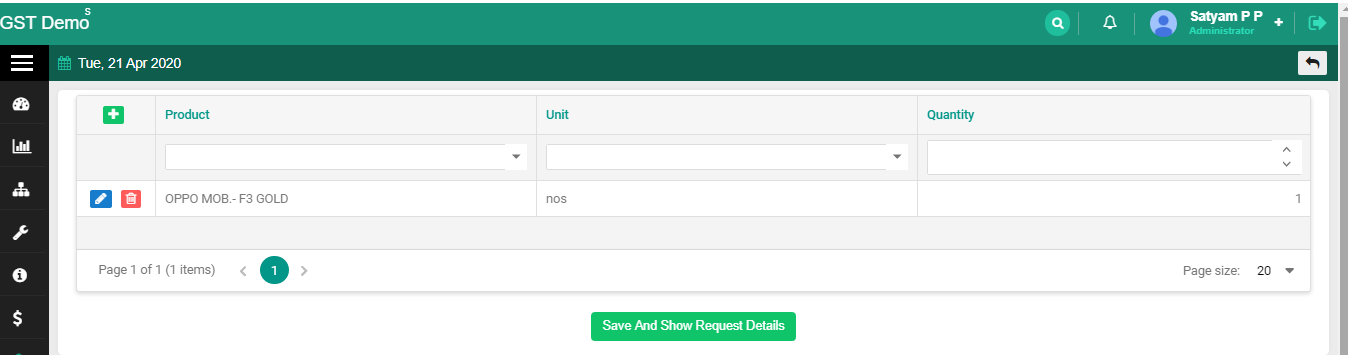
New Product Request is created.
If You want edit request then click Edit This Request button click on
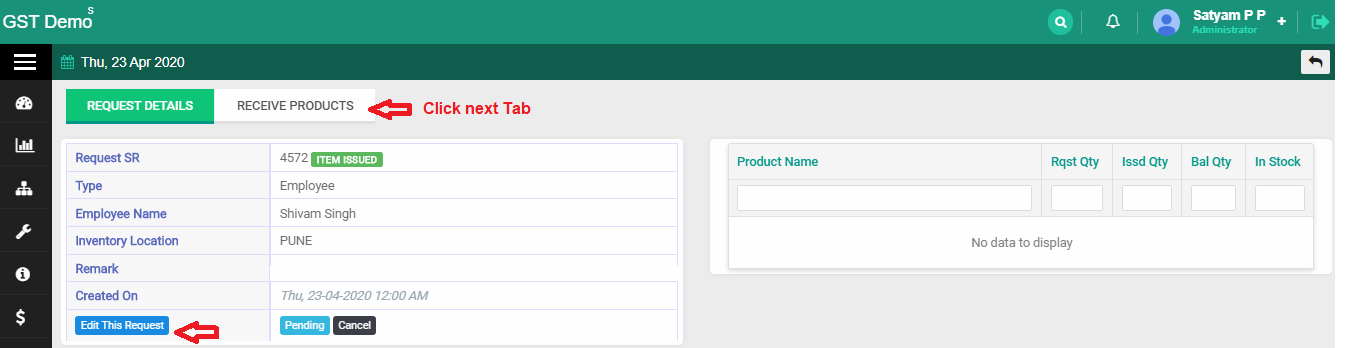
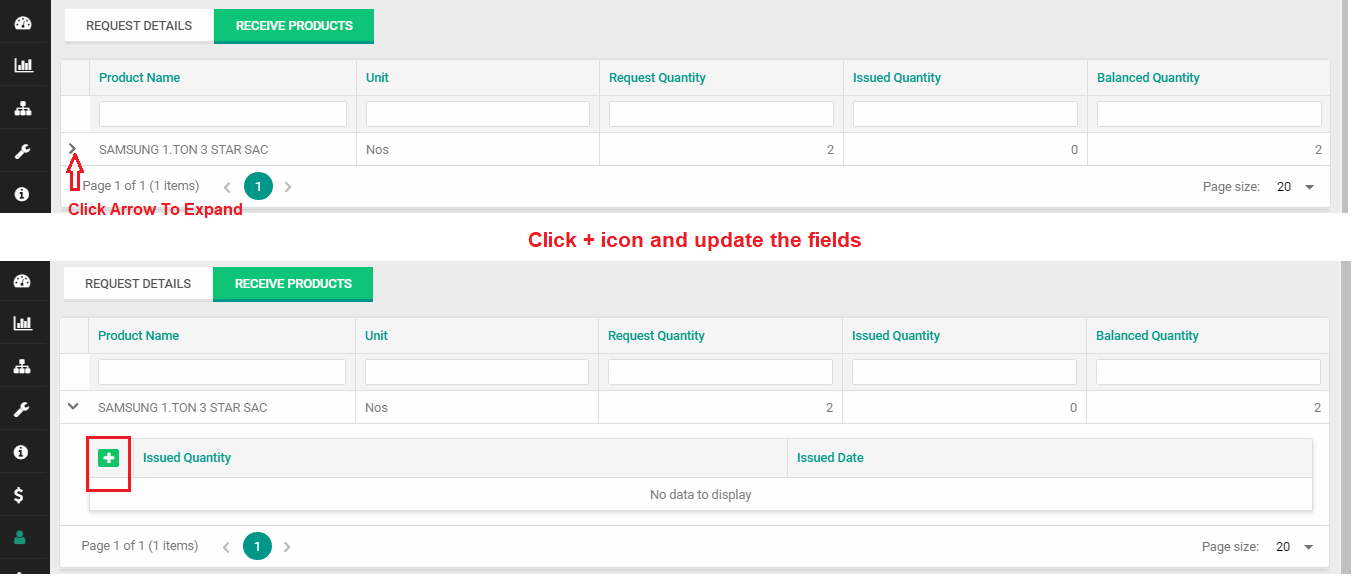
Click Receive Products
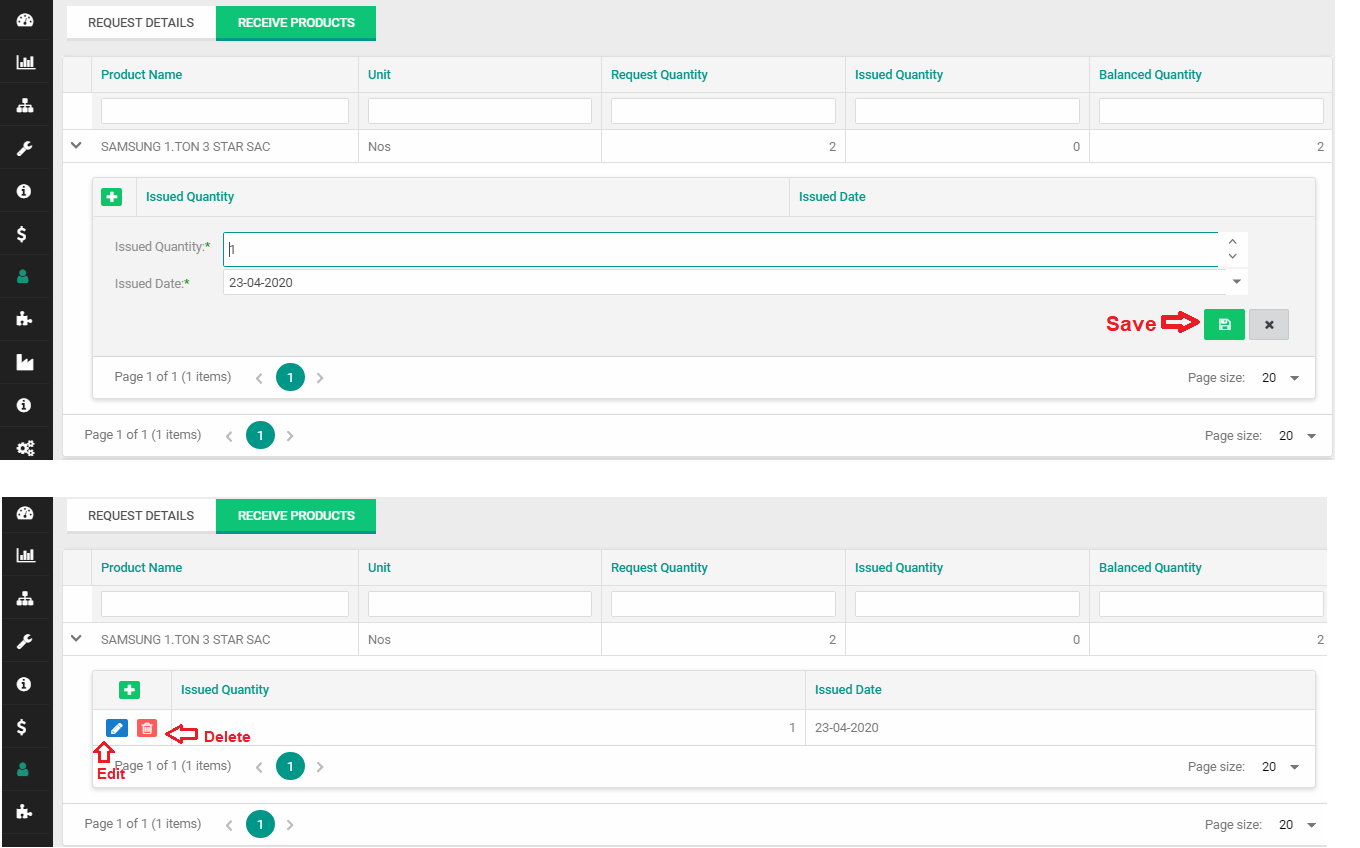
Click Save Button
Employee List left side details
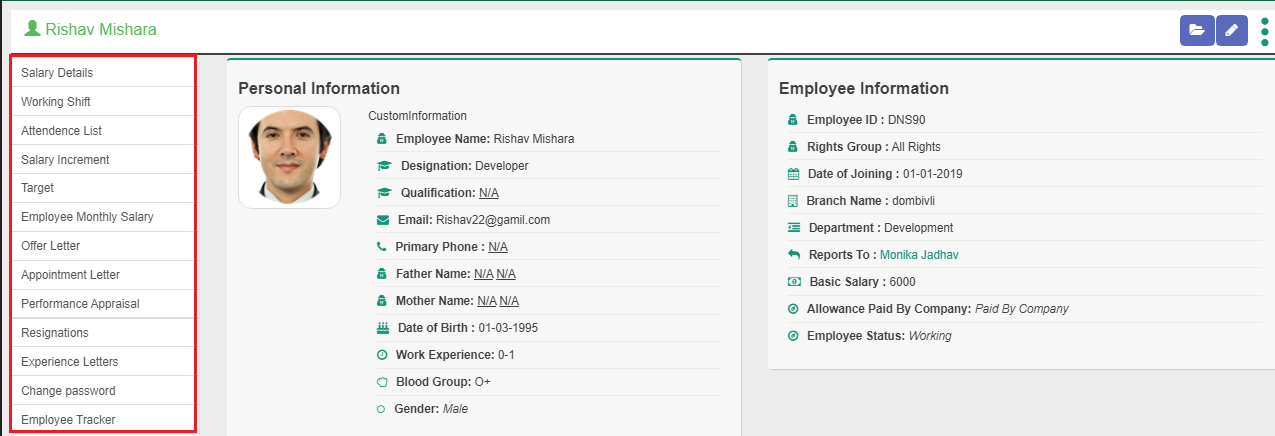
A) Salary Details
What is the salary of the employee and what date was issued
Click on Salary Details See that
Click on How to Create
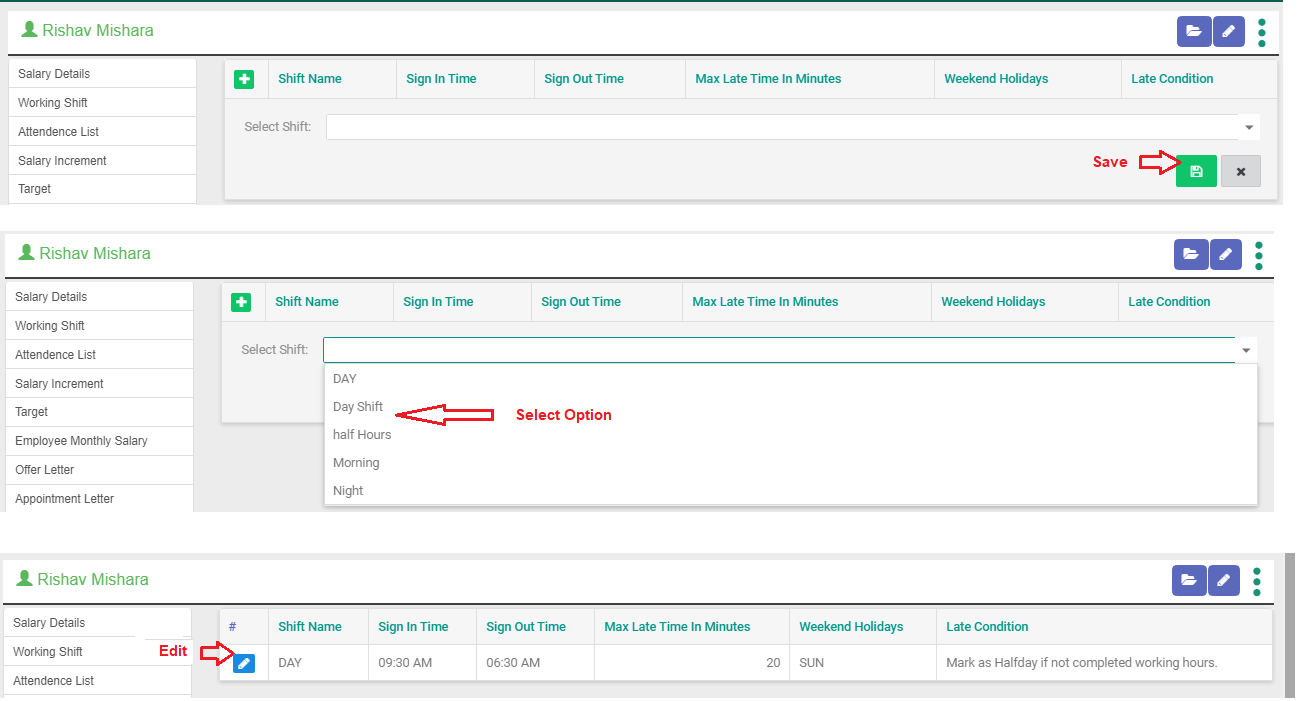
B) Working Shift
Click on Icon
First add the Employee shift Click on Human Resource → Employee shift → Add the details
Select the option
Click on Save button
If you want Edit Employee shift then Click on Edit Button
C) Attendence List
Click on Icon
Fill all Details
Click on Save button
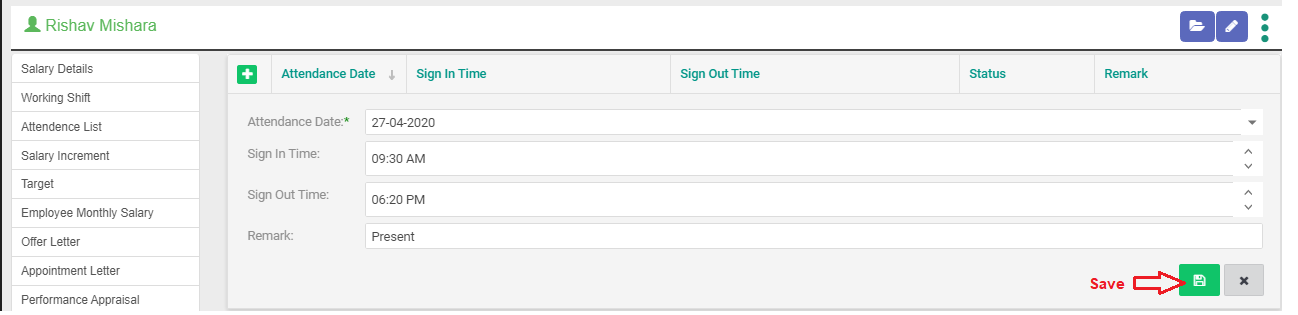
Click on Add Button
If you want Edit and delete Employee shift then Click on Edit and delete Button

D) Salary Increment
Double click Salary Increment Show the Details
Click on How to Create
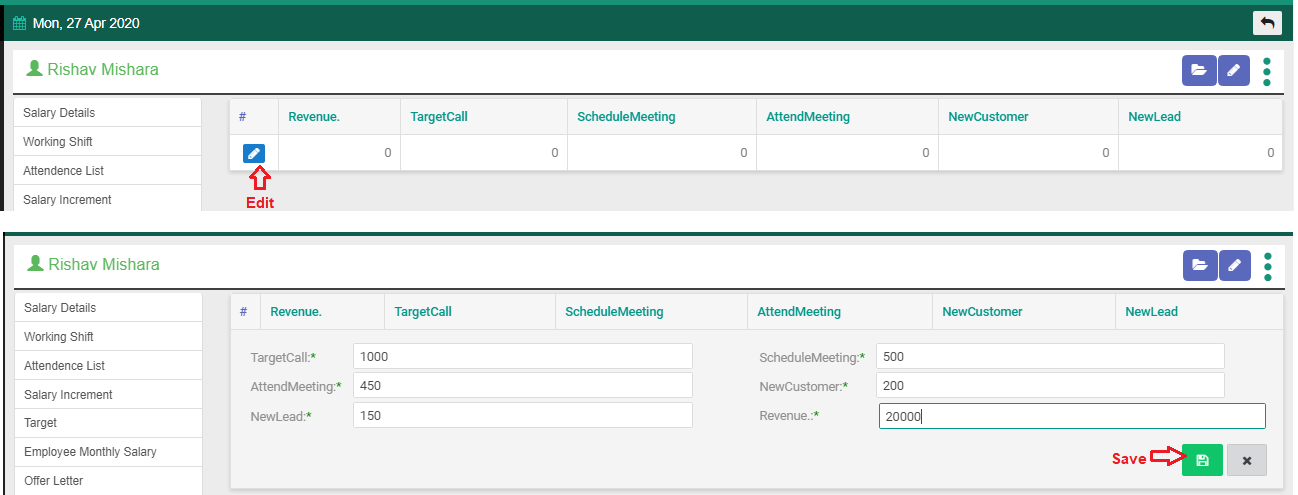
E) Target
Give Employee Monthly Target
F) Employee Monthly Salary
Show the Employee Monthly salary details
Export the salary Details

G) Offer Letter
First Option Create the Offer letter
Show the Offer Letter details
Click on How to Create
H) Appointment Letter
Second Option Appointment Letter
Create Appointment Letter
Show the Appointment Letter details
Click on How to Create
I) Performance Appraisal
Thired Option Performance Appraisal
Create Performance Appraisal
Show the Performance Appraisal details
Click on How to Create
J) Resignations
Fourth Option Resignations
Create Resignations
Show the Resignations details
Click on How to Create
K) Experience Letter
Fifth Option Experience Letter
Create Experience Letter
Show the Experience Letter details
Click on How to Create
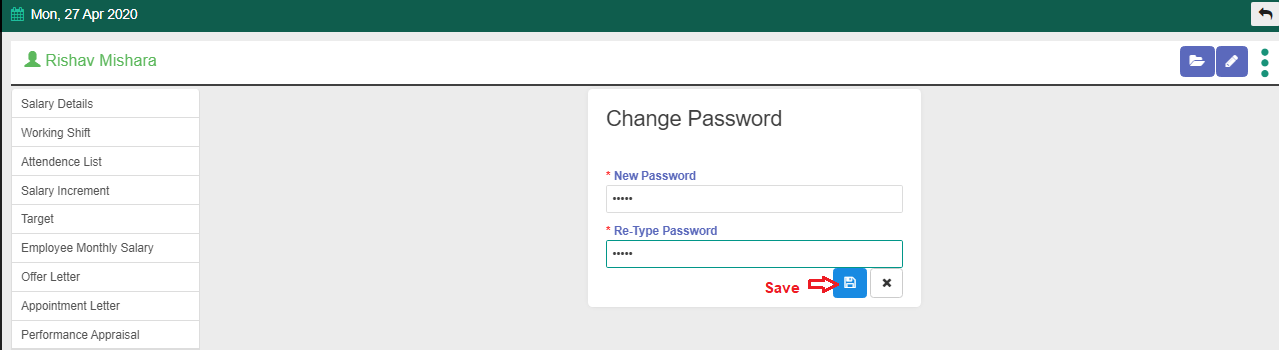
L) Change Password
M) Employee Trackers

Left Employee List
Show the Left employee List
Employee Group
See that data Groupwise
- Click on Employee Group
- Fill the details
- Group Name :- Set the group name
- Branch Employee Permission:
- View All Within Ownership :- View data in Group employee and Owner
- View All :- View data in Group employee
- View Within Branch :- View data in particular Branch
- View All Within Ownership and Branch :- View data in Owner and particular Branch
- Global Search Permission:
- Filter From All :- Filter Data in Group Employe and all Ex..Owner,Branch,Admin
- Filter Within Branch :- Filter data in particular Branch
- Filter Within Ownership :- Filter data in Owner
- Filter All Within Ownership and Branch :- Filter data in Owner and particular Branch
- None
- Selling Rate:
- Allow both :- Change Product Rate(Group Employee)
- Allow to Increase :- Only Increase the Amount
- Allow to Decrease :- Only Decrease the Amount
- None
- Change Selling Tax:
- Yes :- Give Permission in change the selling tax
- No
- Click Save
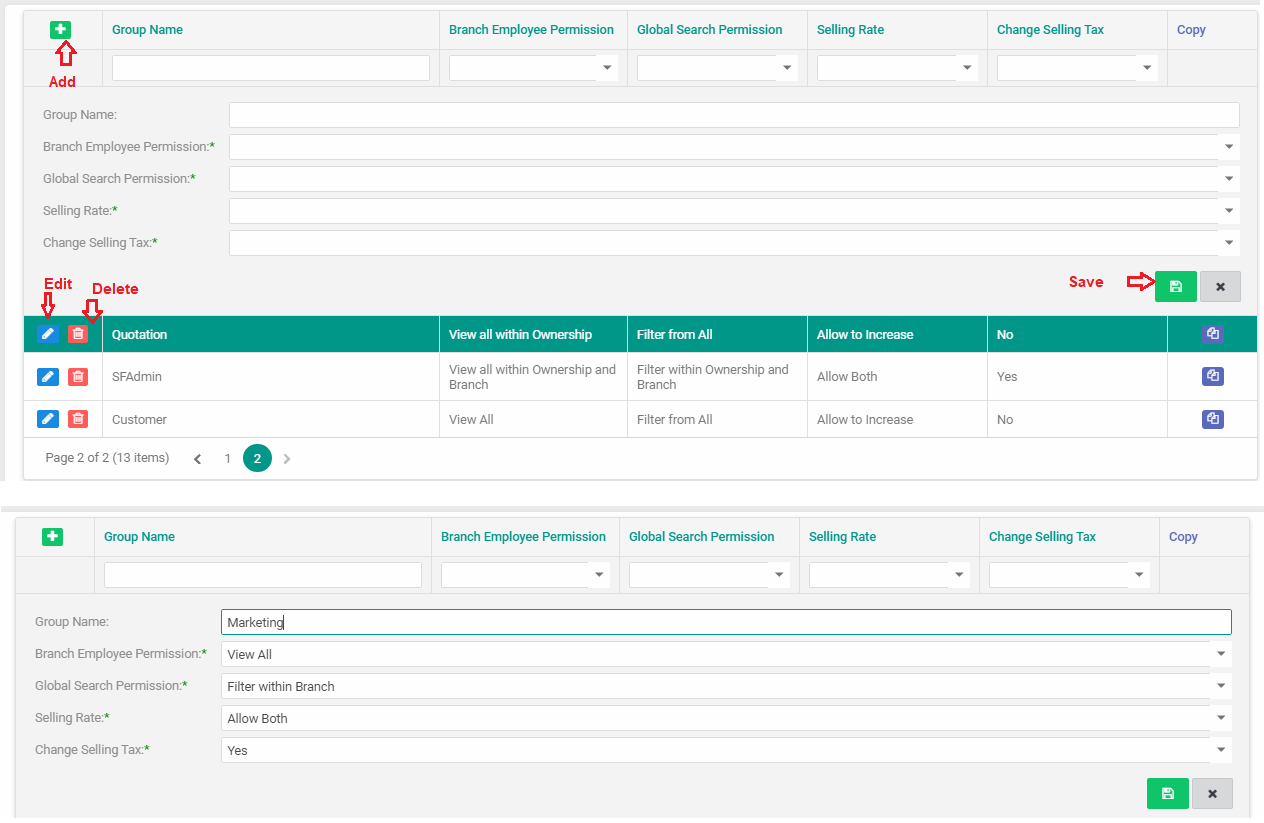
Employee Group List
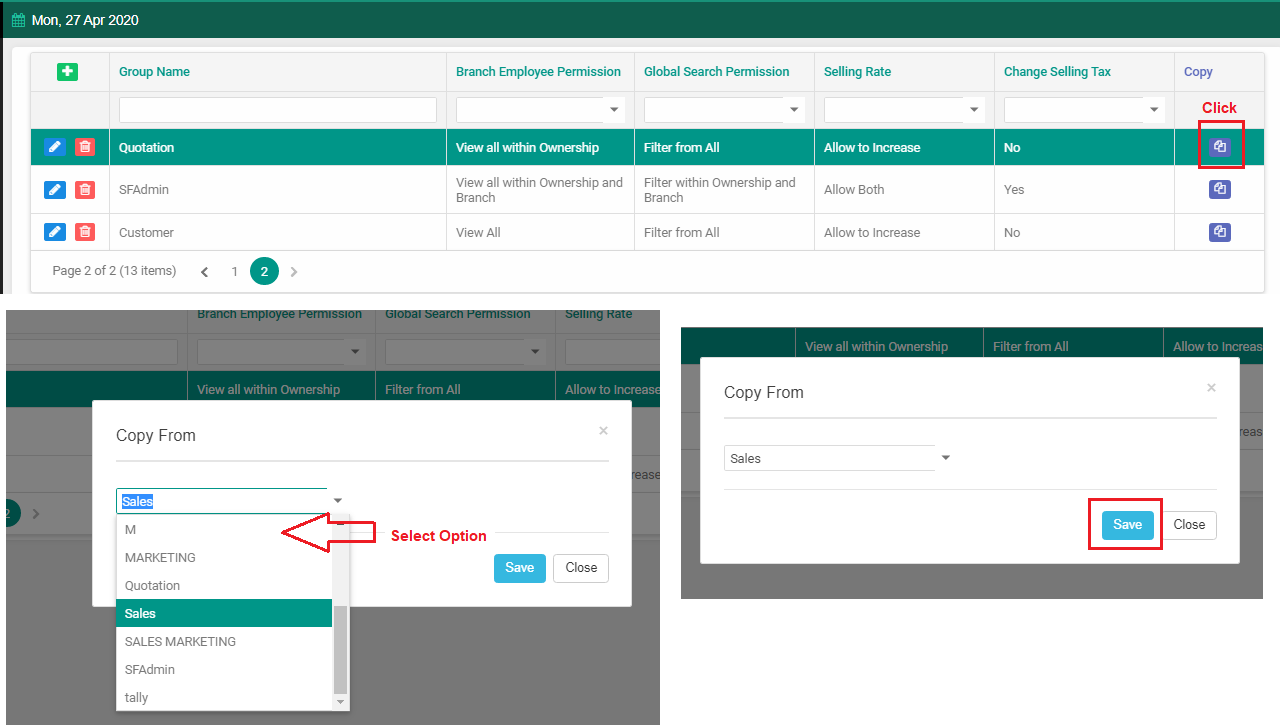
Employee Shift
Click on Employee Shift
Fill all details
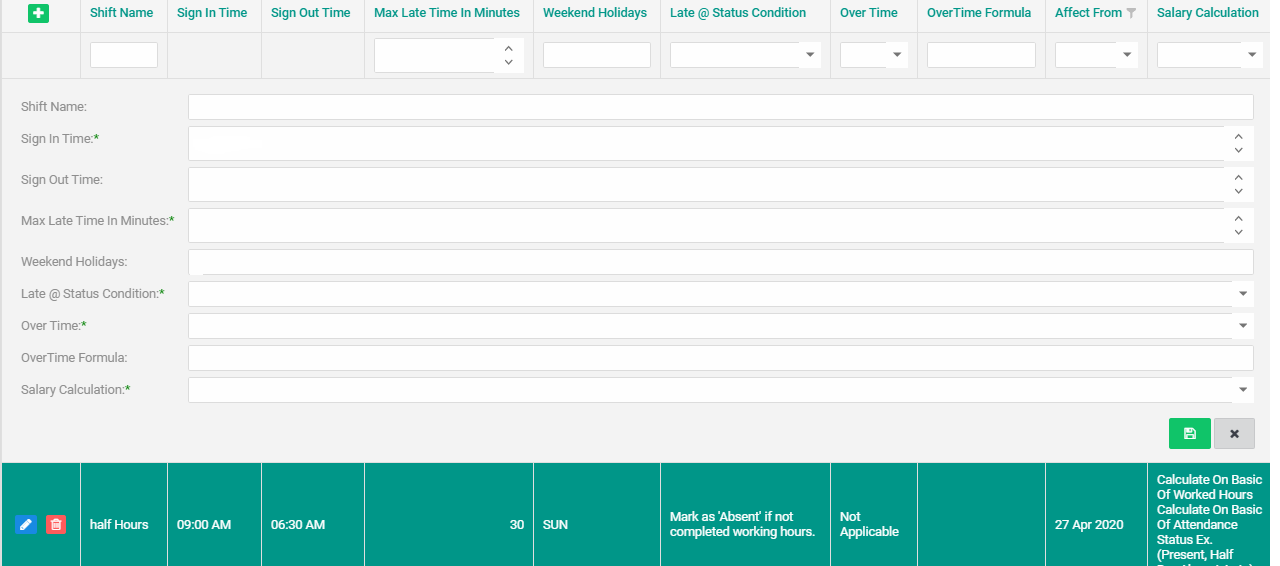
New Product Request
Click on How to Create
Track All Employee
Fill all details
Attendence Report
Fill all details
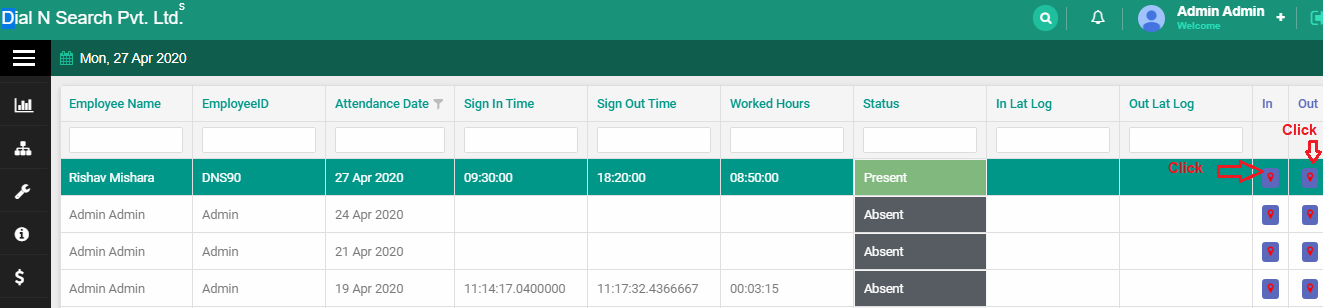
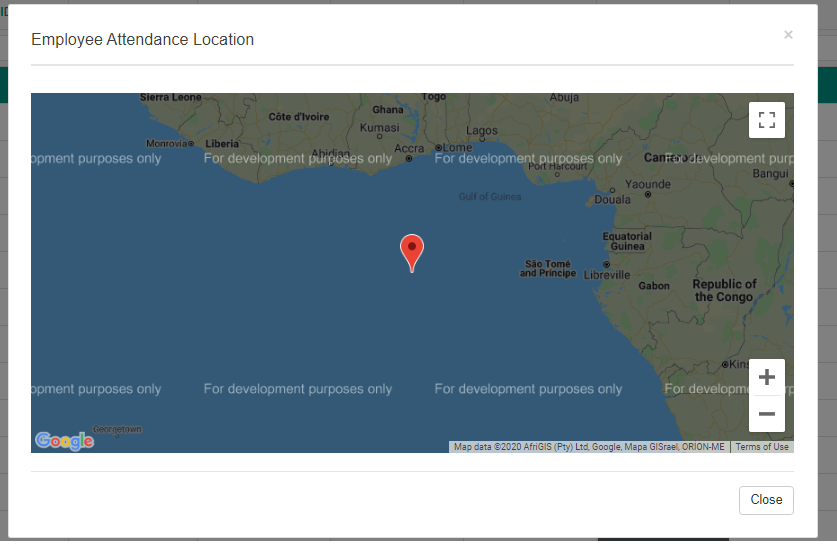
Click on In and Out Location
Salary Report
Search All Field
Export the Salary Silp