Master
Where Master's models are used while adding new organization and some model contains messages from the company
(Click on Master )- Addition And Deduction
- AMC Feature
- Bank
- Branch
- Category
- Company Details
- Common SMTP Settings
- Custom Information
- Data Source
- Department
- Description
- Email Campaign
- Fault Category
- Holiday List
- Industry
- Inventory Location
- Leave Type
- Manufacture
- Manufacture Unit
- Organization Type
- Allowance Type
- Process Approval
- Project Status
- Product
- Product Columns
- Product Group
- Reasons
- Service
- Service Columns
- Settings
- SMTP Settings
- Task Group
- Terms And Condition
- Zone
- Enquiry Status
- Job Work Status
- Action Taken
- MR For
- Particular Expense
- Account Type
- Task Stage
Addition And Deduction
Company are required to report all of their gross income
One of the most complex parts of paying your employees is properly deducting money from employees' pay. The best approach an employer can take is to understand the three basic categories of deductions that are made from employees' pay and how to properly make them.
Ex:-PF,HRA,ESIC,TDS,Insurance..
See in Human Resource → Employee list → Double Click employee → Click on Offers letter Tab(Show Right side) → Double click record →2nd Tab Addition And Deduction
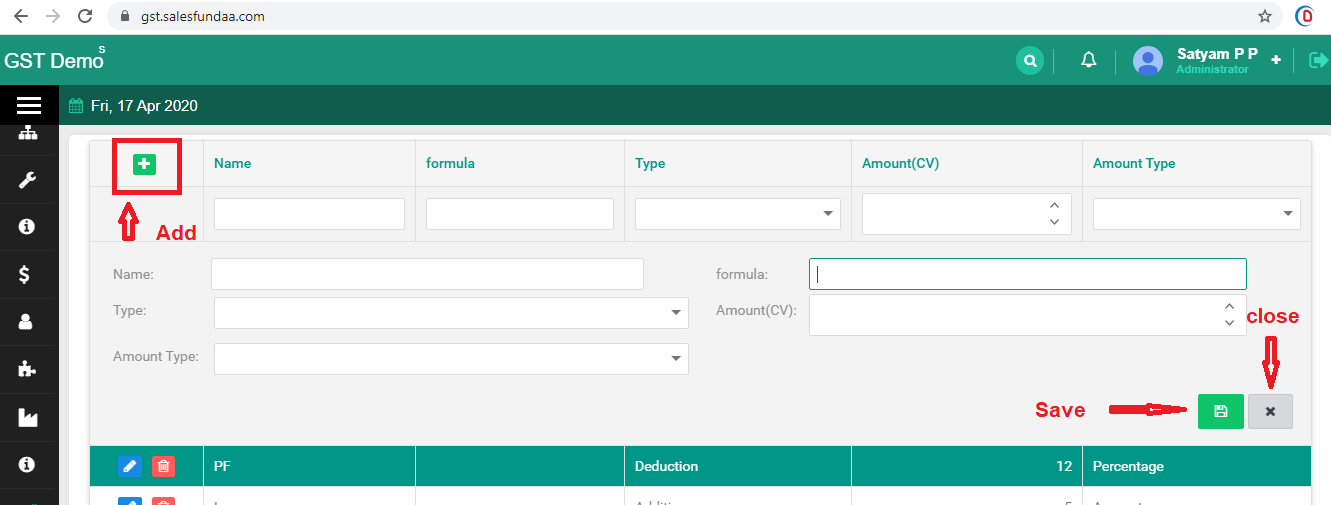
Steps to Addition And Deduction records
- In Addition And Deduction module click on icon
- In the Create Addition And Deduction,fill the details
- Click Save
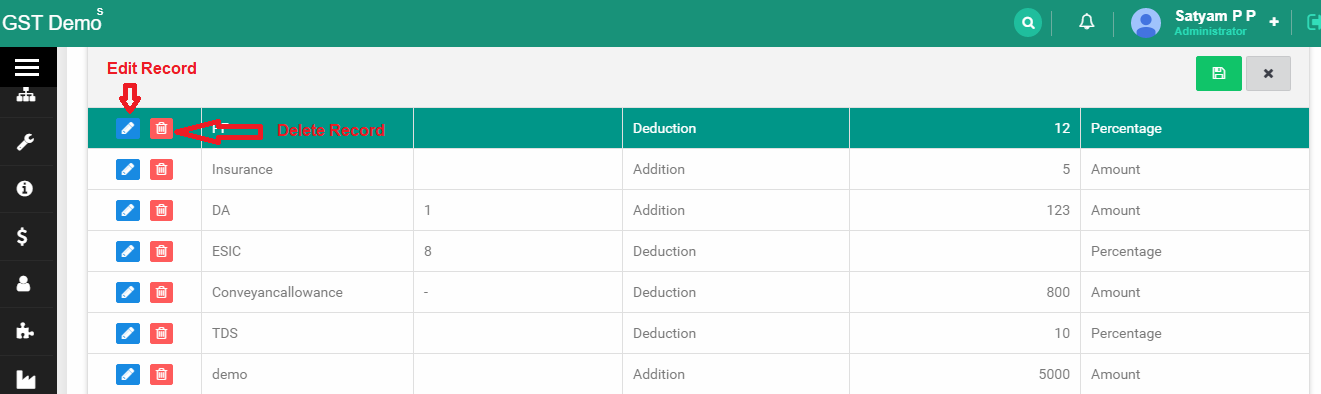
- Edit And Delete Option
AMC Feature
Bank
Add information about the bank
Steps to export your data
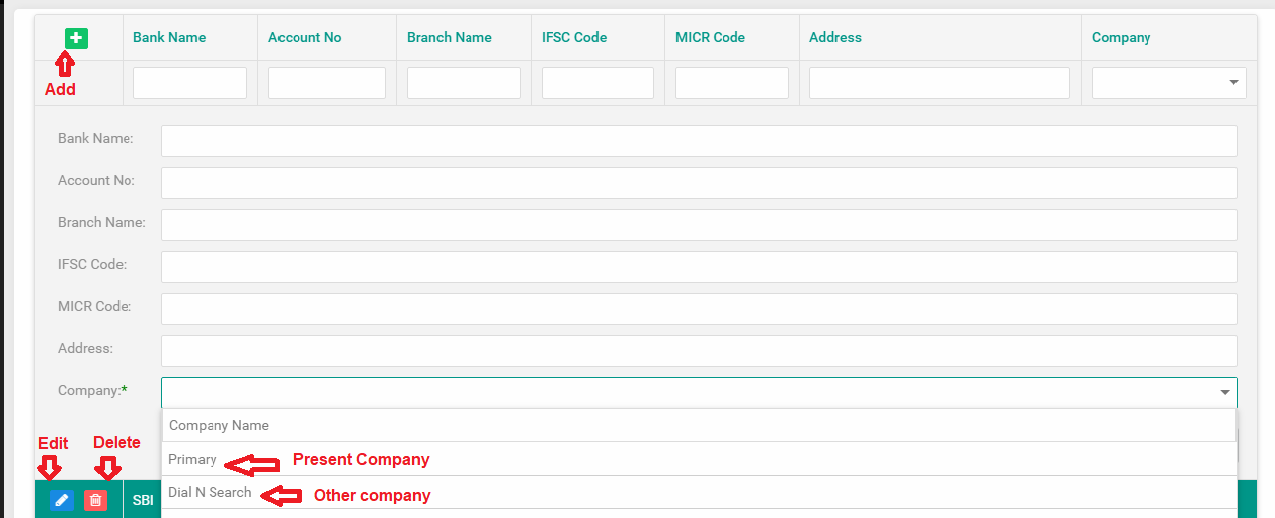
- Click Bank
- Add Company in Company Details
- Fill the Details
- Click Save
| Company | Description |
|---|---|
| Primary | Present Company is your primary company and Fill the bank details in Primary Company |
| Other Company Name(Ex:-Dial N Search) | Enter bank details of another company |
Branch
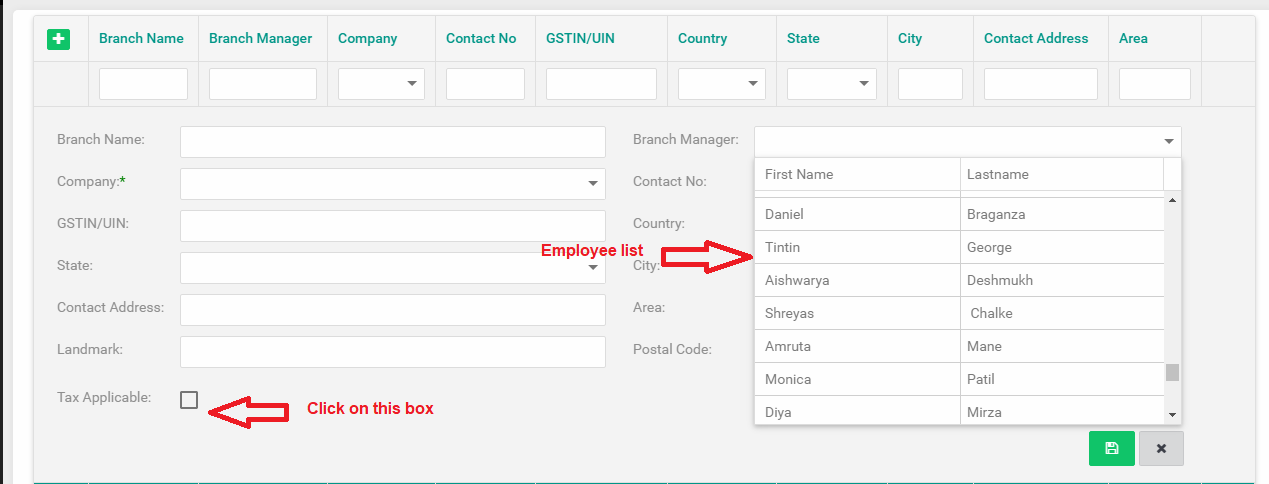
Add information about the branch
Steps to branch
- Click Branch
- Branch Manager → This list is shown Employee List (1st Add Employee) Go to Human Resource → New Employee →Fill all details → save → click on Employee list
- Select Compnay in same as Above bank
- Tax Applicable :- If there is a branch for your company too, then you want to bill those barnaches, only then click Tax Applicable.
- Fill all details
- click Save
Category
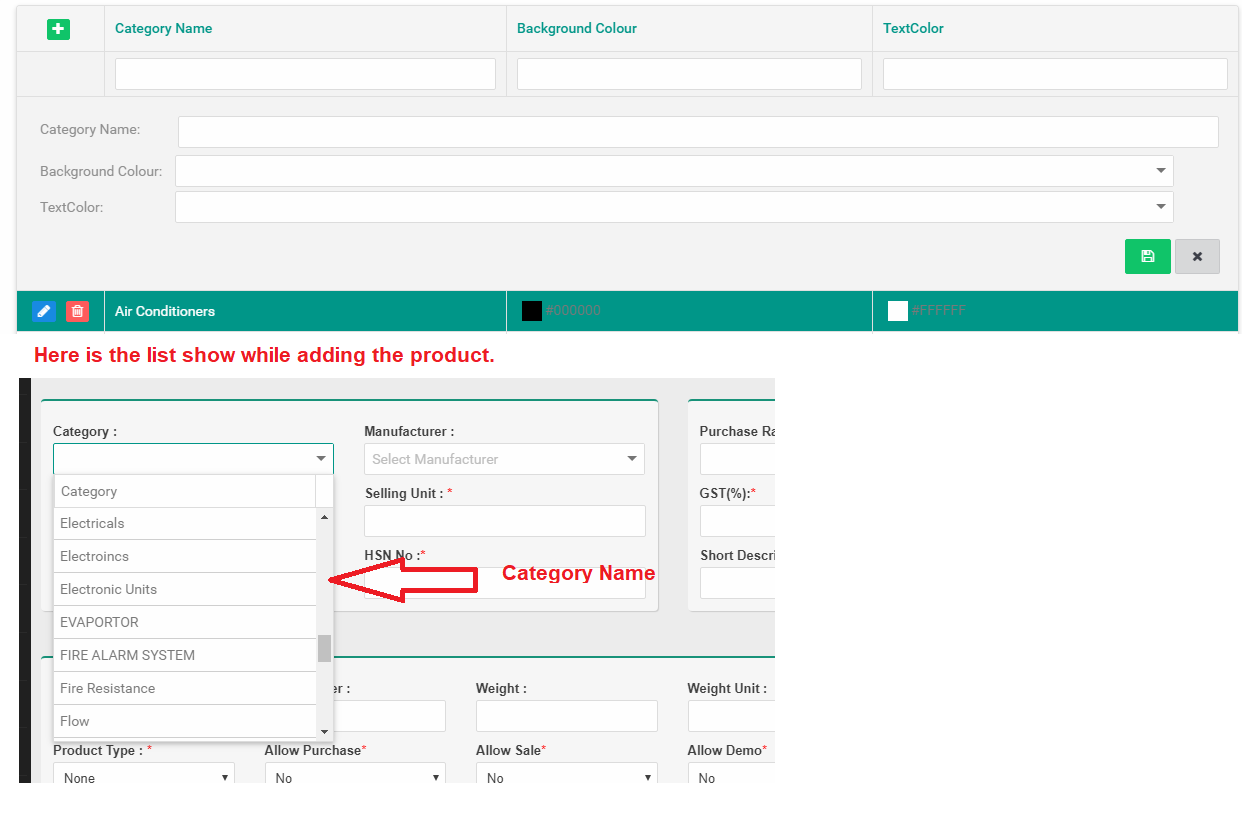
If the product has a category, then we have to show the category name in this module.
Ex:-TV, Computer (Electronic category)
This category is used when adding a product.Go to Master → Product → Add Product
Steps to Category
- Click Category
- Click icon
- Write Category Name
- Choose Background Color And Text Color
- Click Save
- If you want to Edit and Delete record then click on Edit and Delete button
Company Details
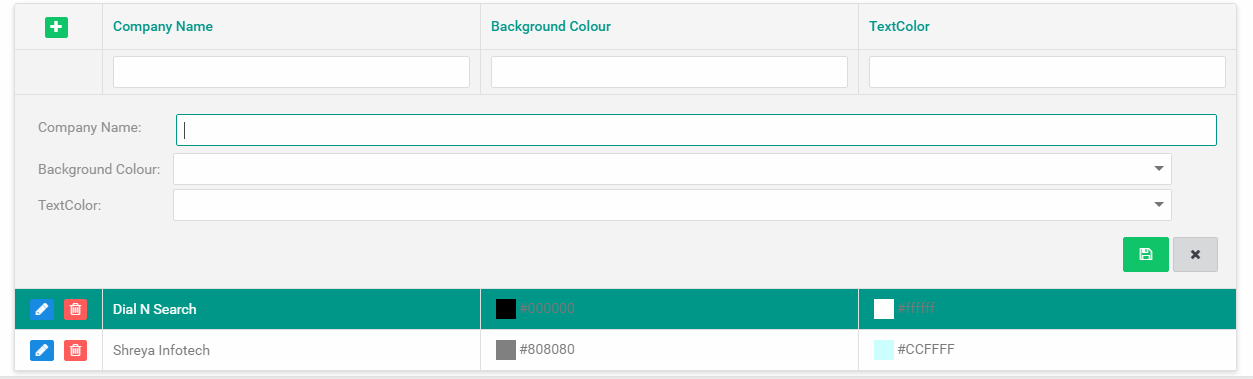
Add the present Company Name and own different company name
Steps to Company Details
- Click Company Details
- Fill all details
- click Save
Common SMTP Settings
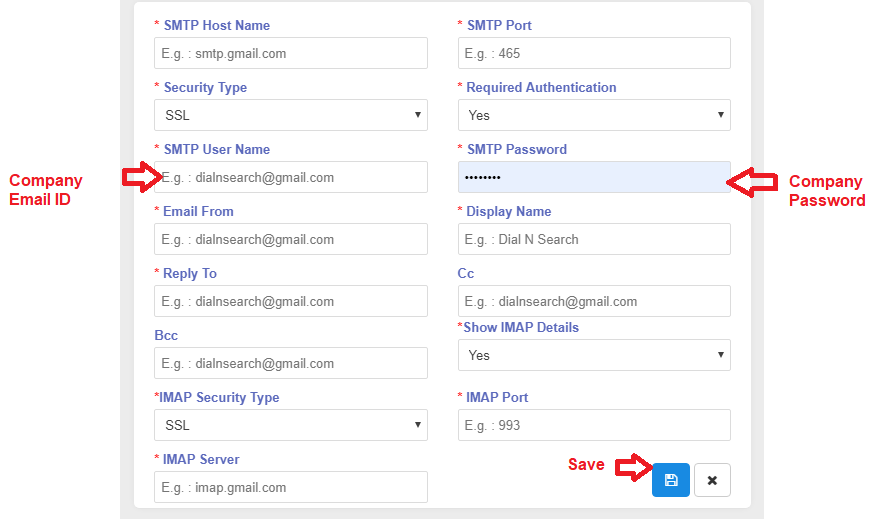
Comman Email of the company
Ex :-For the employee,Send mail to another company,etc...
Steps to Common SMTP Settings
- Click Common SMTP Settings
-
Security Type
- SSL :- Secure Sockets Layer (SSL) is a networking protocol designed for securing connections between web clients and web servers over an insecure network, such as the internet.
- TLS :- Transport Layer Security. Transport Layer Security (TLS), and its now-deprecated predecessor, Secure Sockets Layer (SSL), are cryptographic protocols designed to provide communications security over a computer network.
- None :- No security
- Required Authentication yes
- Show IMAP Details yes
- click Save
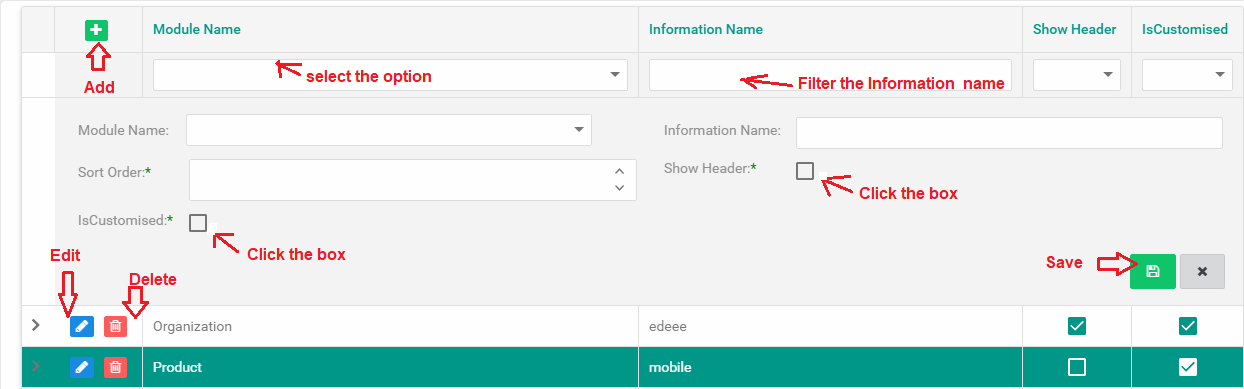
Custom Information
If you want to add some other information, then you can use it EX: - You have to add a column, make many templates.
Steps to Custom Information
- Click Custom Information
- Module Name Select the name of the Module for which it is made
- Information Name
- Sork order Ex 1,2,3
- Show header If you want header then click the option
- Is Customised If you want particular user then click the option
- click Save
Data Source
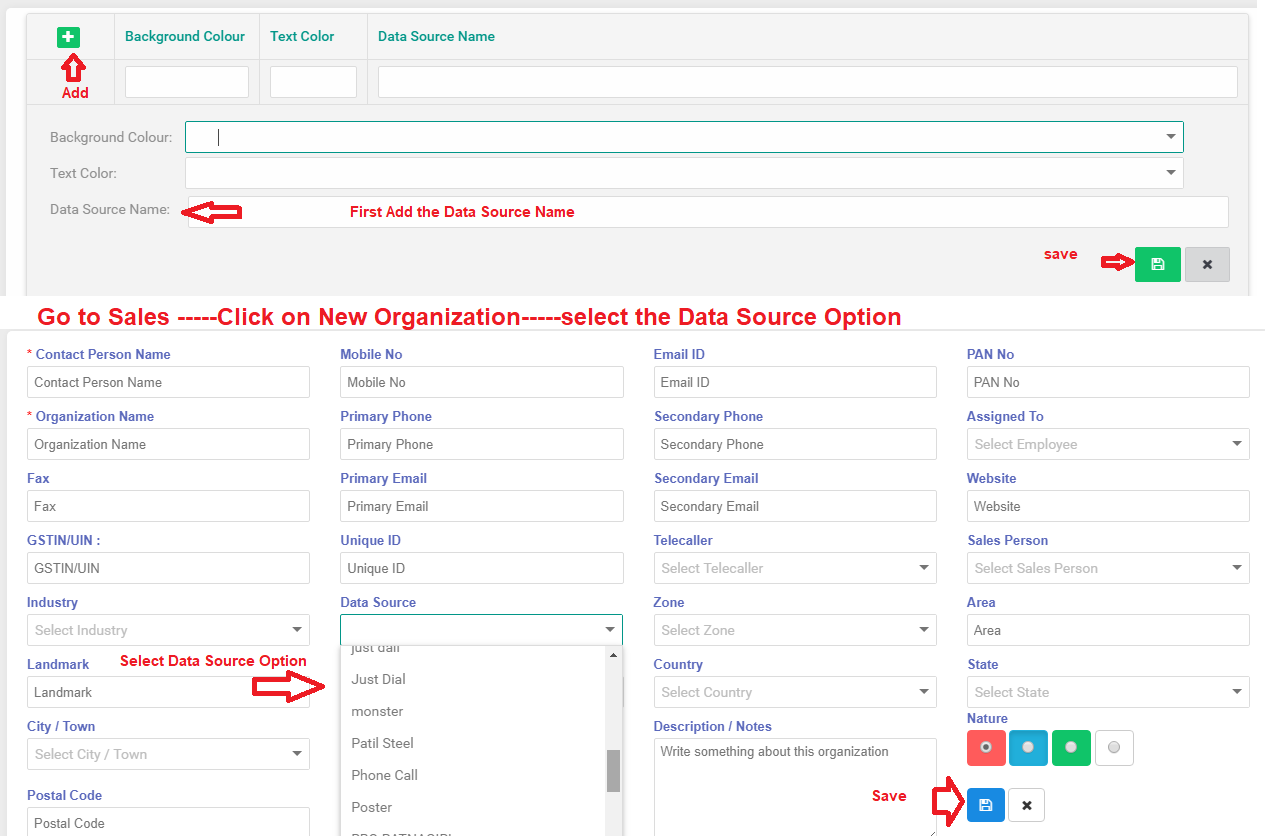
This Module is used here to know through which customer has received your information.
This option is in the New Organazation Go to New Organazation → select the data source option
Steps to Data Source
- Click Data Source
- Fill all details
- click Save
Department
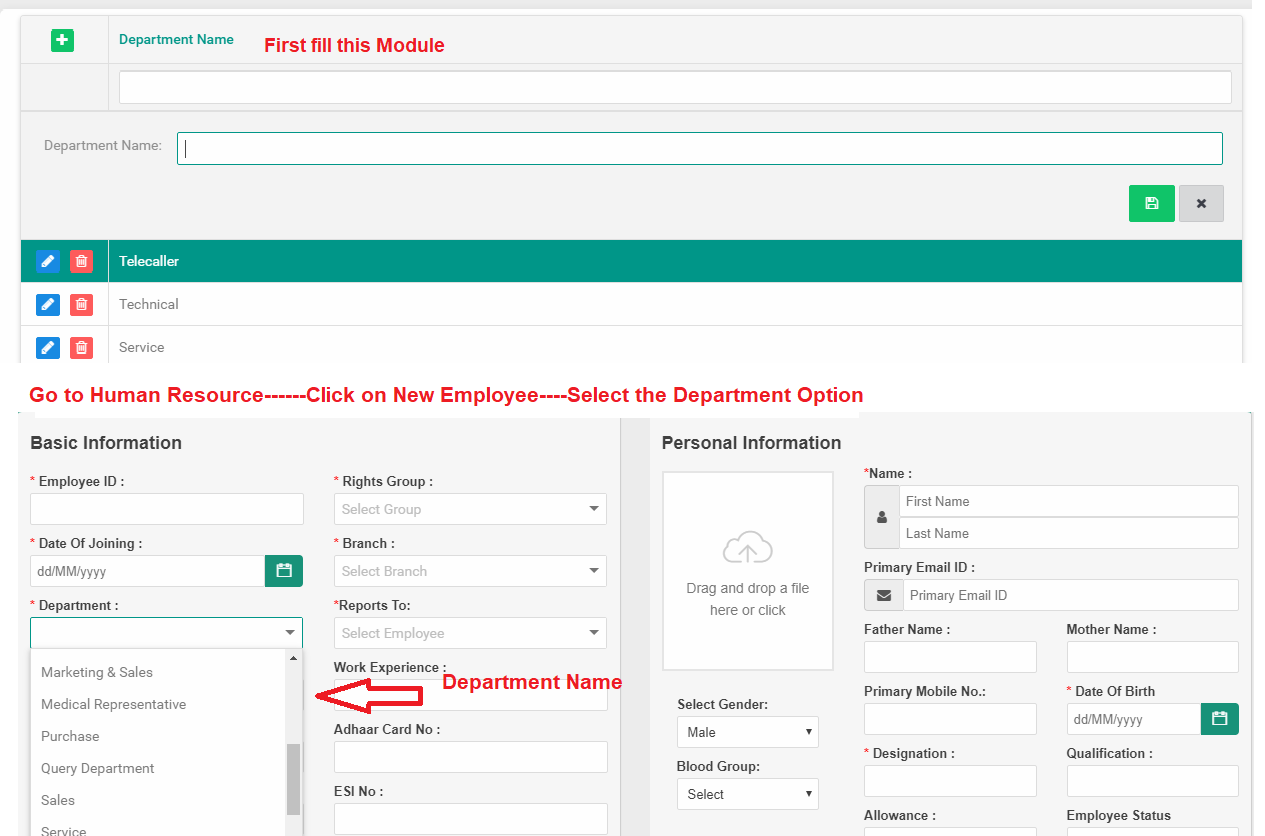
Which employee works in the department, so the module is used here
This option is in the New Employee Go to Human Resource → click on New Employee → select the Department option
Steps to Data Source
- Click Department
- Fill the Department Name
- click Save
Description
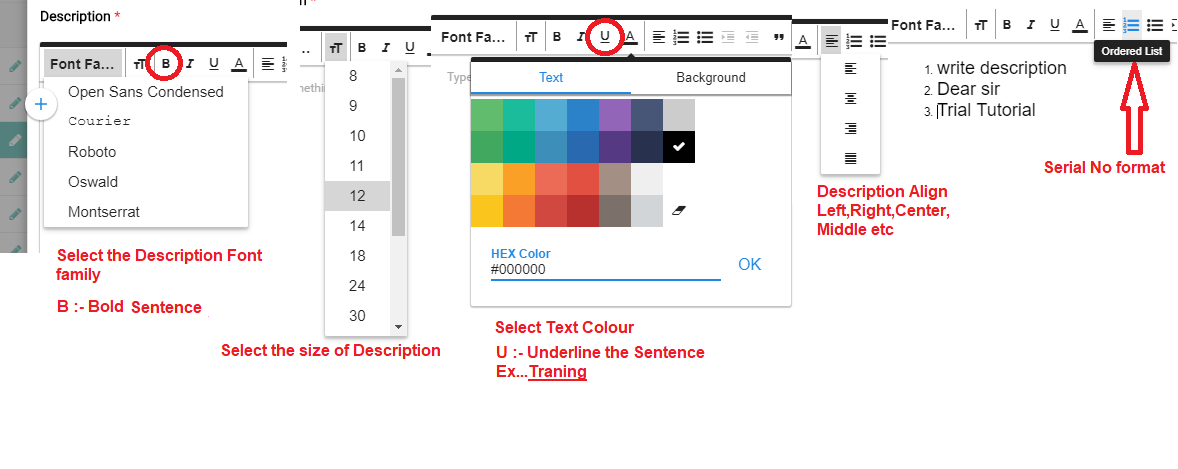
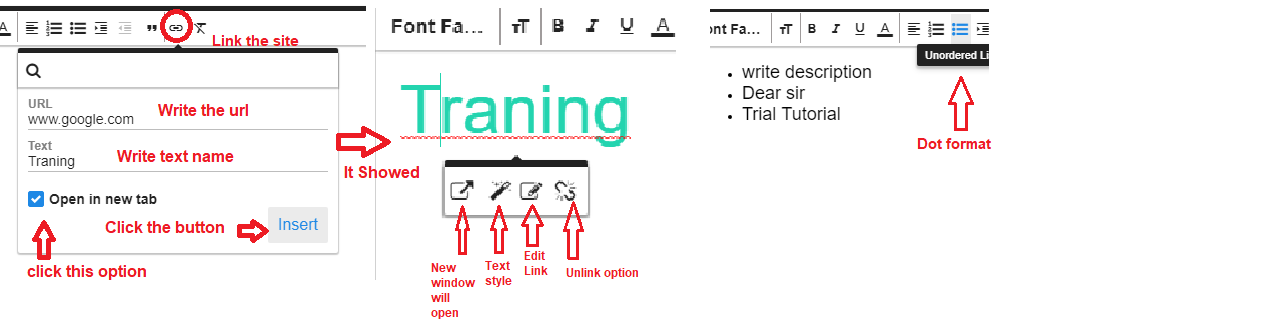
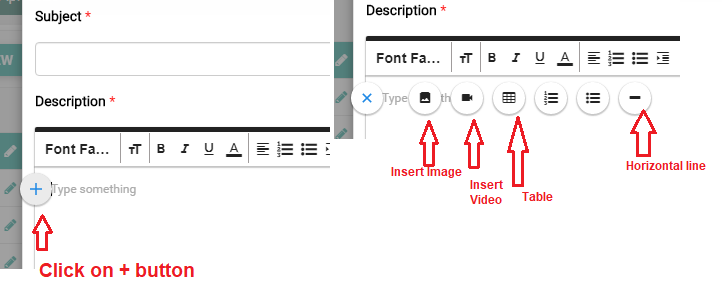
Full Description in model Ex...Quotation,Invoice,sales order
Steps to Description
- Click Description
- Look at the screenshot and fill all the details
- click Save
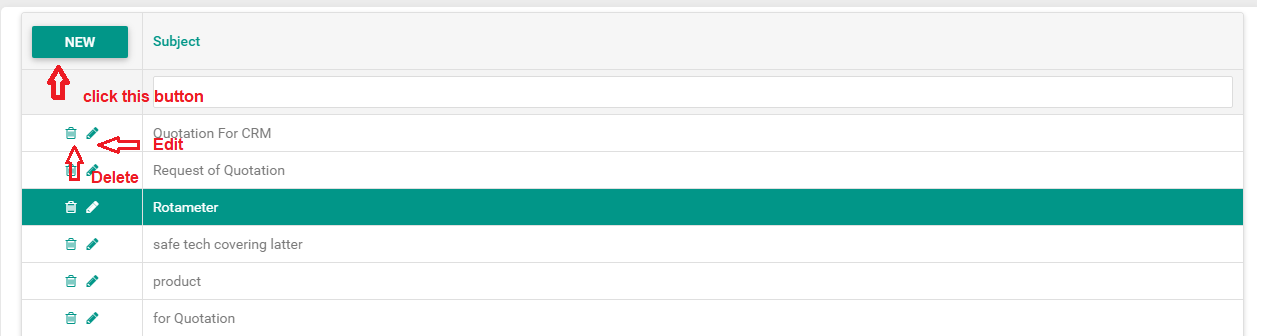
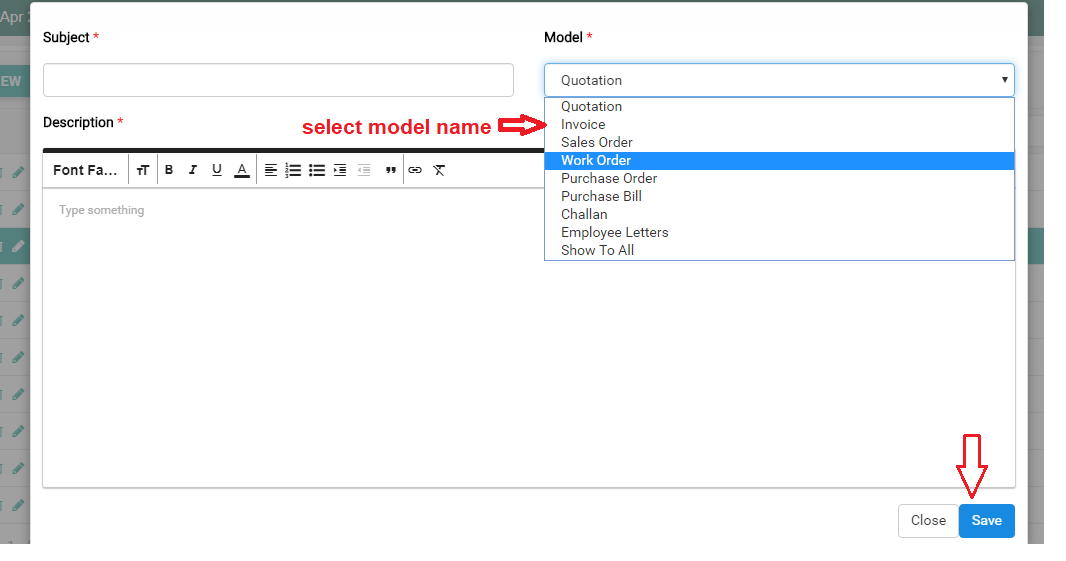
Details of how to use the option are given
Email Campaign
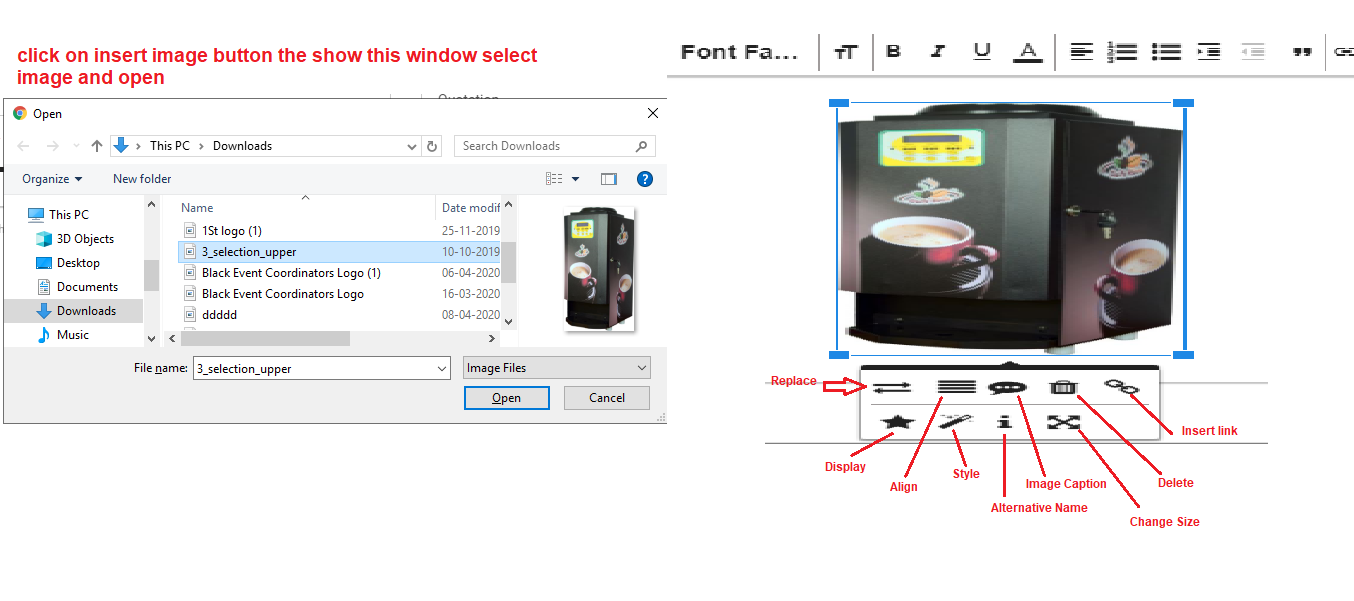
It is use done here to give any kind of bulk message
Bulk email is email that is sent to large groups at once. It is typically comprised of advertising or marketing messages that are sent in large quantities all at once, as mass email.
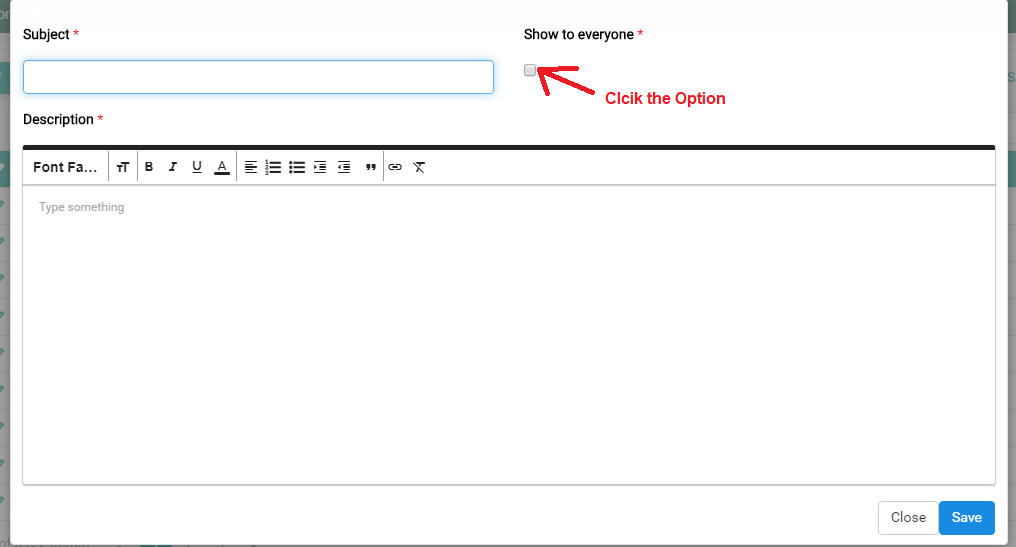
Steps to Data Source
- Click Email Campaign
- Click on NEW Button In left side
- Write Subject name
- Show to everyone If you want show everyone then Click this option
- Write the Description
- click Save
Fault Category
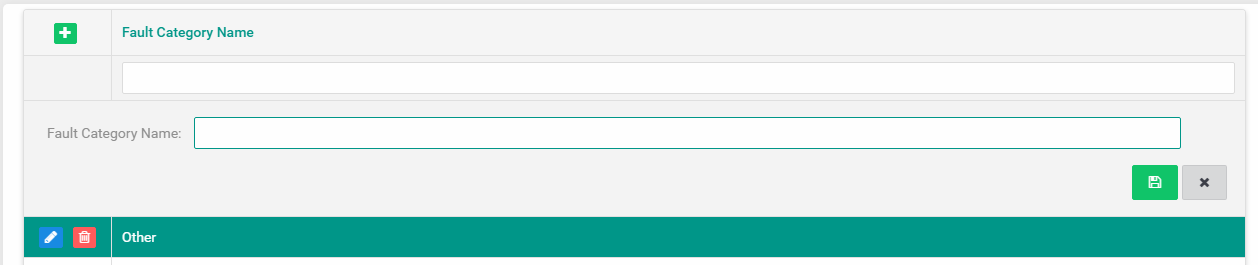
If there is any type of weed in the product, then the name of the category of the same product is written here.
Steps to Fault Category
- Click Fault Category
- Enter the Fault Category Name
- click Save
Holiday List
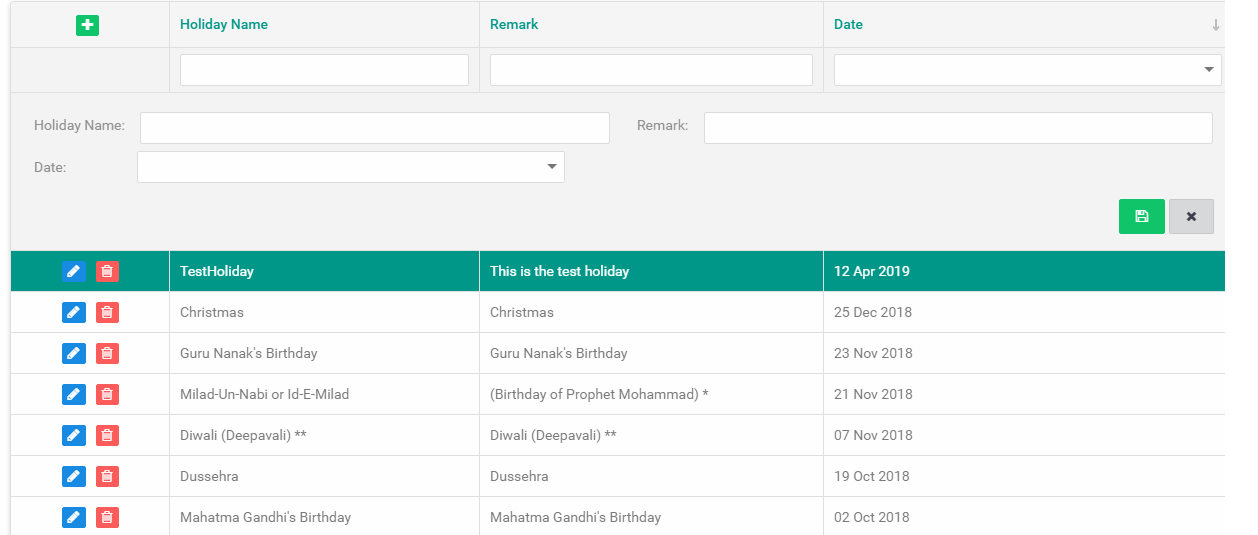
Which holidays are given in the company? Their list is that.
Steps to Holiday List
- Click Holiday List
- Fill the details
- click Save
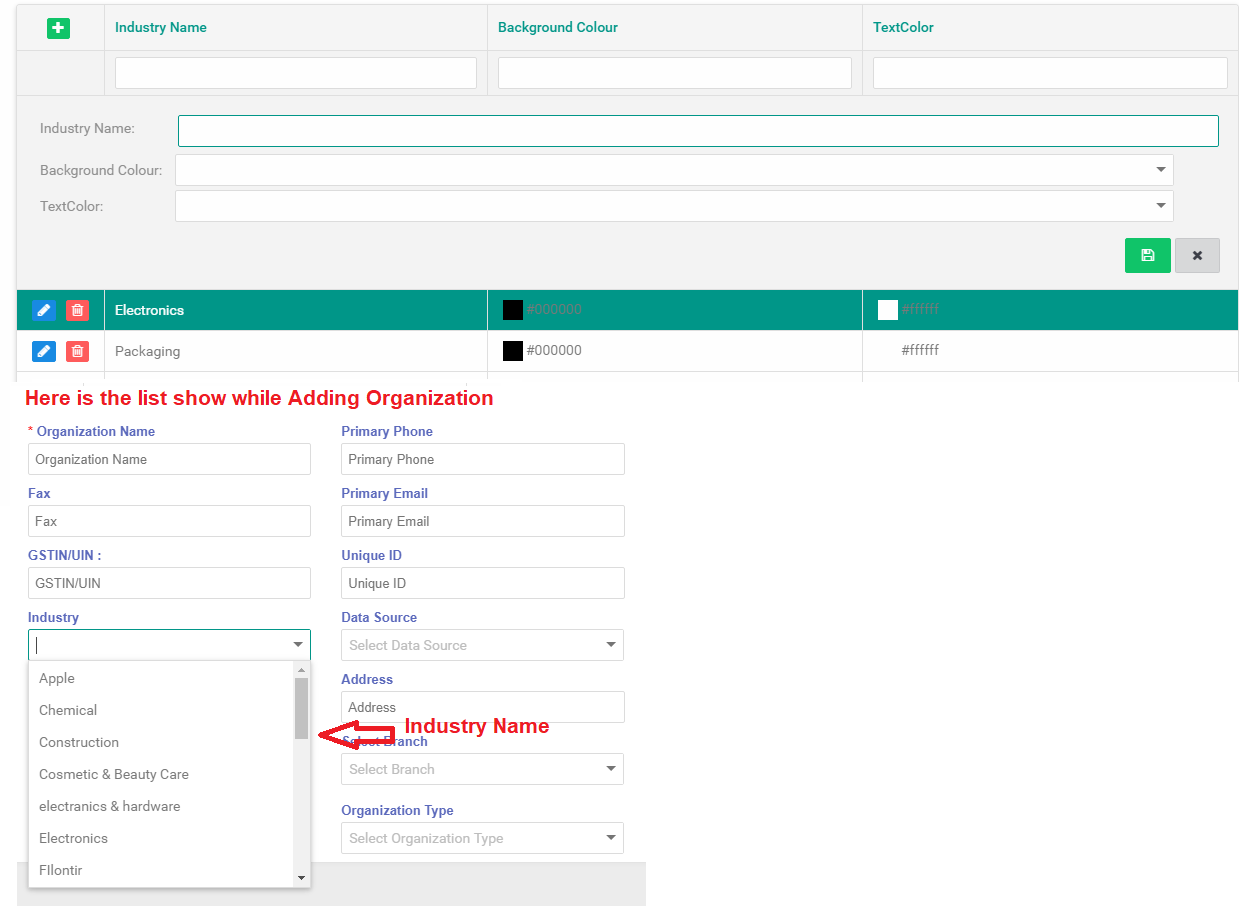
Industry
What industry is in this Organization
Steps to Industry
- Click Industry
- Fill the details
- click Save
Inventory Location
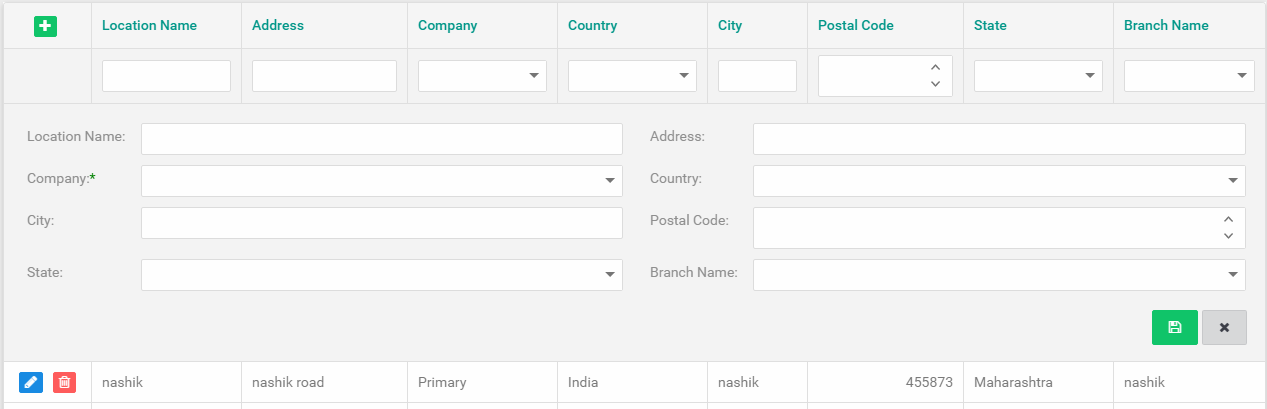
It is same about Branch
Steps to Inventory Location
- Click Inventory Location
- Fill the details
- click Save
Leave Type
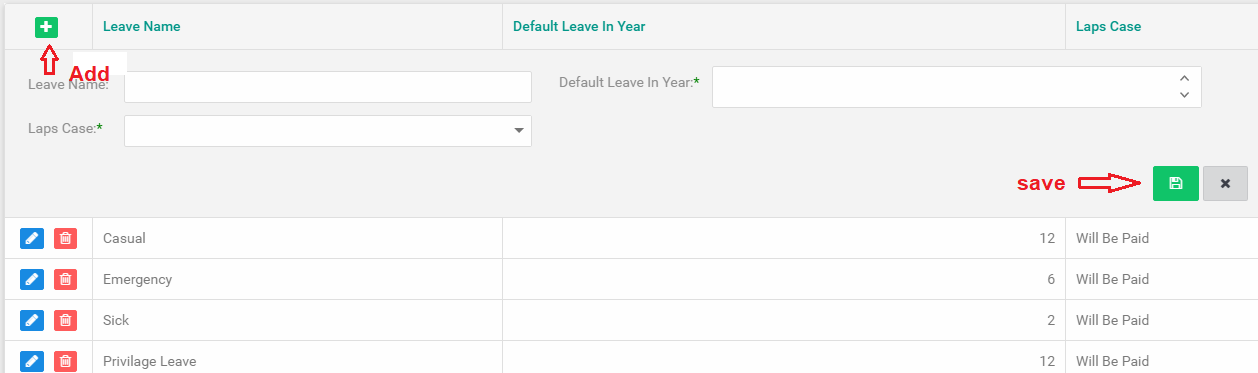
How many holidays has the employee had in a year and for what reason?
See in Human Resource → Employee list → Double Click employee → Click on Offer letter Tab(Show Right side) → Double click record →3rd Tab Allow to Leave
Steps to Leave Type
- Click Leave Type
- Fill the details
- click Save
Manufacture
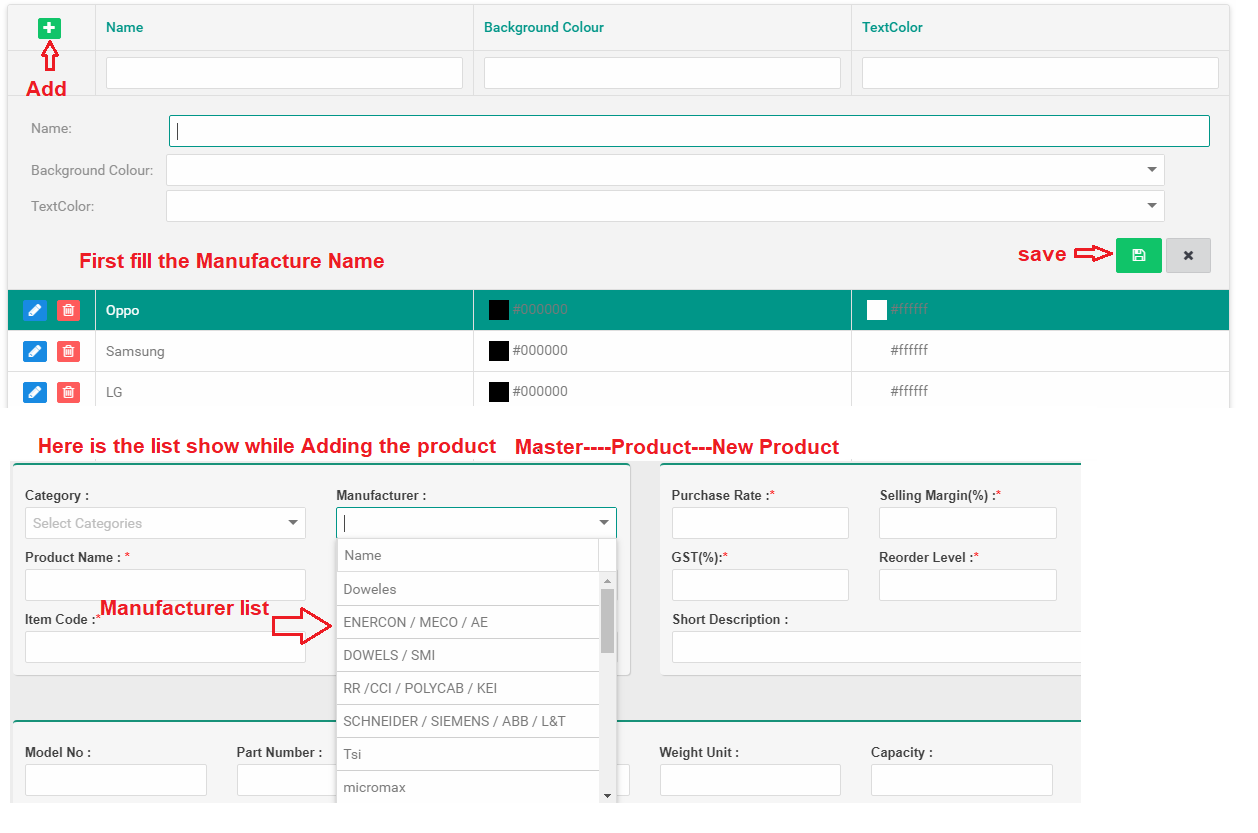
What is the product Manufacture
Ex:-oppo,samsung
This manufacture is used when adding a product.Go to Master → Product → Add Product
Steps to Manufacture
- Click Manufacture
- Click icon
- Click Save
- If you want to Edit and Delete record then click on Edit and Delete button
Manufacture Unit
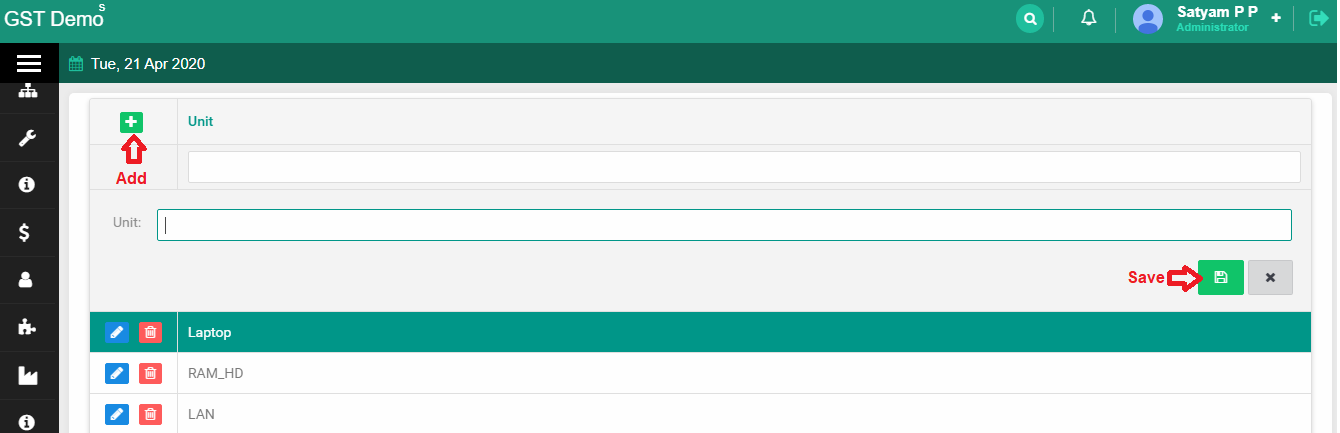
What is the product Manufacture Unit
Ex:-Nos
This Manufacture Unit is used when adding a product.Go to Master → Product → Add Product
Steps to Manufacture Unit
- Click Manufacture Unit
- Click icon
- Click Save
- If you want to Edit and Delete record then click on Edit and Delete button
Organization Type
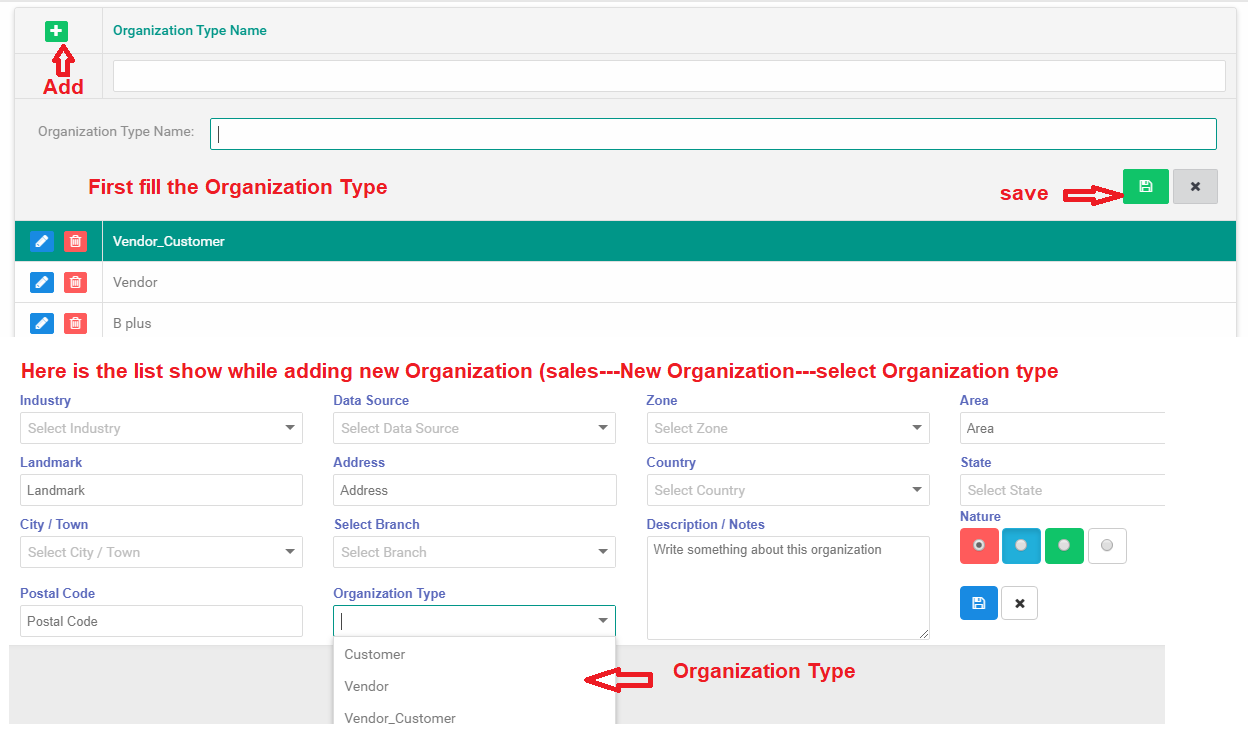
This option is in the New Organazation Go to sale → New Organazation → select the Organization Type option
Steps to Organization Type
- Click Organization Type
- Click icon
- Click Save
- If you want to Edit and Delete record then click on Edit and Delete button
Allowance Type
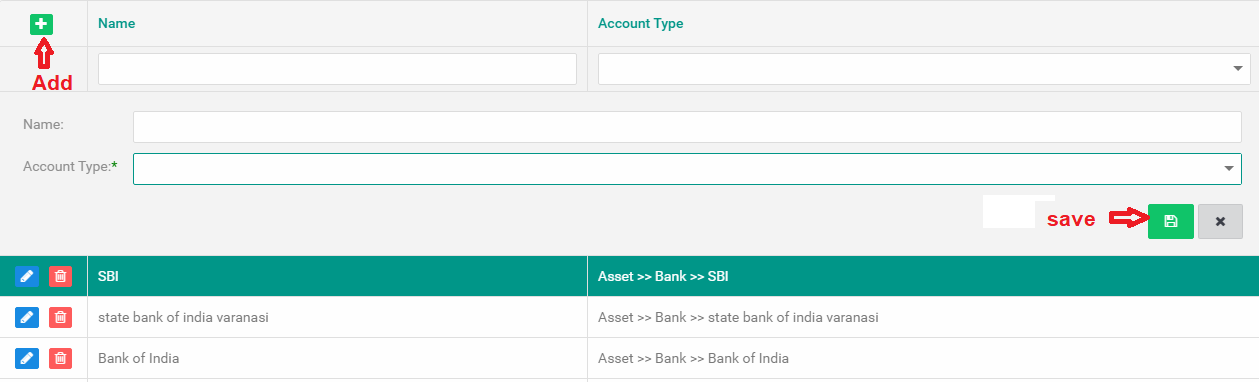
How much did the company Expense for a year
Steps to Allowance Type
- Click Allowance Type
- Fill the Details
- click Save
Process Approval
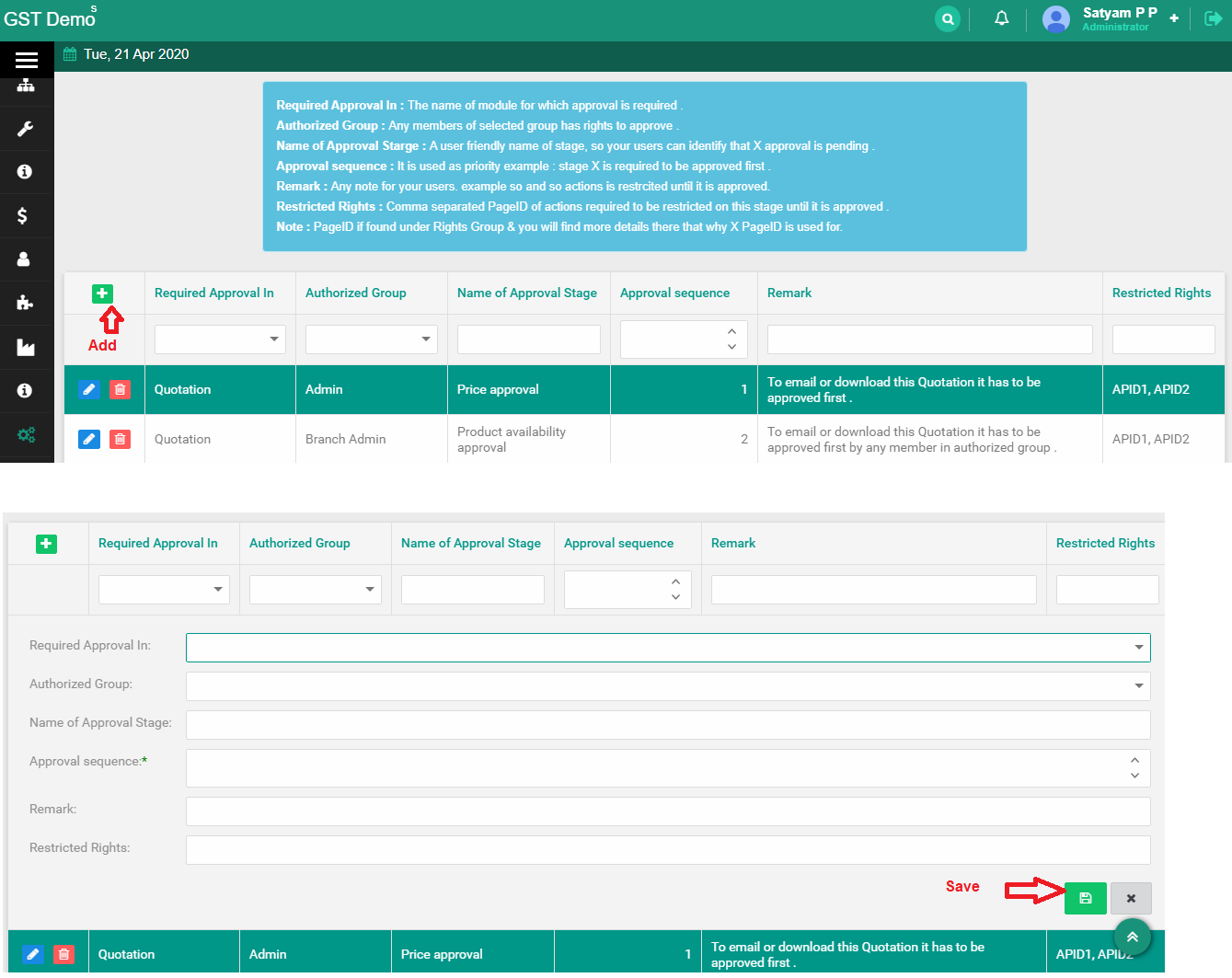
Steps to Process Approval
- Click Process Approval s
- Fill the Details
- click Save
Project Status
Steps to Project Status
- Click Project Status
- Fill the Details
- click Save
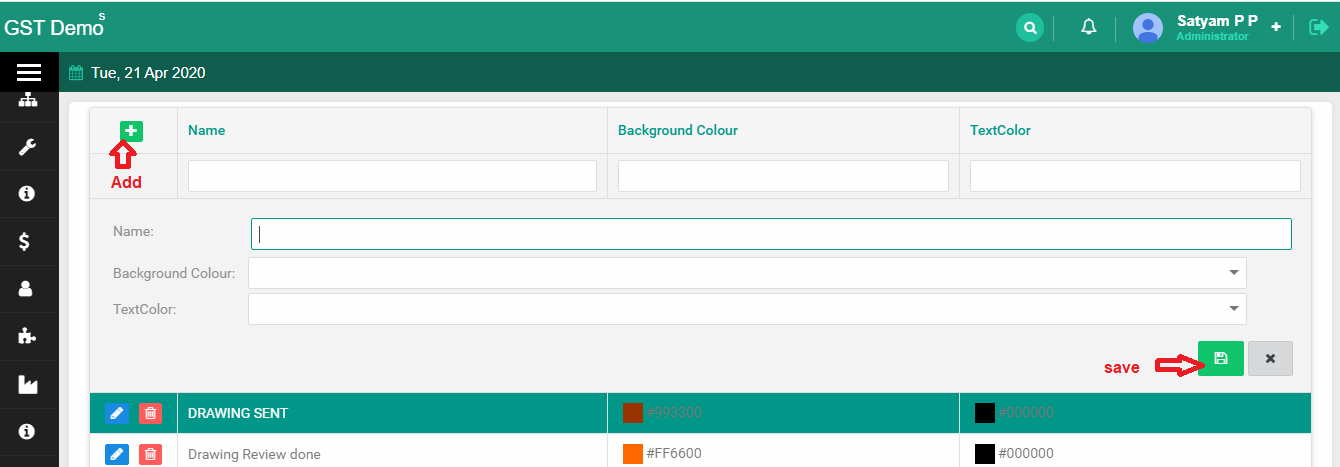
Product
- Add Product
- Product List
Add Product
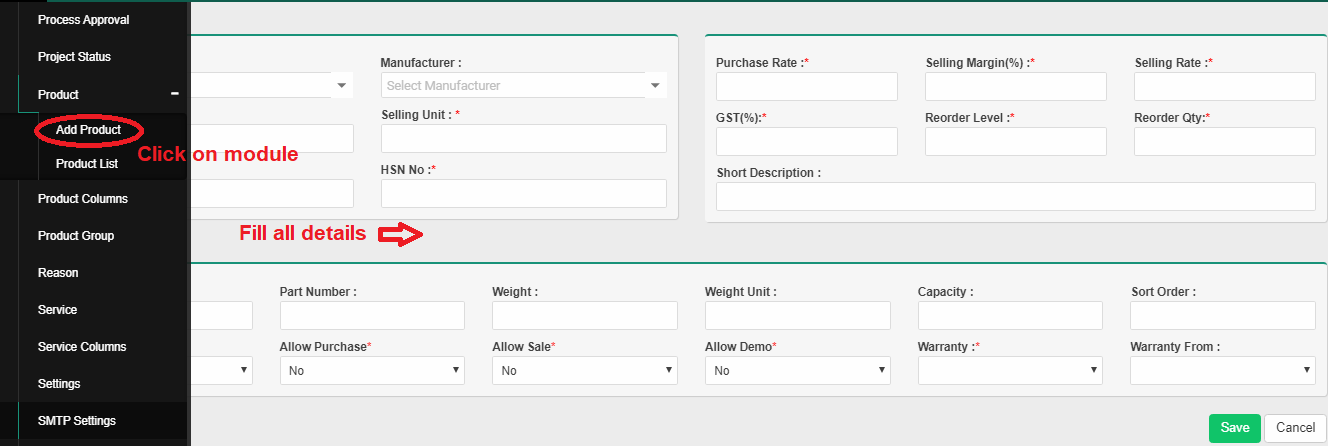
- Click on Add product
- Click on Category and select the option
- Click on Manufacturer and select the option
- Purchase Rate Product Actuall Rate
- Selling Margin(%) Sales margin is the amount of profit generated from the sale of a product or service value.
- Selling Rate Selling price
- Product Name write Product Name
- Selling Unit Selling unit Ex :-Nos,Unit
- GST(%) Product Gst(%) Ex..18,9
- Reorder Level Ex :-I have a pen in 10 quantities, my pen has a stock of 50 quantities. I want 40 more pens it means reorder level.
- Reorder Qty Reorder Product Qty
- Item Code Product Item Code
- HSN No Product HSN No
- Short Description About the Product
- Model No Product Model No
- Part Number Product Part Number
- Weight Product Weight
- Weight Unit Weight Unit
- Capacity Product Capacity
- Sort Order List of product in serial wise
- Product Type
- None Simple product
- Required Installtion and Serial No If there is Installtion and Serial No product then select this option
- Serial No If there is Serial No product then select this option
- Allow Purchaseselect YES option
- Allow Sale select YES option
- Allow Demo select YES option
- Warranty select option
- Warranty From select option
- Click SAVE button
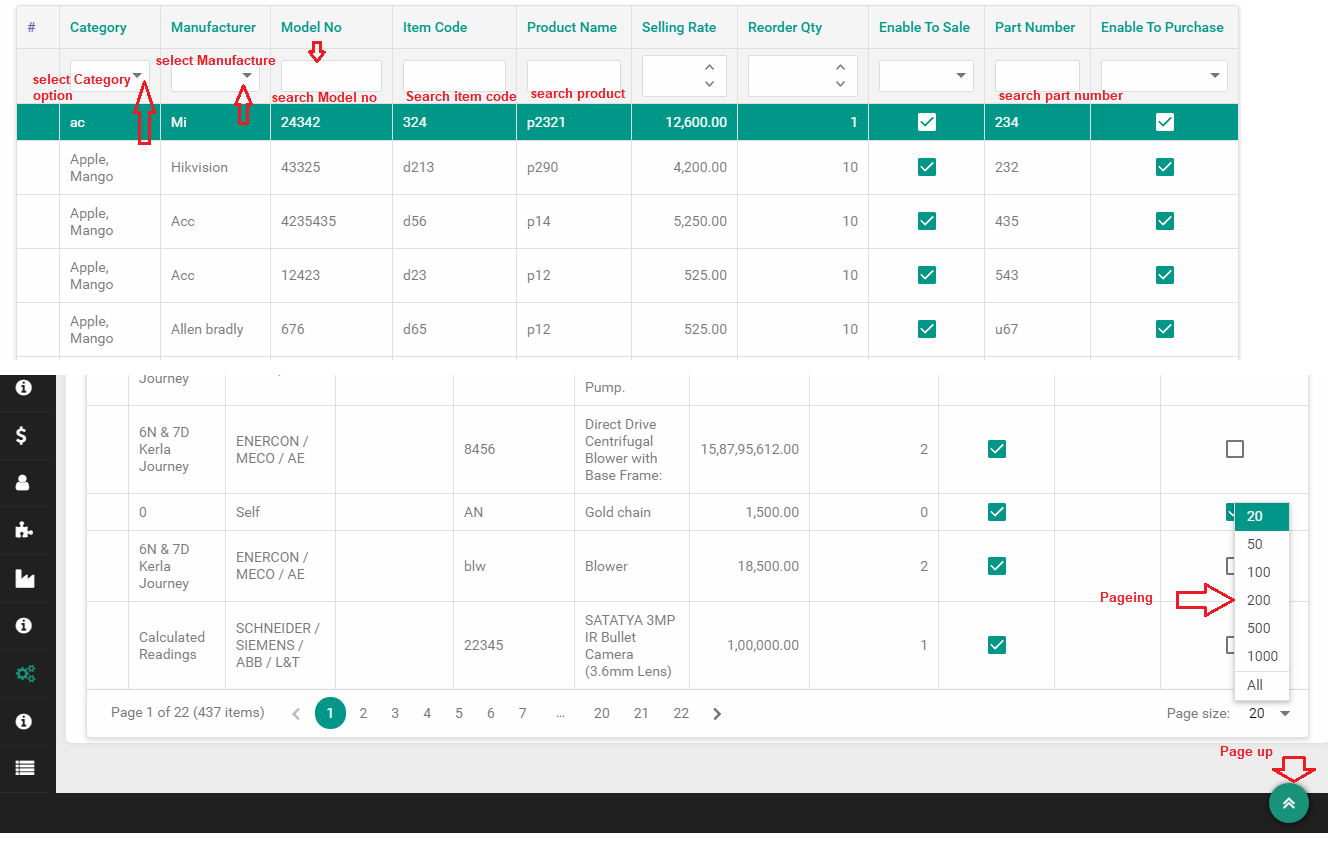
Product List
Show the Product List
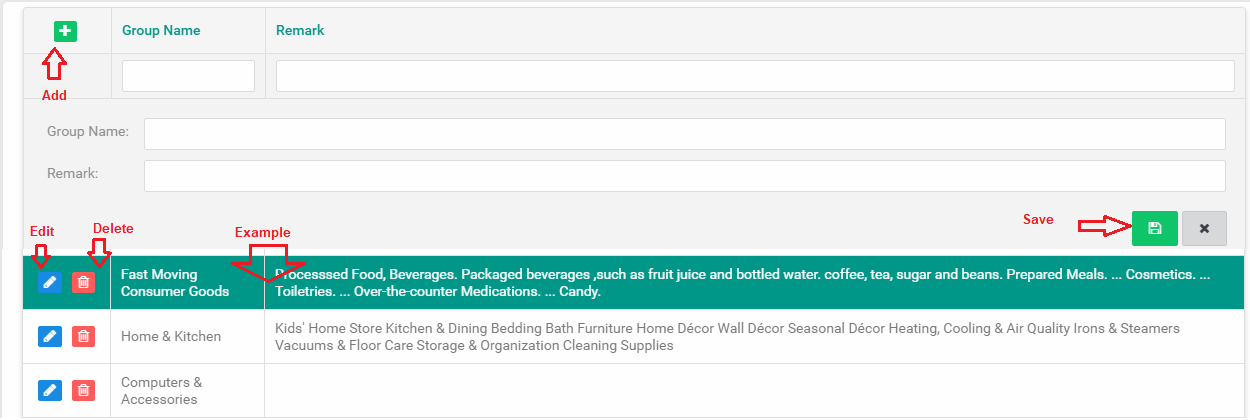
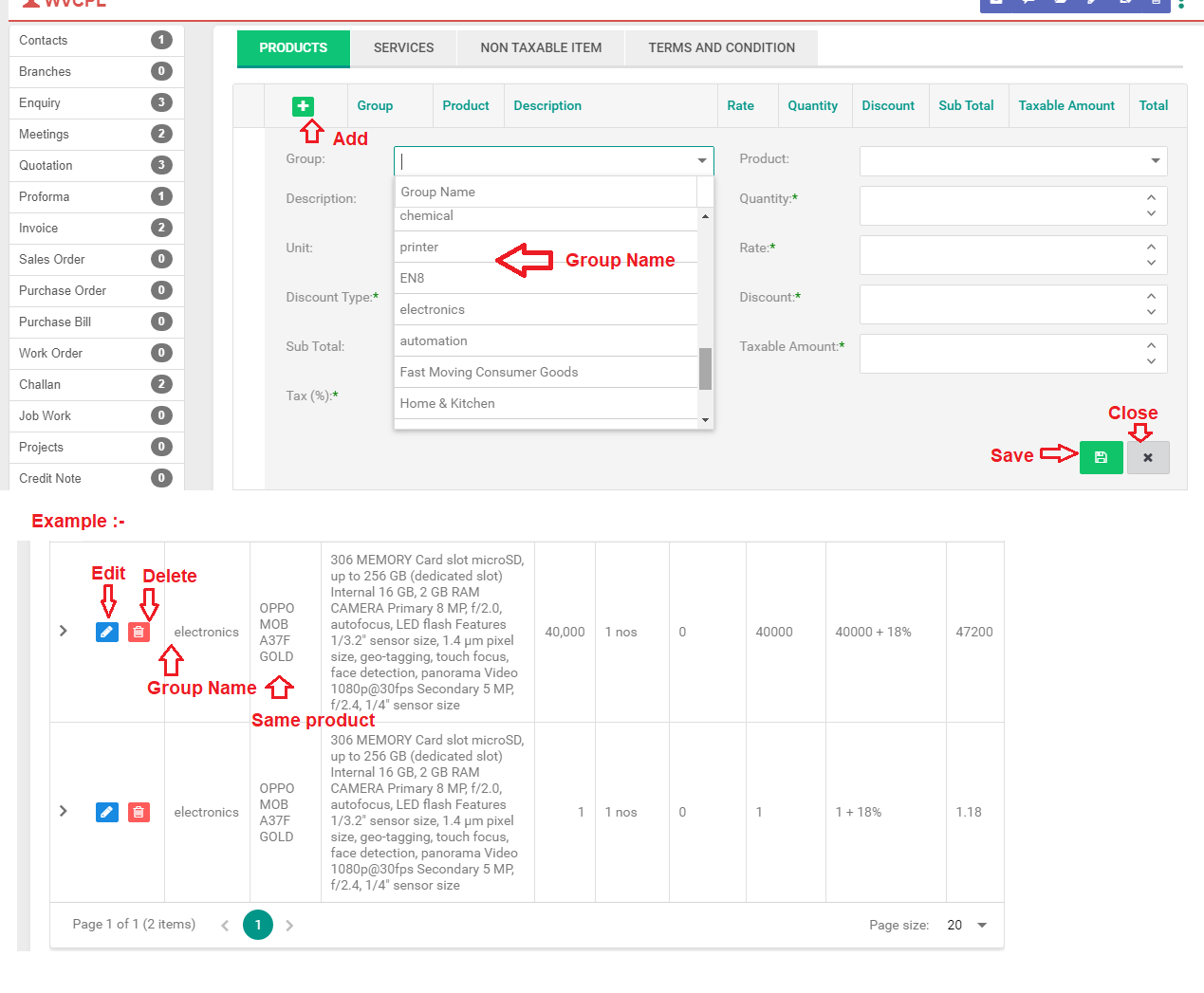
Product Group
If we want to select same products, then we create a group of products
Steps to Product Group
- Click Product Group
- Fill the Details
- click Save
Here is the list show while Ex:-Add Quotation product then it show ,Performa Invoice,Tax invioce,PO etc....
Reasons
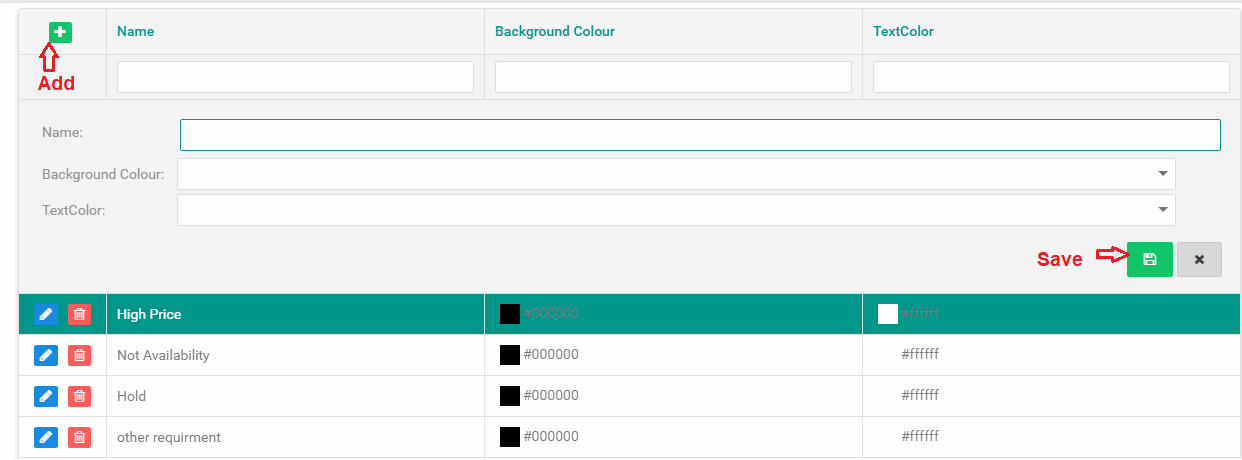
If an enquiry has been done and she has gone to enquiry Lost, what is her reasoning?Such records are here
Steps to Reason
- Click Reason
- Fill the Details
- click Save
Service
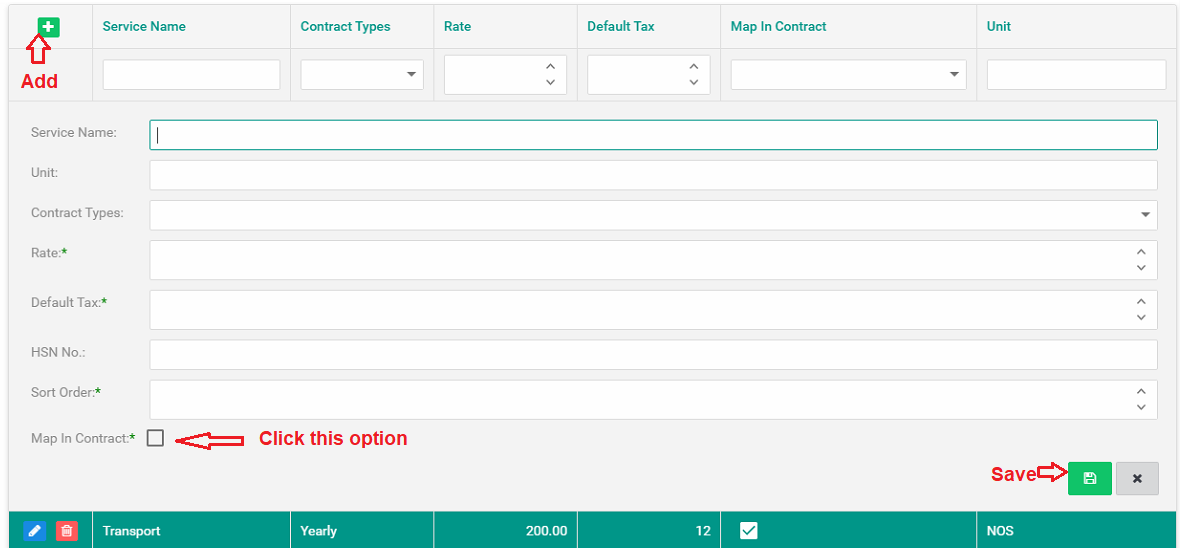
If any product has services, then add that service to this Module
Steps to Service
- Click Service
- Fill the Details
- click Save
SMTP Settings
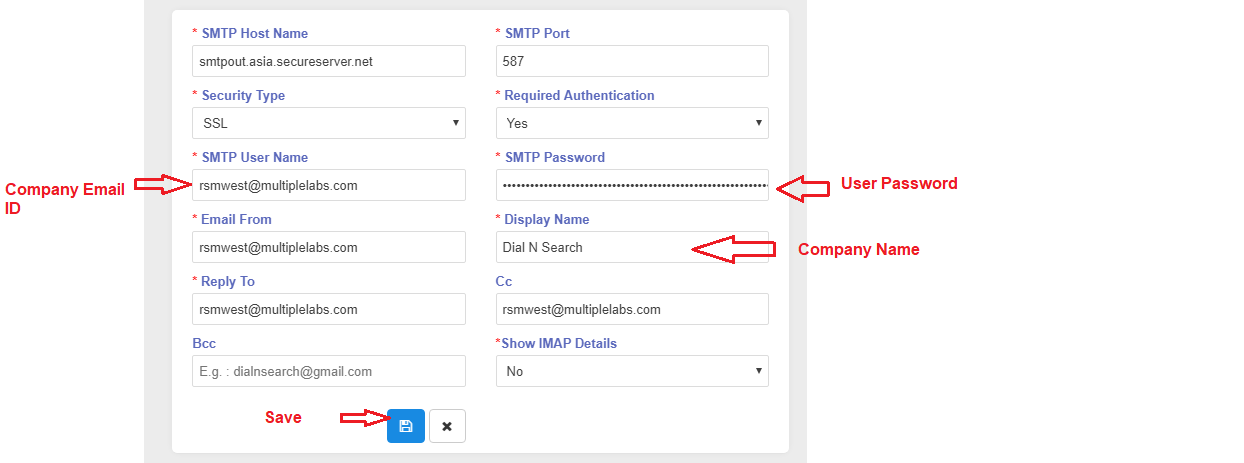
It is Simple Mail Transfer Protocol(SMTP), a protocol for sending e-mail messages. Most e-mail systems that send mail over the Internet use SMTP to send messages from one server to another
Add the Gmail Account (Ex :-Quotation, Invoice,Performa Invoice etc...send to gmail account)
Steps to Common SMTP Settings
- Click SMTP Settings
-
Security Type
- SSL :- Secure Sockets Layer (SSL) is a networking protocol designed for securing connections between web clients and web servers over an insecure network, such as the internet.
- TLS :- Transport Layer Security. Transport Layer Security (TLS), and its now-deprecated predecessor, Secure Sockets Layer (SSL), are cryptographic protocols designed to provide communications security over a computer network.
- None :- No security
- Required Authentication yes
- Show IMAP Details yes
- click Save
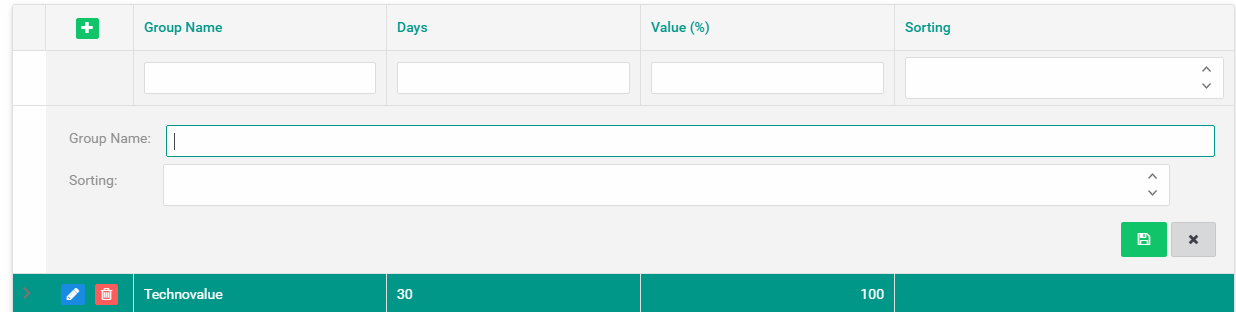
Task Group
Particular days are given to complete a project.
Steps to Task Group
- Click Task Group
- Click on + Button
- Fill the Details
- click Save
Terms And Condition
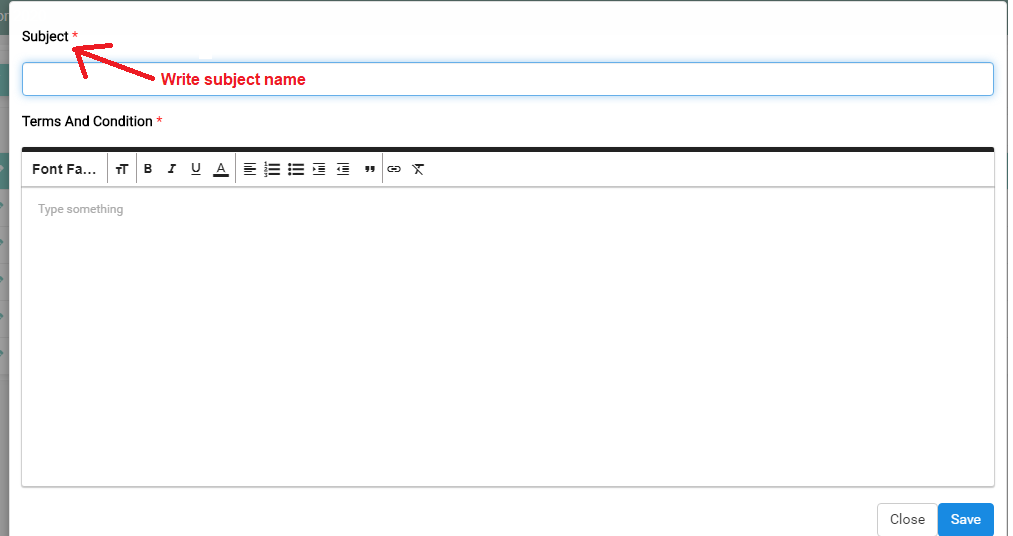
Any type off details
Steps to Terms And Condition
- Click Terms And Condition
- Click on NEW Button
- Fill the Details
- click Save
Zone
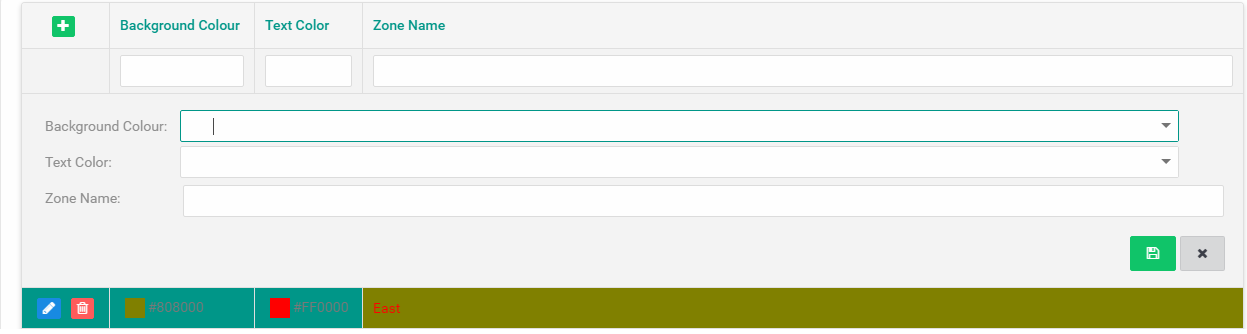
Ex :-East,West,Zone A,Zone B
Steps to Zone
- Click Zone
- Click on + Button
- Fill the Details
- click Save
Enquiry Status
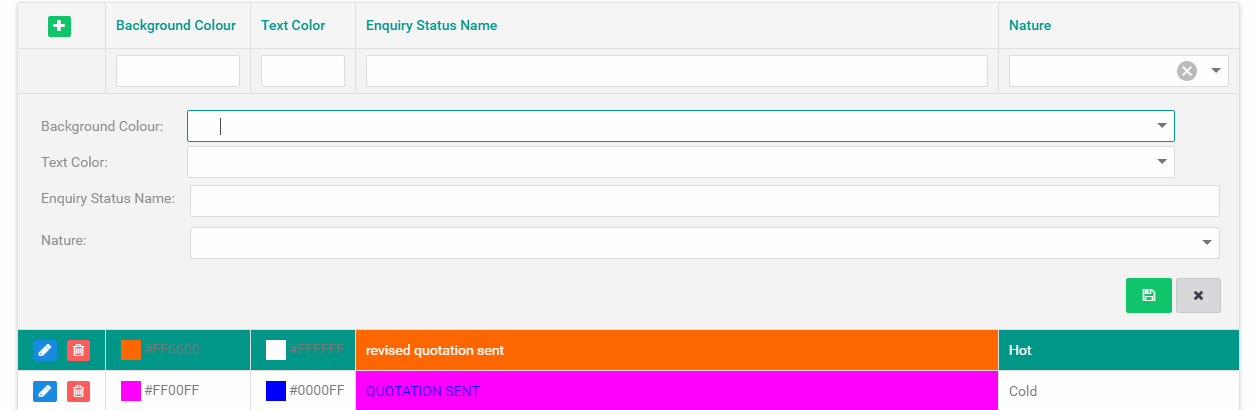
What is the status if an Enquiry is done,what is its status write the description
Steps to Enquiry Status
- Click Enquiry Status
- Click on + Button
- Fill the Details
- select the Nature
- click Save
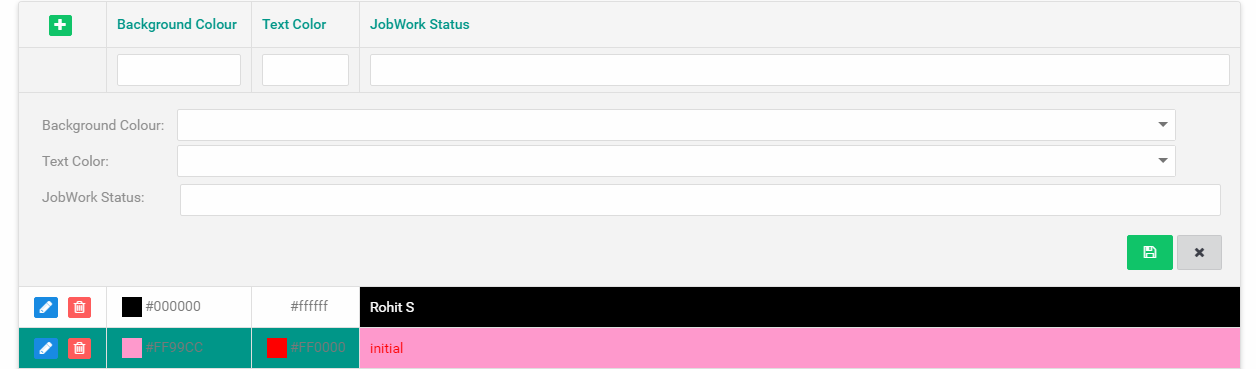
Job Work Status
If there is a mistake in your product, then if you give it to repair, then it will be your job work status.
Steps to Job Work Status
- Click Job Work Status
- Click on + Button
- Fill the Details
- click Save
Action Taken
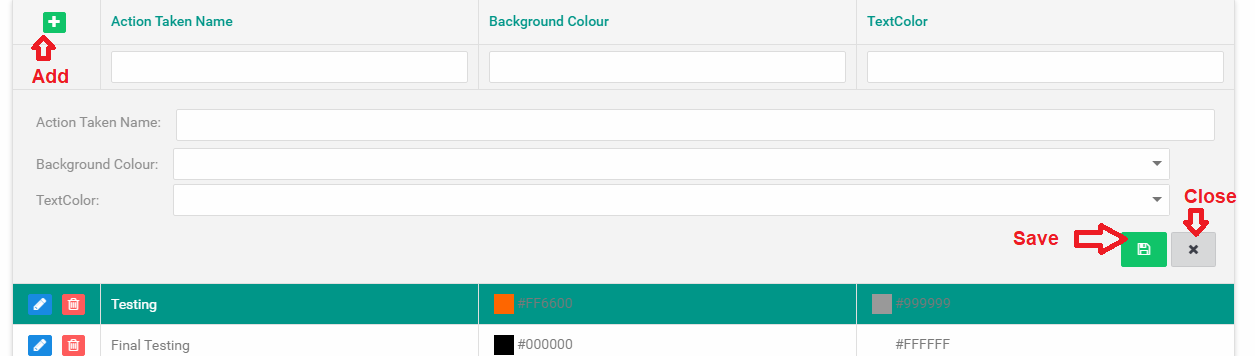
Have an action for the company
Steps to Action Taken
- Click Action Taken
- Click on + Button
- Fill the Details
- click Save
MR For
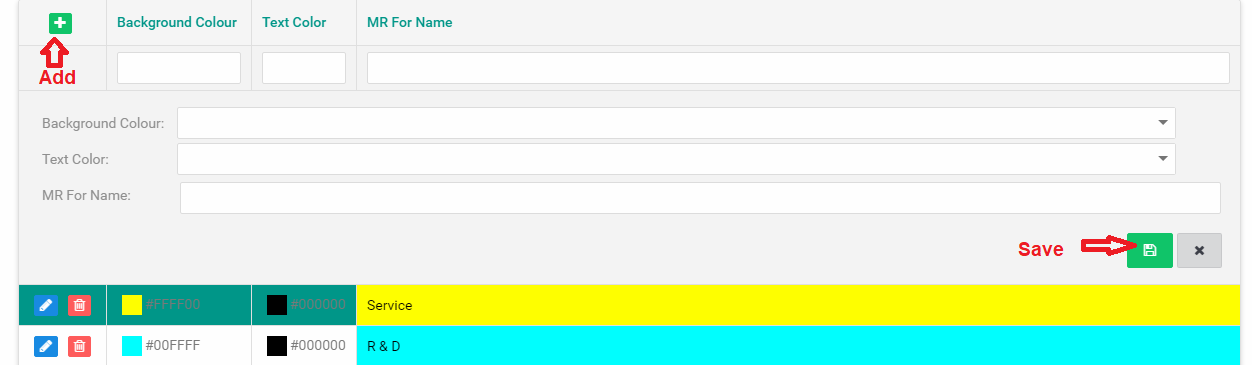
If you want any product then you want information this product Ex:-Mobile Have any information about your mobile?
If there is information of this type, then this module use should do it
See in Human Resource → New Product Request → Select MR For
Steps to MR For
- Click MR For
- Click on + Button
- Fill the Details
- click Save
Account Type
Example :-
Lability :- An expense refers to money spent by the company, or a cost incurred by the company, in an effort to generate revenue for that company. A company may have both a liability account and an expense account, but each serves a very different purpose.
Asset :- a useful or valuable thing or person.
Equity :-
Equity is typically referred to as shareholder equity (also known as shareholders' equity) which represents the amount of money that would be returned to a company’s shareholders if all of the assets were liquidated and all of the company's debt was paid off.Steps to Account type
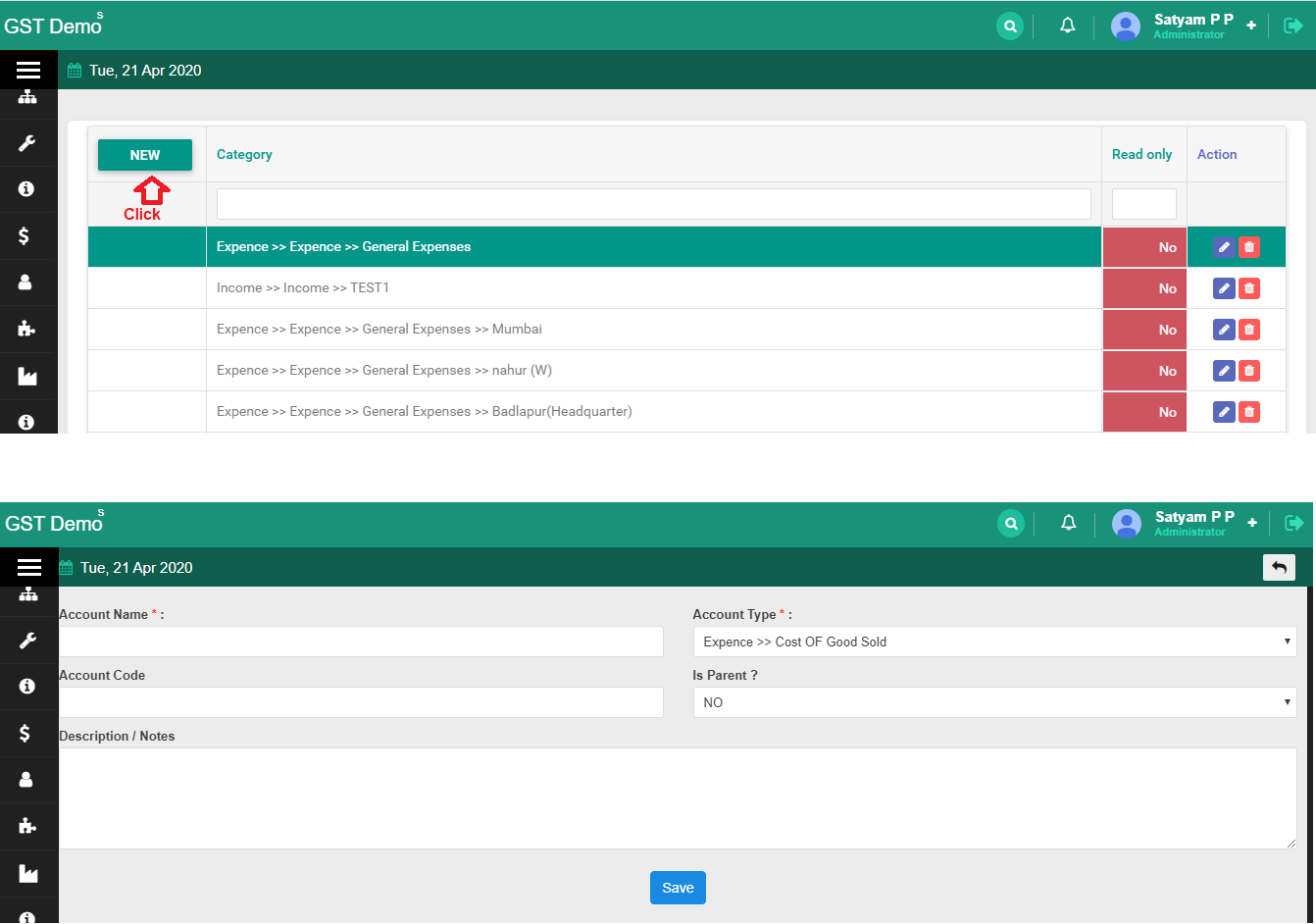
- Click Account type
- Click on NEW Button
- select Accout type option
- click Save button
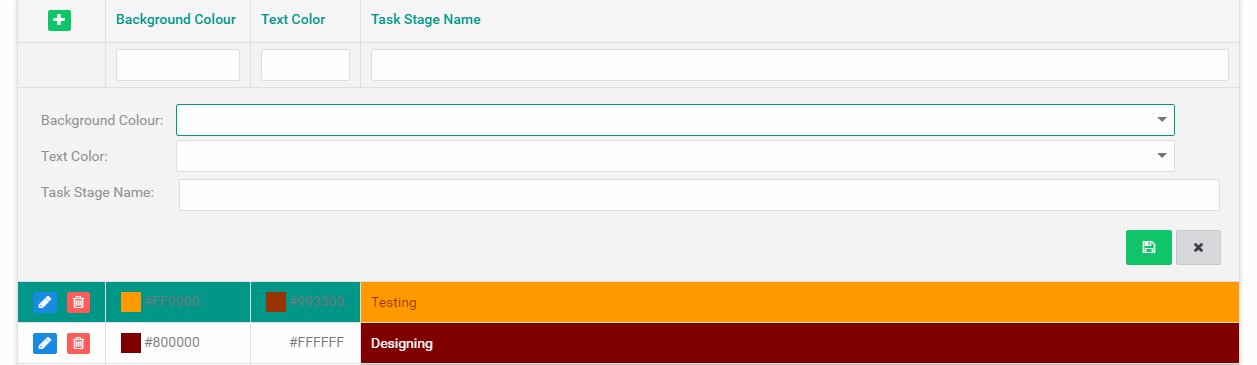
Task Stage
If you have a project and their small task is given to someone, then write the name of the task here.
Steps to Task Stage
- Click Task Stage
- Click on + Button
- Fill the Details
- click Save